

Change your WhatsApp profile picture in a few simple steps from your app settings. You can choose another photo from your gallery or take a new one with your device.
Quick Guide: Change Photo on WhatsApp
To change your profile picture on WhatsApp, open the app and tap on the three vertical dots at the top rightthen on “ Settings « . If you are using an iPhone, the settings are located at the bottom right. Then tap your current profile photo, then tap the camera icon (on Android) or the “Edit” button (on iOS). Now select a new photo or take one using your smartphone.
Change your profile picture on WhatsApp: step-by-step instructions
If you want to change photo on WhatsApp, the application offers you to choose a photo from one of your folders ortake a new one and save it on WhatsApp. Whatever you choose, the procedure is very simple. What's more, it is almost identical for smartphones running Android and iOS. Here are step-by-step instructions to change your profile picture on WhatsApp.
- Start by opening the app.
- If a conversation is open in this one, leave it so as to return to the home page.
- On an Android smartphone, tap the three vertical points in the upper right corner. If you have an iPhone, the “Settings” tab is located in the lower right corner instead. It allows you to open a menu, the last section of which is “ Settings « . Tap it.
- A page displaying your settings will then open. At the very top of it, you can see your current photo (next to your username). If you don't have a photo yet, it is replaced by a white avatar on a gray background. Tap this photo to bring up your profile page.
- If you are using an Android smartphone, tap thecamera icon at the bottom of your photo. If you are using an iPhone, choose the option “ To modify » (top right) after selecting the current profile picture.
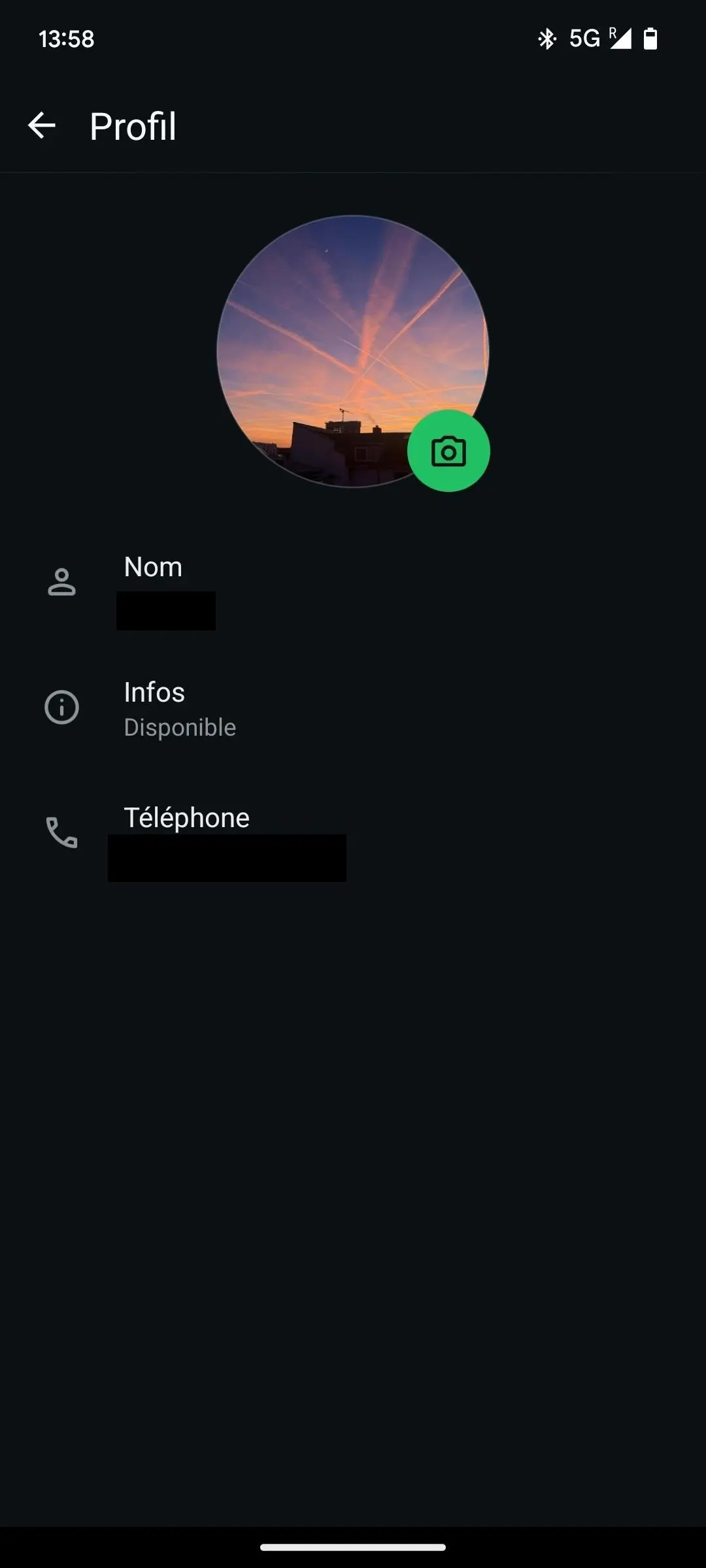
- You can now change your WhatsApp profile picture. First of all, it is possible to delete your current photo. You can then choose a photo from your gallery, take a new one using your camera directly, or choose an avatar that will replace your photo.
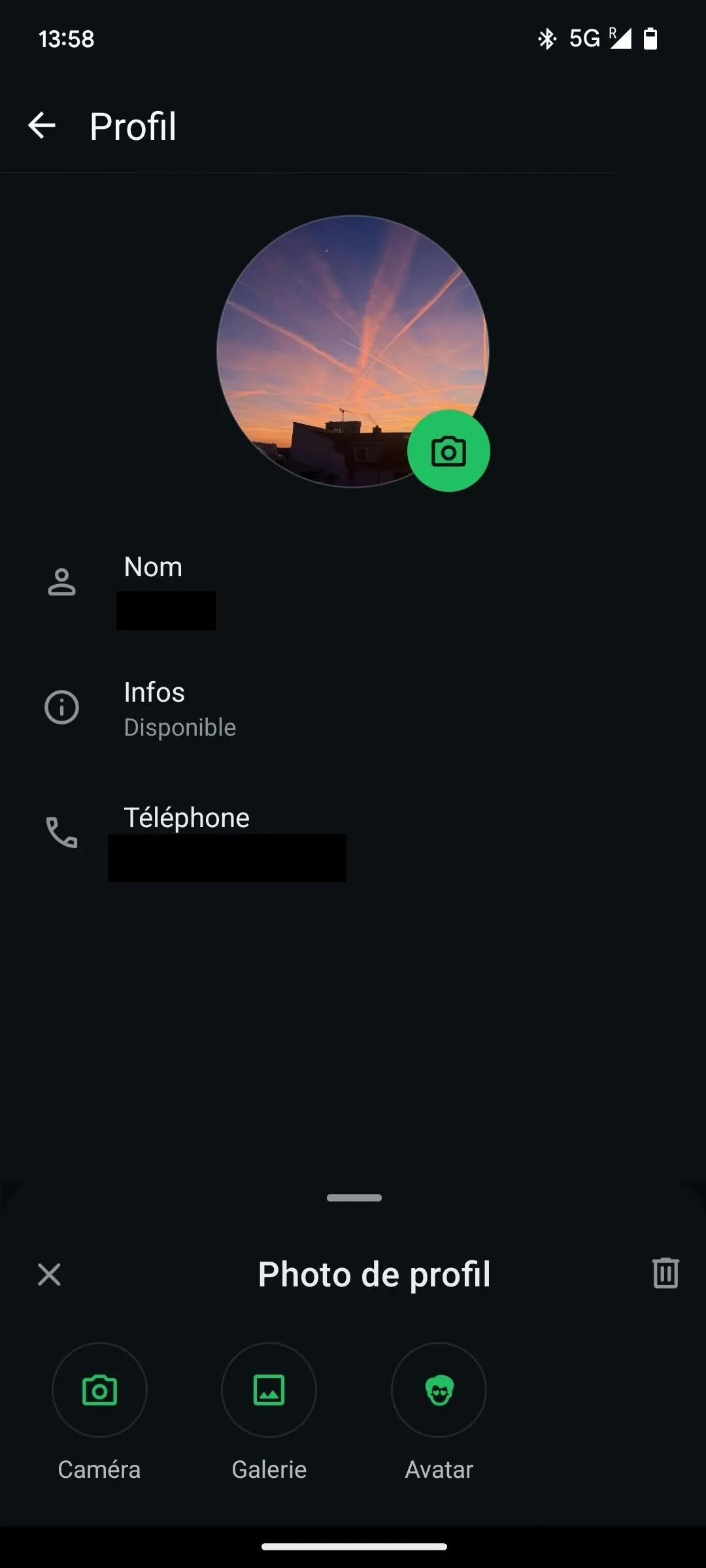
- You can adjust your new photo to square format imposed by WhatsApp before validating. If you want to edit your photo on WhatsApp, you can use a external image processing program and save this photo again on your smartphone.
- Check that the chosen framing suits you before validate your choice of photo. This is then immediately modified on your profile, for all your contacts.
HiDrive Next online storage
Your data accessible anywhere and at any time
- Edit, share and store your files
- ISO certified European data centers
- High data security, GDPR compliant
Change WhatsApp profile picture from desktop
If you use WhatsApp on computer, you can change your profile picture directly from the Web or Desktop applicationwithout having to use your smartphone.
To do this, open WhatsApp Web or Desktop, click on your current profile picture at the top left, then select the option “ Change profile picture « . You will then have the option to choose an image from your computer, take a new one with your webcam, or delete your current photo.
If you are using WhatsApp on Mac, the procedure is the same as the Windows and Web version.
Visibility of the new profile photo
Your new profile photo is automatically visible to all your contacts. However, you can restrict its display based on your privacy preferences. To adjust these settings, go to “ Settings > Confidentiality > Profile picture « . WhatsApp allows you to choose who can see your photo between the options « Everyone », « My contacts », « My contacts except… » (to exclude certain people) and « No one ». So you can decide to hide your photo to certain specific contacts while making it visible to others. We advise you to adapt this setting according to your needs before changing your profile photo on WhatsApp.
Professional email address
Discover a new way to process your emails
- Email address in your name
- AI features to write perfect emails (optional)
- Secure messaging with spam protection


