Nextcloud Memories is a photo and video management app that makes organizing your media much easier. Its wide range of features ranges from automatic downloading and classification to AI tagging, including video transcoding. Installation of the application is done via the Nextcloud App Store.
What is Nextcloud Memories?
The Memories app is designed to manage photos and videos within the Nextcloud interface. This is a self-hosted application, meaning your media is stored in your own Cloud, not on an external service’s server. Nextcloud Memories allows data to be encrypted, ensuring maximum security and privacy.
The app provides a flexible and secure platform for organizing your media, whether storing, managing or easily sharing large quantities of photos and videos. Professional media projects, organization of large media libraries or personal memories: all uses are possible with Nextcloud Memories!
What are the features of Nextcloud Memories?
Memories offers Nextcloud users many innovative features and technologies to conveniently organize their media libraries. In addition to ease of use and security, the emphasis is on performance and flexibility. Here are some of the features offered by the application:
- Automatic upload : the Nextcloud mobile application allows you to automatically upload photos and videos to your Cloud server. EXIF metadata like date, time or GPS location are automatically extracted during download.
- Timeline : Nextcloud Memories sorts photos and videos based on their creation date. Thanks to the “Timeline” view, you can easily navigate through your photo library at any time.
- Create and share albums : Create albums for your photos and videos and choose whether you keep them private or share them with loved ones. It is possible to have several people work together on the same album, which is particularly practical for projects.
- Automatic tag : thanks to artificial intelligence, Memories is able to automatically label photos with tags and recognize faces. You can also add tags by hand.
- Editing metadata : The title, description and other EXIF metadata of your photos can be modified. It is possible to make modifications to several files simultaneously.
- Video transcoding : The Memories application has a video transcoder (on-demand solution) which ensures maximum compatibility and performance. Thanks to hardware acceleration via VA-API or NVENC, this process is even more efficient.
- Map View : Nextcloud Memories automatically extracts GPS data from photos and videos and can thus display them on an interactive map, with precise geocoding.
- Open data structure : Since EXIF metadata is stored directly in the header of your files, you can easily migrate them to other platforms without risk of data loss.
Managed Nextcloud
Cloud storage that puts you in control
-
Effectively protect your data with industry-leading security
-
Save time on updates and maintenance
-
Easily add apps and collaboration tools
The Memories application is installed via the Nextcloud App Store:
- Log in to Nextcloud : Log in to your Nextcloud instance as administrator.
- Open the App Store : Click on your account icon and select “Apps” from the drop-down menu.
- Search for the app : Use the search function to easily find the Memories app.
- Install Nextcloud Memories : Click “Download and activate” to start the installation.
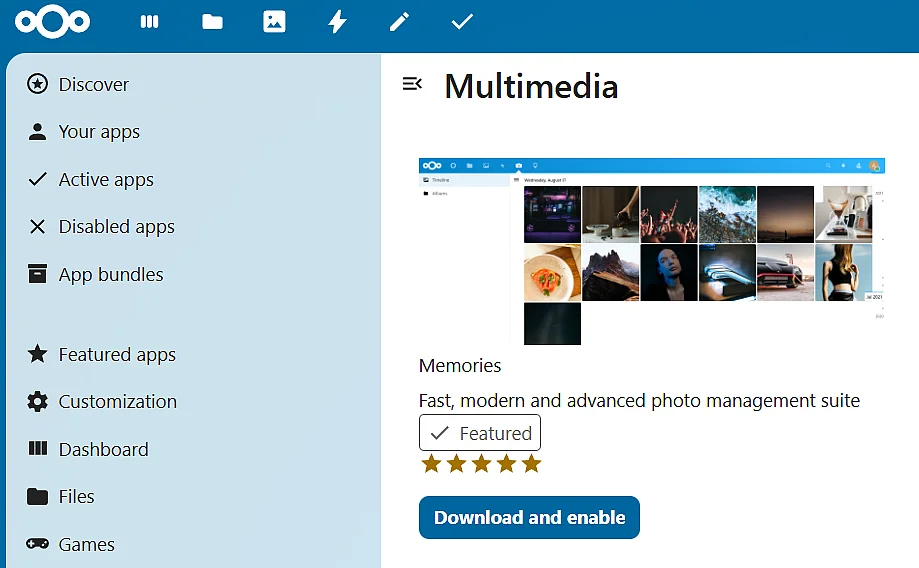
Memories can be found in the “Multimedia” section of the Nextcloud App Store.
Since version 5.0.0, Memories can be fully configured via the administration area, under “Administration” then “Memories”. To take full advantage of Memories features, here are some Nextcloud apps you can install:
- Preview Generator : for previewing images (useful for performance).
- Recognize : to tag people and images using AI.
- Pictures : to support albums.
Note
For automatic photo and video uploading, you need the Nextcloud mobile app. The Android version is available on the Google Play Store and on F-Droid ; as for the iOS application, it is located on theApp Store. It is also possible to download the Memories application directly on Android, either via the Google Playor on F-Droid or on GitHub.
Getting started with Nextcloud Memories
Once you have installed and activated the application, you will find theMemories icon (or “Memories”) in the top menu bar of the Nextcloud interface. It allows you to access it at any time. In the following paragraphs, you will learn about some basic features of the application.
Download photos and videos
- Click the button Upload ( » Download « ). You’ll find it at the top right of the Nextcloud interface, after launching Memories.
- In the window that opens, select the files you want to download and click “ Open « .
- Specify the directory in which the files should be saved. You can add photos and videos to an album or mark them with tags.
- Click on “ Download »: your multimedia content is then downloaded.
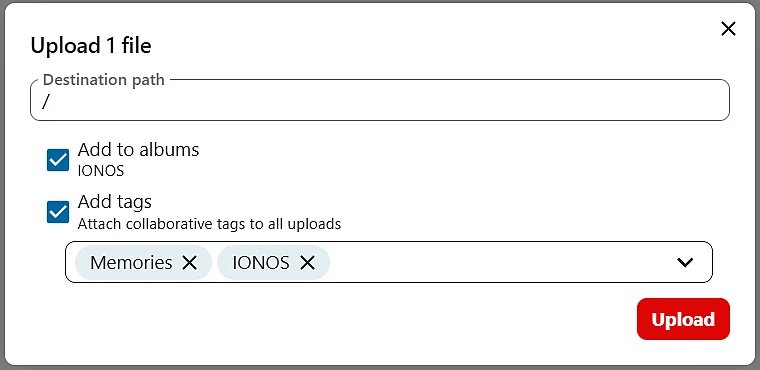
In Nextcloud Memories, you can define tags individually before assigning them.
Advice
To automatically download photos and videos from your smartphone or tablet, you need to enable the “Auto Download” option in the Nextcloud app.
Create albums
- Click on the “ Albums » in the Memories app.
- Tap the “+” icon (“Create new album”) located at the top right, below the profile icon.
- Give your album a name and set its path (“Location”). If necessary, you can directly grant access to individuals or groups.
- Click on “ Create an album « .
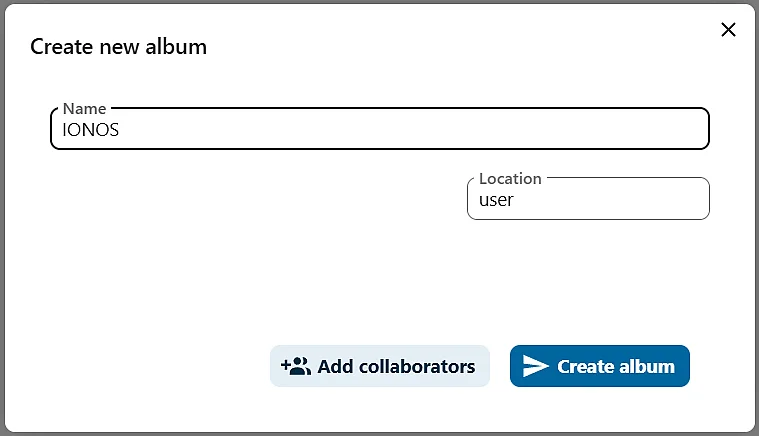
You can create as many albums as you want in Memories.
Share albums
- In the Memories app, click “Albums.”
- Select the album you want to share.
- Click the “Share” button (top right, under the profile icon).
- Specify which users can access the album or create a public link to share it.
- Confirm the settings by pressing “ Save « .
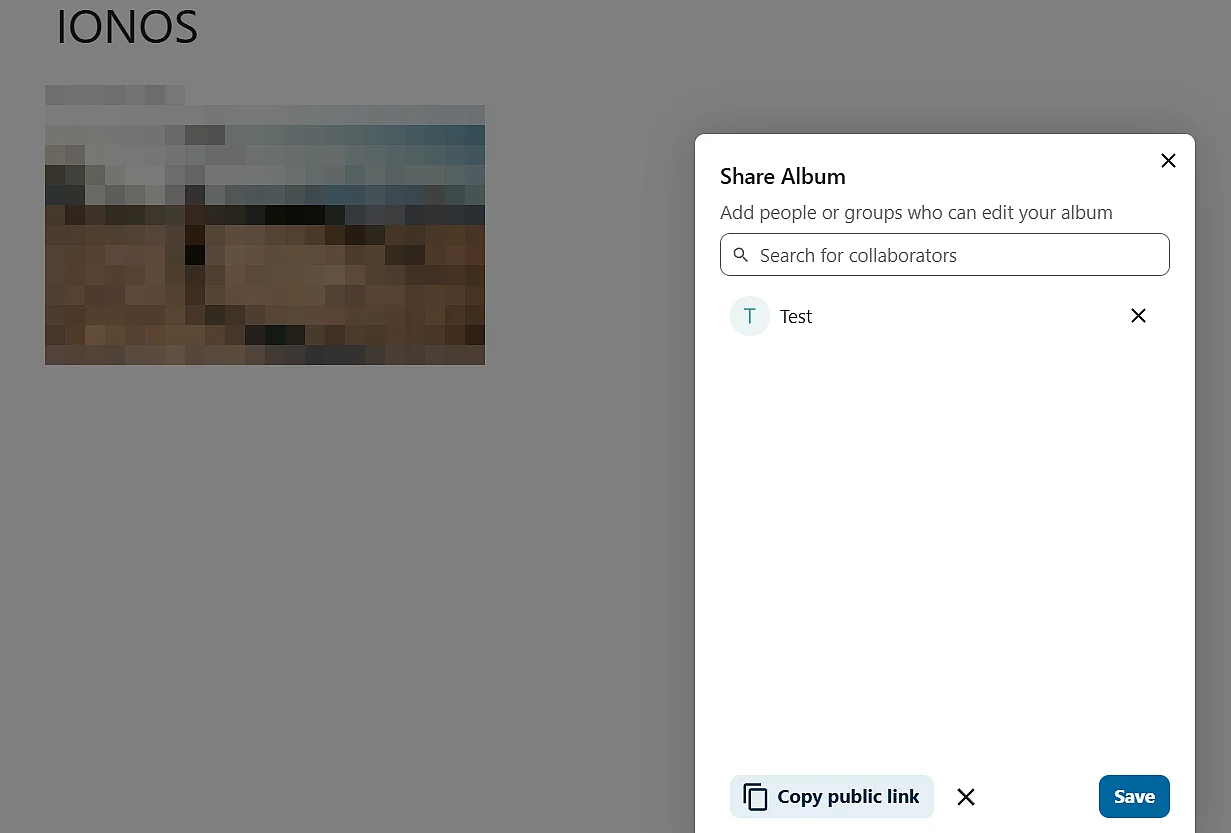
Click “Copy public link” to generate a link that will allow you to make your album accessible to users outside of the Nextcloud platform.
Advice
You can also share your images and videos organized with Memories with others via a Nextcloud group folder!
Managed Nextcloud
Cloud storage that puts you in control
-
Effectively protect your data with industry-leading security
-
Save time on updates and maintenance
-
Easily add apps and collaboration tools