
BIOS update is important to prevent hardware problems and maintain your PC software up to date. An HP BIOS update can be done quickly and safely, even if you are a beginner.
Domain name
Your domain in one click
- Domain .eu or .fr + free site publisher for 6 months
- 1 SSL WildCard certificate per contract
- 2 GB email box
Step 1: Prepare the update of the BIOS HP
Before you start the BIOS update, you must make sure that the computer is Connected to a stable power source Throughout the duration of the process. An unexpected power cut during update could have serious consequences. It is also recommended to save important data in advance, because in the (rare) case where an error would occur, you should potentially restore the system.
To find out if an update of the BIOS HP is necessary, you must start with Check the current BIOS version. Start your PC and press [Esc] Or [F10] (Depending on the model) during start -up to access the BIOS menu. You can read the current version of the BIOS and note it there.
Note
Depending on the equipment you have, the BIOS may be called with another key. To find out, search on Google with the name of your motherboard can help you.
You can also access Windows system information by pressing [Windows] + [R] and tapping the command msinfo32. In the system information that opens, you will find the current version under » BIOS version/date ».
Step 2: Download the latest version of the BIOS HP
Open your Internet browser and go to the HP assistance website. Select the « Software and pilots » section.

On the page that opens, now select the product type of your HP device and enter the product number or the name of the model of it. You will thus find the pilots and the versions of the BIOS corresponding to your model.
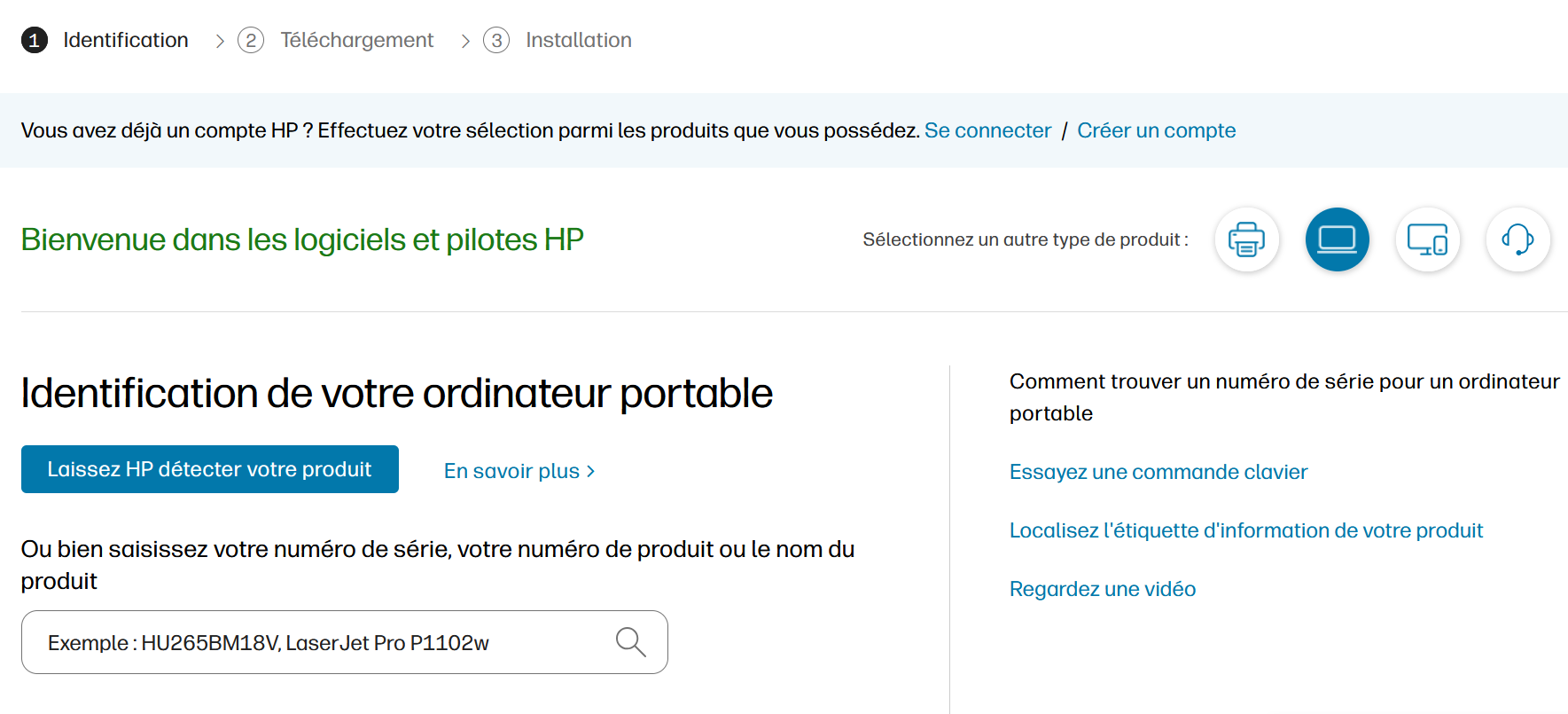
Once you have found your product, you can specify the operating system installed. You will then see the latest BIOS updates for your device in the « BIOS » or « Firmware » category on the assistance page. Compare the version displayed with the current version of the BIOS you have noted. If the listed version is more recent, download it by clicking on « Download ».
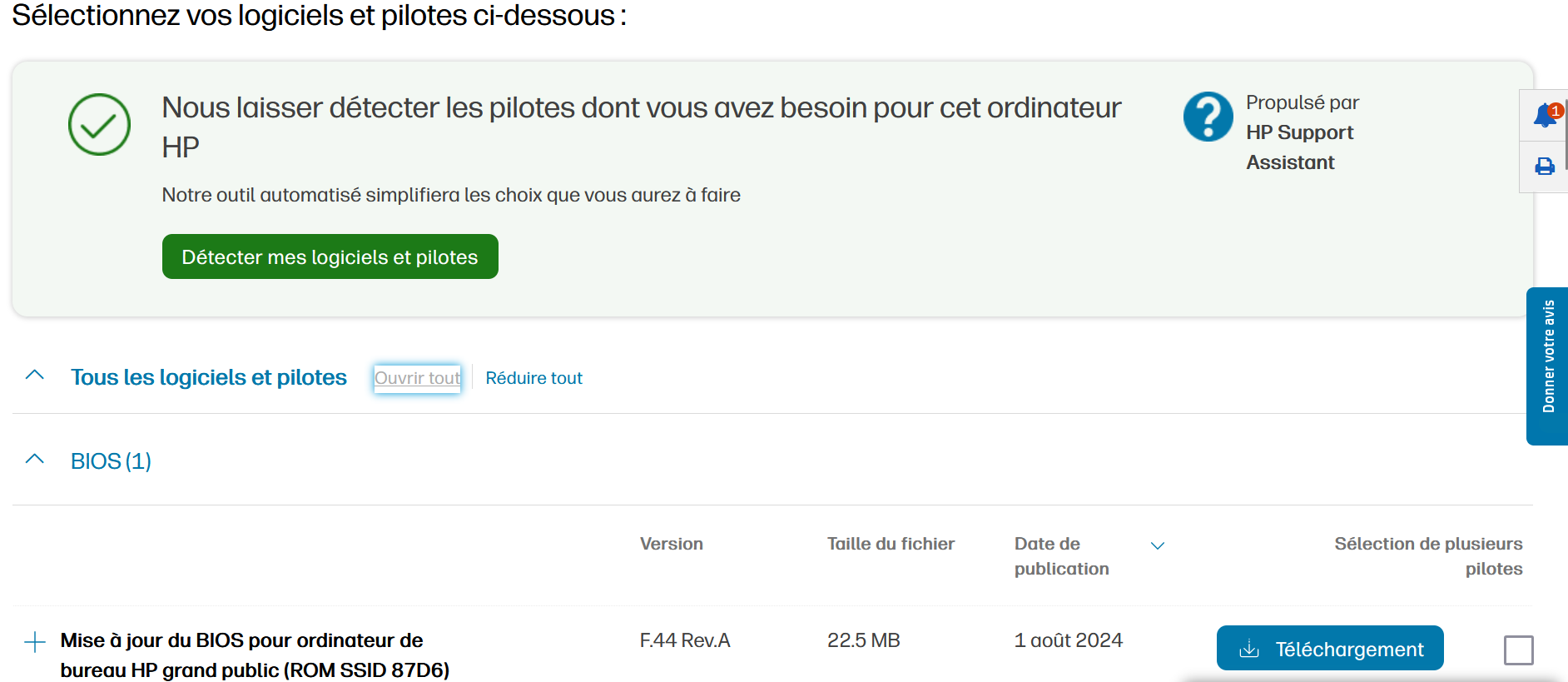
Step 3: Launch the installation program
Open the downloaded file by double-clicking on it To launch the installation program. Follow the instructions on the screen carefully. In most cases, the tool will start an update either directly in the operating system or in the BIOS at the next restart. Confirm the security prompts and follow the installation program instructions.
Step 4: Execute the HP BIOS update
Once you have initiated the update, the computer automatically restarts to update the BIOS. During this process, the computer should not in no case be extinguished or interrupted in another way ; This could make your system unusable. Let the update take place quietly, even if the screen becomes black for a few minutes. This is completely normal.
Step 5: Check the update
Once the BIOS HP update is successfully completed, the PC will restart. To make sure that the update has been done correctly, you can check the version of your BIOS again. If the installed version is identical to the one you downloaded from the HP website, you can consider that your BIOS HP update has been successfully performed.
Advice
The need to update the BIOS does not depend on the manufacturer. Even if your motherboard comes from another manufacturer, it may be useful to check regularly whether an update is available. However, these updates should only be performed if they make significant improvements, such as better compatibility or correction of problems. In our other articles you will find step by step instructions to update the BIOS of different manufacturers: