

If the account you created is not an Exchange account (in which case only an administrator can change it), you can change the associated password in Outlook yourself in a few steps. But how exactly to do this? And how to change other passwords in Outlook, such as those for data files?
Quick Start Guide: Change an Outlook Password
- Open the “ File « .
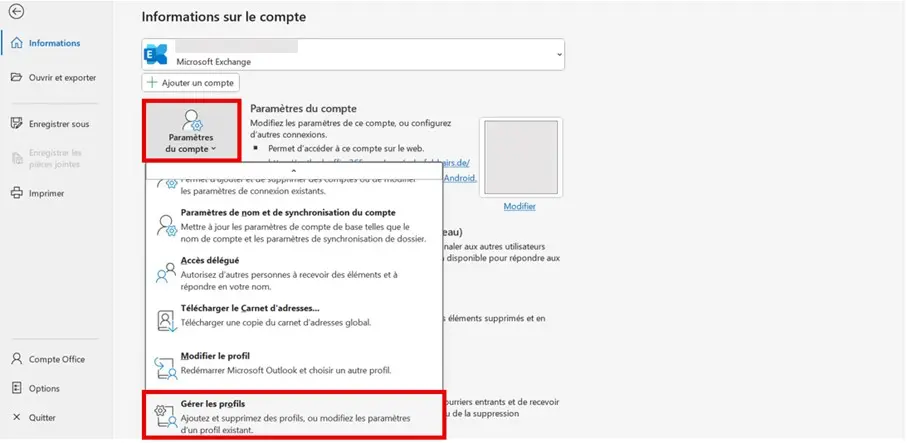
- Access the “ Account settings » and open the menu « Manage profiles « .
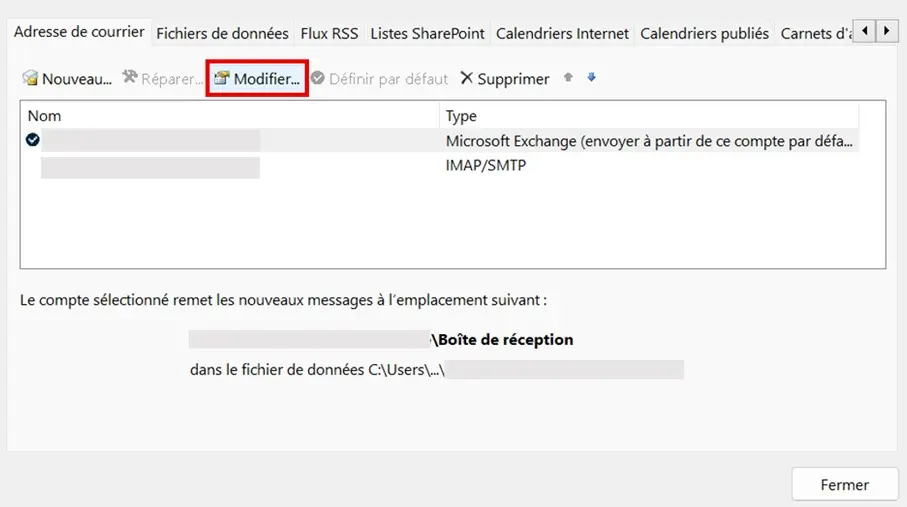
- Select the email account you want to use and press “ To modify « .
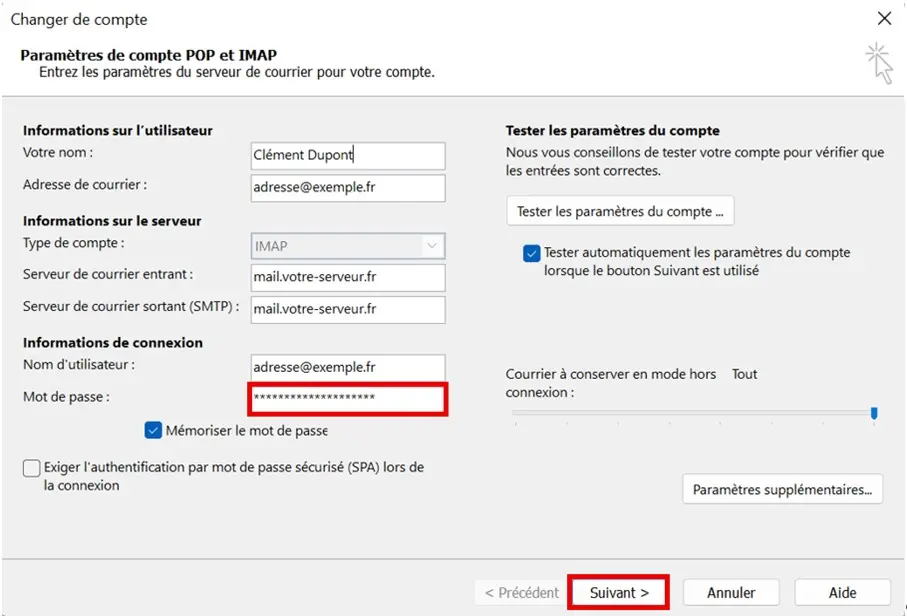
- Change your Outlook password.
Note
The instructions in this article apply to Outlook versions of Microsoft 365 as well as Outlook 2021, Outlook 2019, and Outlook 2016. The user interface may be slightly different depending on the version and Outlook view settings.
Microsoft 365
The Office solution you know, even better
- Exchange email box up to 50 GB
- Latest versions of your favorite Office apps
- Free installation assistance
Change the password of an Outlook email account, step by step
If you have changed the password for your email account with Laposte.net, Gmail and others and you want this change to take effect in your Outlook client, start by opening the account settings in Outlook. To do this, first open the “ File » and click on “Account Settings”. In the menu that appears, select the option “ Manage profiles »:
In the email configuration, select the option “ Mail accounts « . Outlook then presents you with all the email accounts that you have associated with the Microsoft client. Click on the account whose password you want to change, then tap “ To modify »:
Now replace the password saved in Outlook with the new password chosen for your email account. Click on “ Following > To end « .
When you associate email accounts with Outlook, the client stores various informationsuch as calendar entries or contacts, as well as copies of emails sent and received locally; in so-called Outlook data files (PST or OST files). You can protect the first ones with a password to secure them. To do so or to change the current password of a PST data file, follow these steps:
Go to the “ File » and select the option “ Account settings « . In the menu that appears, click “ Profile management »:
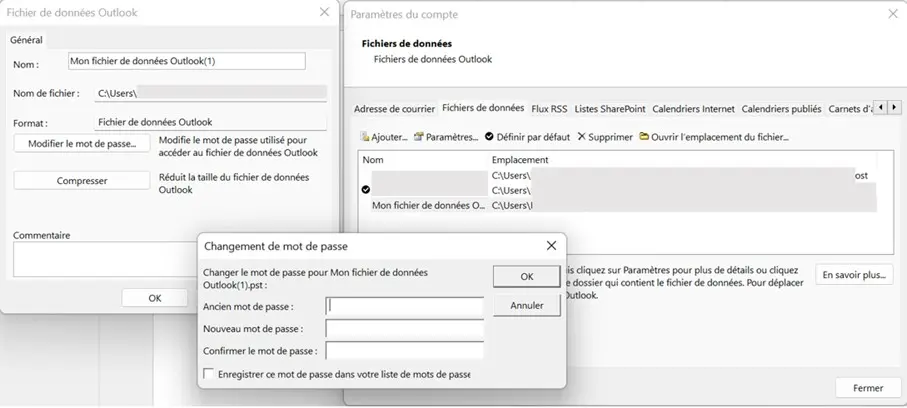
In the email configuration, select the “Data files” option. A menu is then displayed, listing all currently available Outlook data files. Click on the desired PST file and then press “ Settings… « .
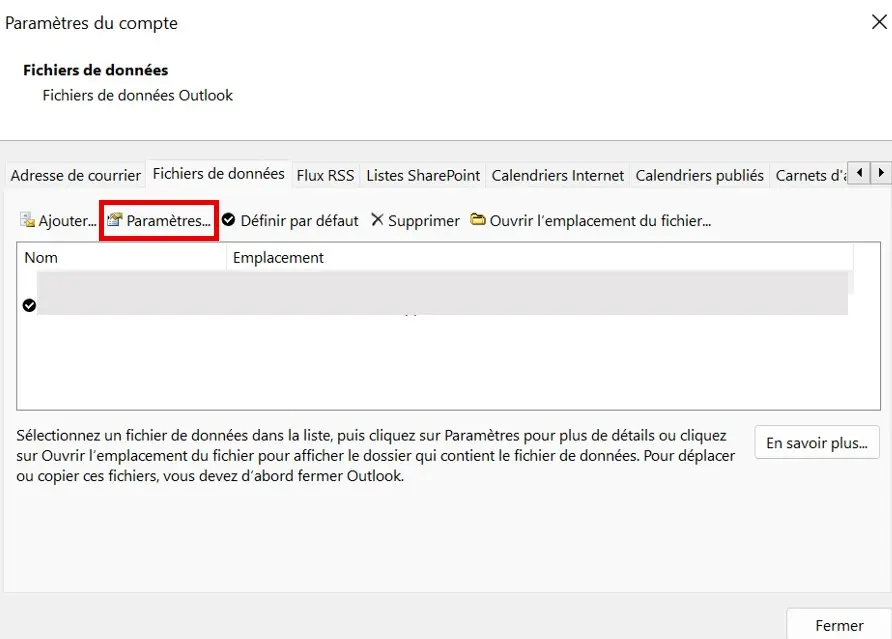
Enter the current password of the data file and then press “ Change password « . You will then be asked for your old password again and then to set a new password for the data file.
Professional email address
Discover a new way to process your emails
- Email address in your name
- AI features to write perfect emails (optional)
- Secure messaging with spam protection


