

A Zoom meeting can be recorded if the host has enabled this feature, either locally on their device or in the Zoom Cloud. When recording starts, participants are notified and must accept the recording notification to join the meeting.
Record a Zoom Meeting: Quick Guide
Ashost Or co-hostyou have the option to record the Zoom meeting or allow other participants to do so.
- To start recording, click “ More » (if the record button is not already visible) in the toolbar at the bottom of the meeting, then on the icon « Save « .
- You can stop recording temporarily by clicking “ Pause » via the toolbar, then restart it with “ Resume recording « .
- Click on “ Stop recording or “End meeting” to end the recording.
- Once recording is complete, the file is automatically saved in MP4 format, either locally on your PC or in the Cloud if you have a paid Zoom subscription.
For allow a participant to record :
- Click “Participants” in the toolbar at the bottom of the meeting.
- Hover over the participant's name and click « More. »
- Select “Allow recording”.
To revoke this right, repeat the same operation and choose “Prohibit recording”.
Recording a Zoom meeting: what are the benefits?
Zoom, along with its alternatives to Zoom like Google Meet or Microsoft Teams, have revolutionized modern communication. International conferences, meetings and seminars are increasingly taking place in front of the webcam or in the home office. THE webinarsvirtual conferences (for example, organized by universities or companies) and artistic events are now commonly held on Zoom. News agencies are also increasingly using videoconferencing software for their interviews.
However, it is not always possible for everyone to participate in all online events, meetings or conferences. To make important content accessible at a later timeZoom allows you to record the meeting and save them. Recorded videos can be stored locally with the free Zoom subscription or backed up to the cloud with the paid subscriptions, providing much greater storage.
Free video conferences
Video Chat
- Without registration
- Without installation
- Simple and compliant with data protection standards
Record a Zoom meeting: detailed guide
Follow the following steps to start and save a Zoom recording. Note that there is two recording options on Zoom:
- “Local recording” in Zoom's free basic plan
- “Cloud Recording” for paid Zoom subscribers
We explain both options below.
Note
Only the meeting host or co-host has permission to record a Zoom meeting. If participants joining a Zoom meeting wish to initiate a recording, they must first obtain permission from the moderator.
Save Zoom meeting locally (Basic version of Zoom)
Step 1: Log in to the Zoom desktop app and create a Zoom meeting.
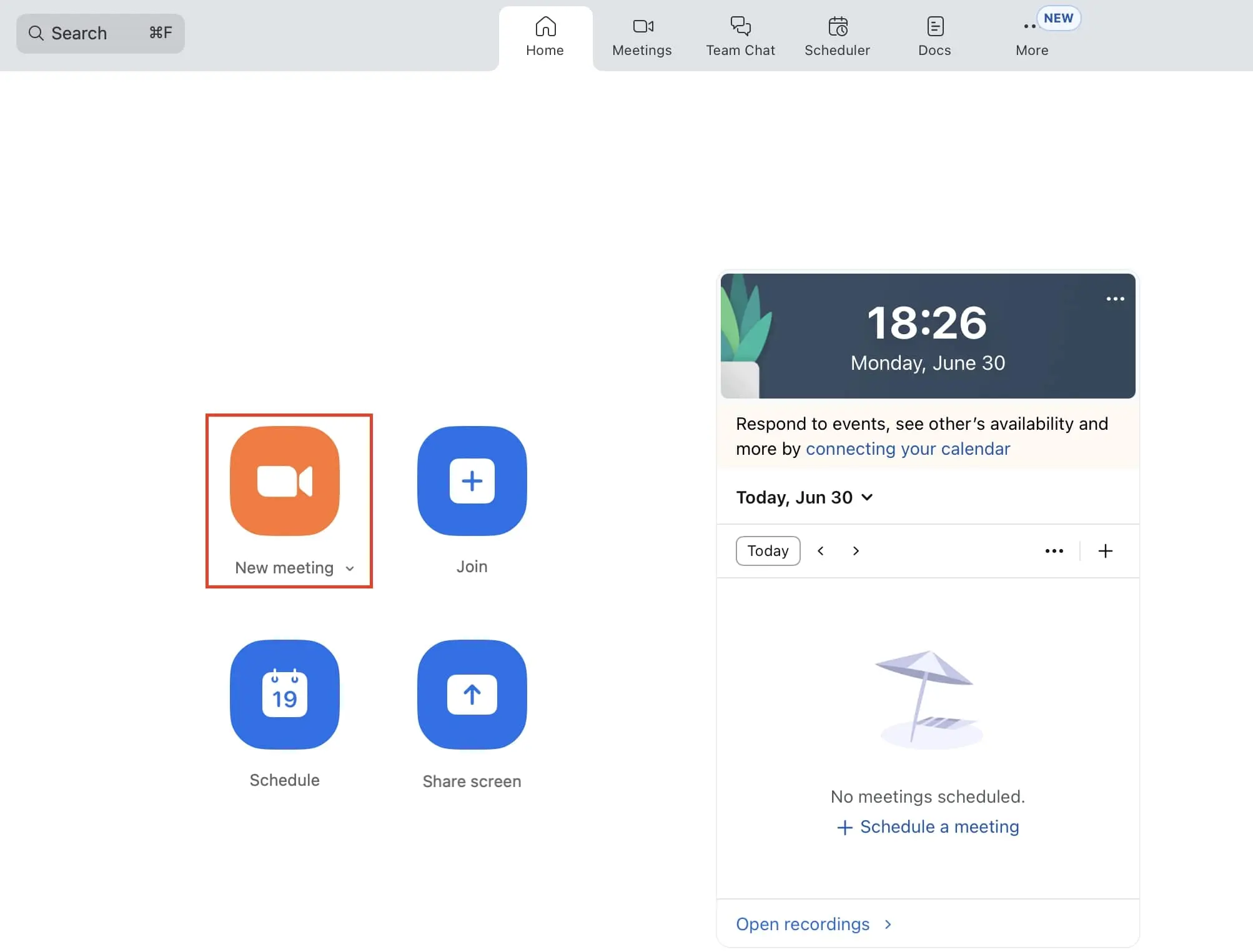
Step 2: Once in the meeting, you can start a recording. To do this, go to the toolbar at the bottom of the screen and click on “ Save « . If you don't see this button, it's under the « More » menu.

Note
If your computer is muted, Zoom can automatically signal that recording will be done without sound. If you wish record soundmake sure Zoom has permission to capture audio in settings.
Step 3: While recording, a button appears in the toolbar and allows you to control the recording. You can click “Pause Recording” and then “Resume Recording” to continue. In this case, Zoom will combine all segments into a single video file.

Step 4: : Once the passage of the meeting you wish to record has finished, or when the meeting is completely finished, click on “ Stop recording » or “End meeting”.
Step 5: as soon as you stop recording, Zoom stores it in cache. When you end the meeting, Zoom automatically converts the recording to MP4 video.
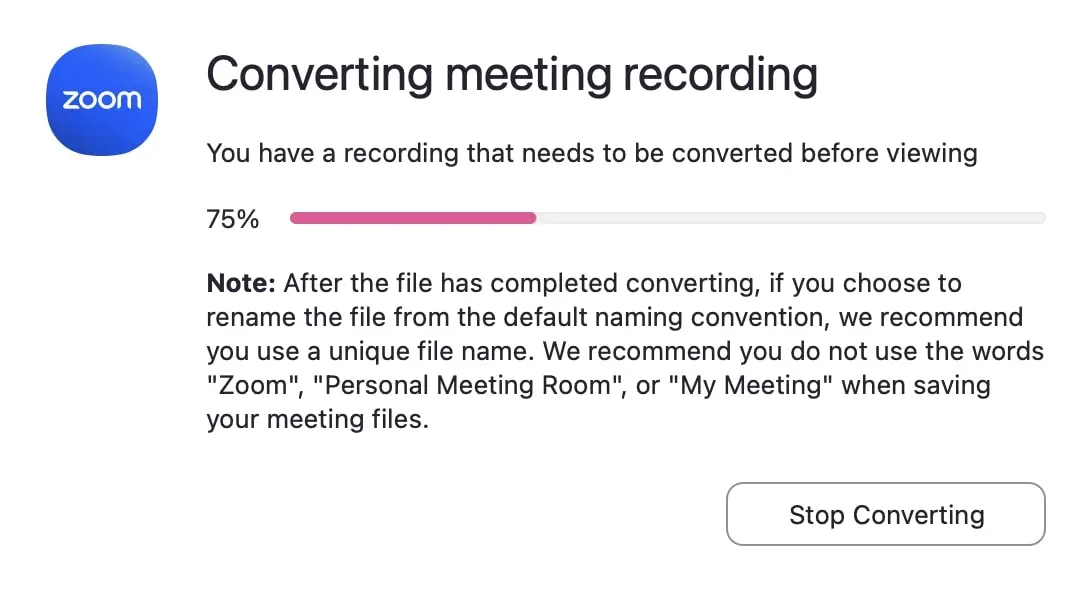
Step 6: the program then directs you to the folder on your computer containing Zoom recordings. The backup is done as audio and video file.
Record Zoom meeting in the Cloud (paid Zoom subscriptions)
Step 1: log in as a host on the Zoom web portal.
Step 2: To enable Cloud recording, click on “Settings” then on the “Recording” tab in the left tab. Under “Cloud Save,” enable the option using the toggle button. Confirm activation if a verification window appears.
Once this option is enabled, recordings can be saved directly to the Zoom Cloud (accessible through your online Zoom account).
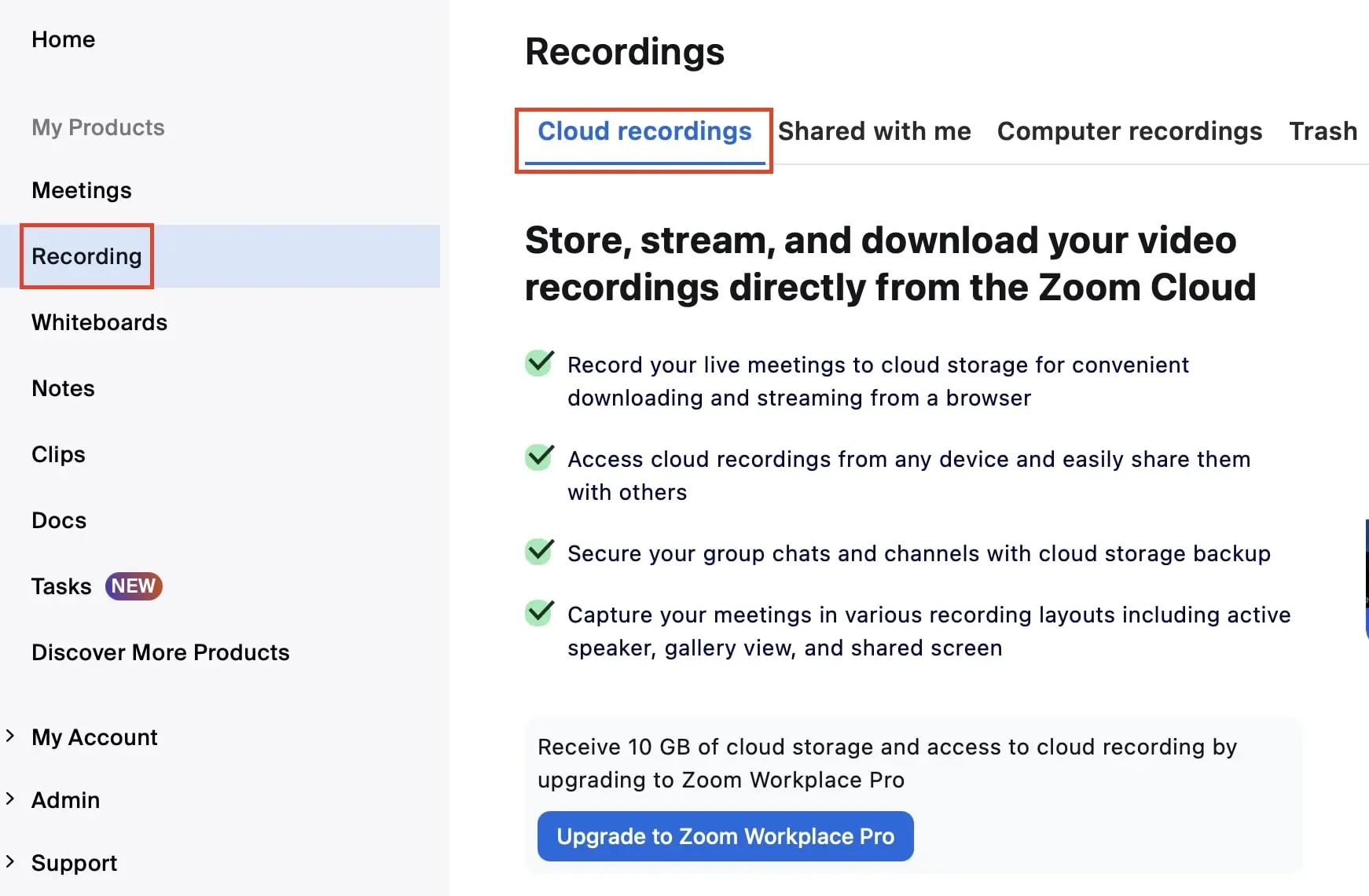
Step 3: start a meeting, click « Record » in the toolbar and select » Start recording in the Cloud « .
Step 4: Use the menu to pause or stop recording. This will be automatically saved in the Cloud at the end of the meeting.
Step 5: To view, download, share or distribute the recording, log in to Zoom web portalopen the “Recordings” section and select the desired recording. In the case of cloud recording, VTT subtitle files can also be generated.
Advice
With free online video chat from IONOS, enjoy all the benefits of video conferencing software, without registration or installation, for up to five participants.


