

Duplicate a WordPress page or post makes creating a site much easier. To design several pages with the same design or structure, simply copy an existing page and adapt it according to your needs. Users who often create similar content particularly appreciate plugins that offer a quick and easy-to-use solution.
Domain name
Your domain in one click
- 1 Wildcard SSL certificate per contract
- Included Domain Connect feature for simplified DNS setup
Duplicate a WordPress page with Yoast Duplicate Post
With more than four million downloadsthe plugin Yoast Duplicate Post is one of the most popular plugins for copying WordPress pages and posts. It is suitable for both dynamic content and static pages, and is distinguished by its great ease of use.
Note
WordPress distinguishes between several types of content. The main ones are the articles (Posts), of a dynamic nature, and the pages (Pages), which are static. While the content of the pages generally remains fixed, articles allow new content to be added regularly, which modifies their position automatically.
Step 1: adapt the settings
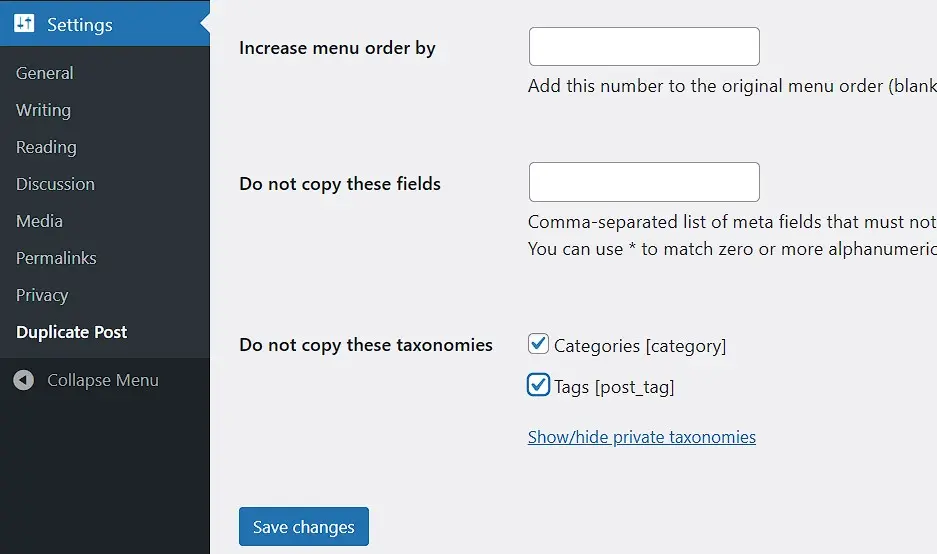
After installing and activating Yoast Duplicate Post, open the WordPress dashboard and go to the “Settings” menu, then click on the “Duplicate Post” button added by the plugin. In the window that appears, you can choose which elements of a page or article will be copied. If you are not yet sure which settings to adopt, keep the default values and carry out a test using duplicating a first page or article.
When you have finished your adjustments, don't forget to click « Save Changes » to validate your settings.
Step 2: Select Page
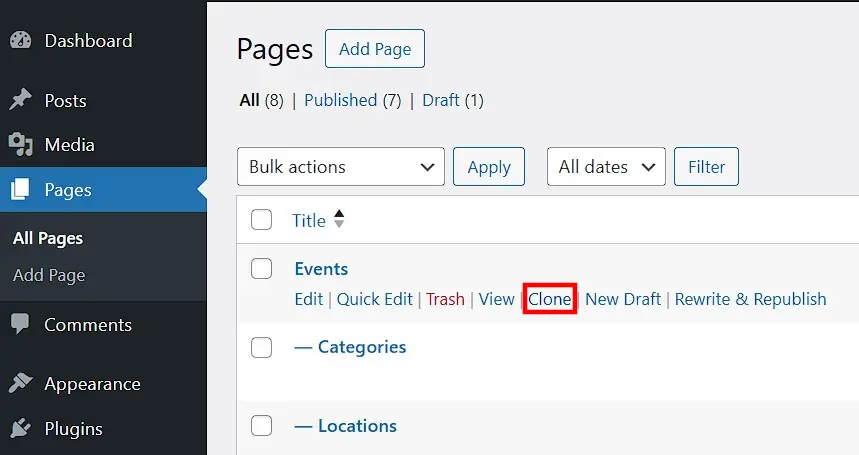
This is the key step for duplicate a WordPress page or post with Yoast Duplicate Post. In the WordPress dashboard, open the left sidebar and click “Pages” or “Posts,” then “All Pages” or “All Posts.” There you will see the complete list of your content. Hover the mouse over the page or article to duplicate: several options are displayed, including “ Duplicate « . Just click on this option.
Step 3: Duplicate WordPress Page
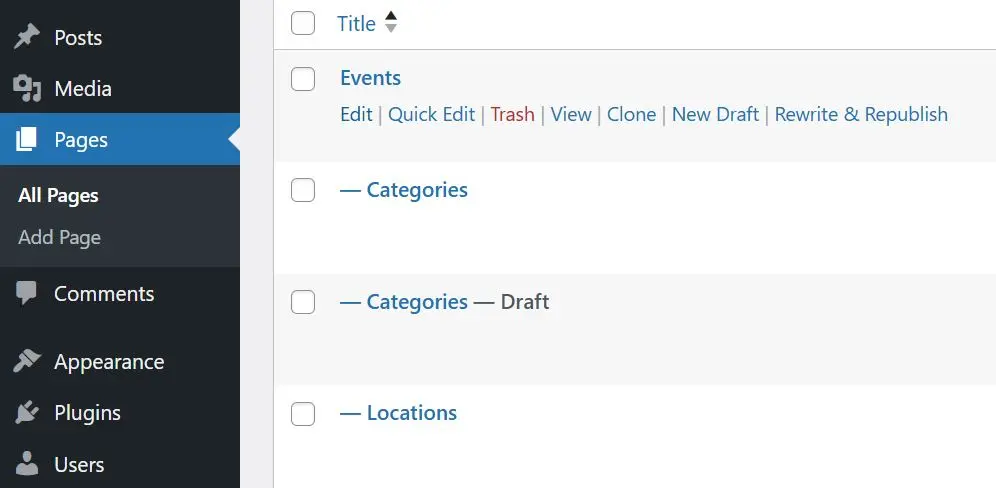
Once you click “Duplicate,” the copy of the page or post appears as draft just below the original version.
In this example, we duplicated the page Categories. You can then edit the draft freely before publishing it. To avoid confusion, start with rename duplicate page.


Duplicate a WordPress page with the Duplicate Page plugin
Another popular plugin for copying WordPress pages and posts is Duplicate Pagewhich now counts more than three million installations. The operation is generally similar to that of Yoast Duplicate Post: it allows you to easily duplicate pages or articles in a few clicks.
The free version offers fewer configuration options, which can even be an advantage for beginners wanting a quick and easy solution.
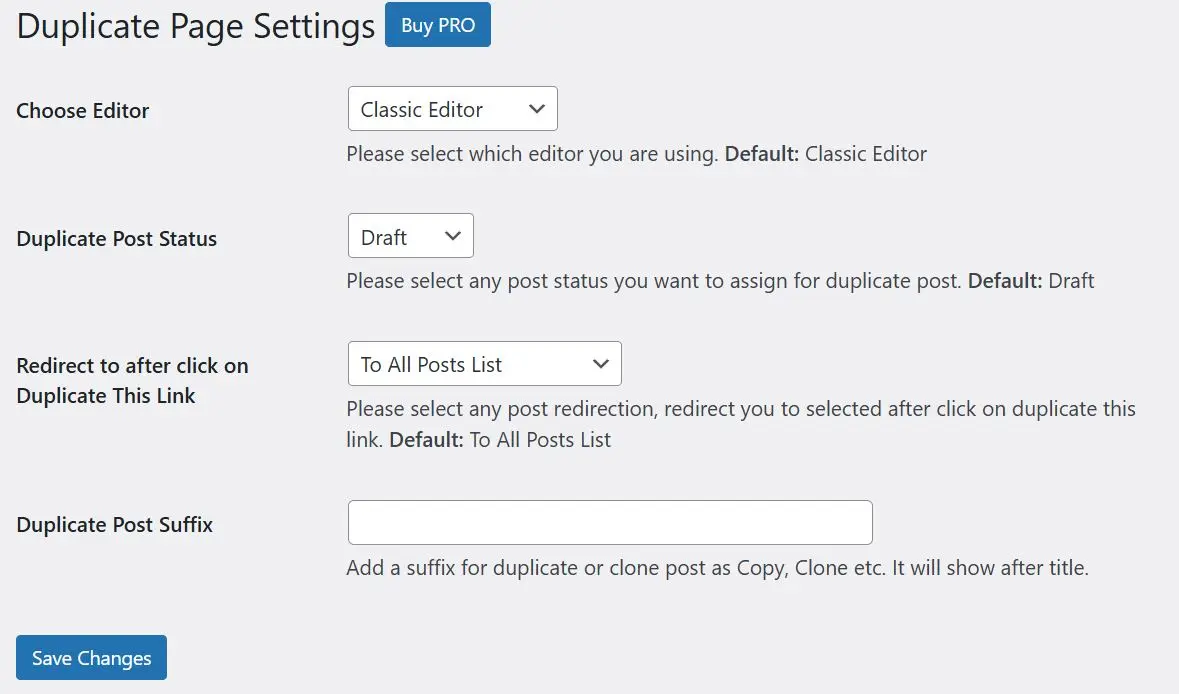
To copy a page or post with Duplicate Page, proceed the same way as with Yoast Duplicate Post: open “All Pages” or “All Posts”, hover over the content to be duplicated with the mouse, then click “ Duplicate « .

Duplicate a WordPress page manually with Gutenberg
It is also possible to duplicate pages or articles without using a plugindirectly from the backend WordPress, notably via the Gutenberg editor.
Step 1: Copy the blocks into Gutenberg
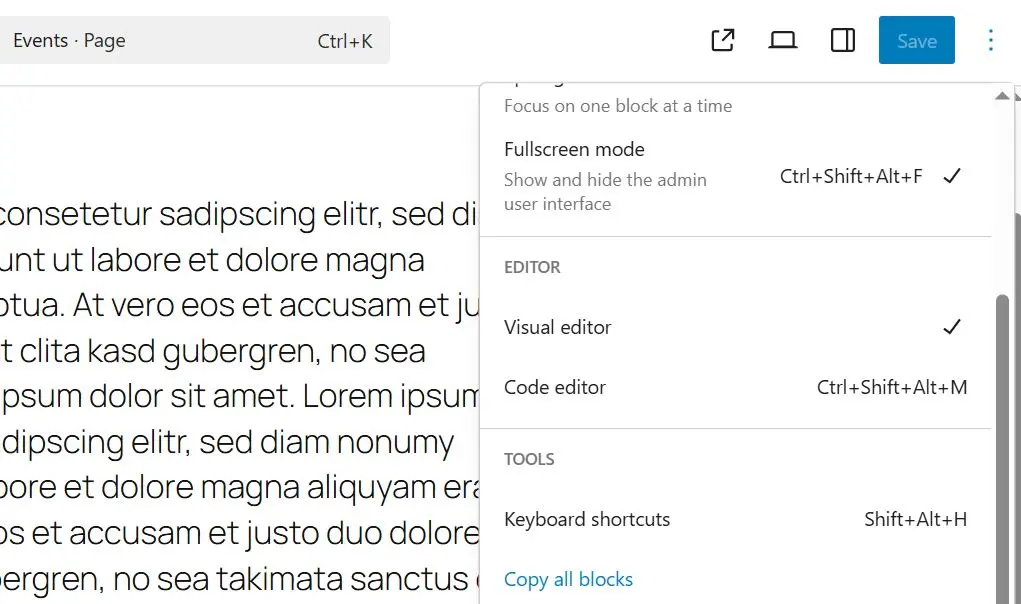
In the WordPress dashboard, open the page or post you want to copy, for example by clicking “Pages” in the left sidebar, then “All Pages”. After selecting the page in question, click “Edit” to access the Gutenberg editor. Next, open the three-dot menu at the top right and select “ Copy all blocks « .
Step 2: Paste the copied content
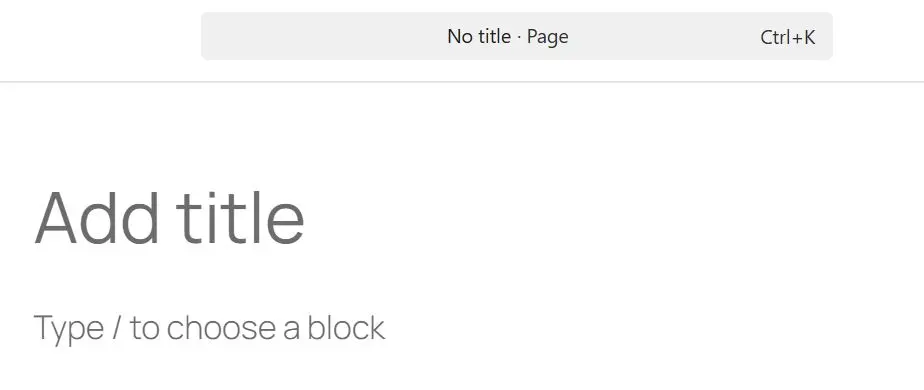
Then create a new page or a new articlefor example via the “Pages” > “Create” menu. With recent versions of WordPress, you will arrive directly in the Gutenberg editor. Click in the field showing “Type / to choose a block”, then paste the copied content using the shortcut [Ctrl] + [V].
Note
You can also manually copy and paste the code of a page or article using shortcuts [Ctrl] + [C] And [Ctrl] + [V]. This simple method also allows you to duplicate WordPress pages or posts without a plugin.


