
Nextcloud Calendar is a calendar app designed for Nextcloud. The application offers a wide range of features, from managing and synchronizing appointments to sharing calendars, not forgetting integration with other Nextcloud applications!
What is Nextcloud Calendar?
Nextcloud Calendar is a calendar app designed for Nextcloud Cloud software. It provides a user interface for the platform's CalDAV servers. CalDAV is a network protocol dedicated to the exchange of calendar data.
This solution allows you to clearly organize appointments, tasks and deadlines, and connects seamlessly with other Nextcloud applications like Tasks or Contacts. It is possible to synchronize it with other common applications such as Microsoft Outlook. Thanks to cross-platform synchronization and access rights management, calendar data remains accessible at all times on all your devices.
What are the features of Nextcloud Calendar?
Nextcloud Calendar offers users a wide range of features to manage appointments and tasks efficiently. The same goes for some powerful alternatives to Nextcloud. The main features of the Nextcloud calendar application are:
- Create and edit calendars : create as many calendars as you want to manage your personal and professional appointments or tasks for different teams separately. Each calendar can be named individually and colored.
- Share and publish calendars : Nextcloud Calendar allows you to share calendars with other people. It is also possible to assign permissions and define who can modify calendar data. You can also publish calendars to make them accessible to larger groups and send event invitations.
- Reminder and notification function : you and other users have the possibility to obtain an email or a reminder notification of your upcoming appointments or events.
- Holiday and subscription calendar : the application also allows you to integrate external calendars which display, for example, public holidays or match days of your favorite team.
In addition to these basic functions, Nextcloud Calendar offers other practical features. The application allows, for example, companies to send links for making appointments or to assign a due date to calendar tasks. Users can also indicate if they are available for a meeting or appointment, and at what time.
Advice
If you opt for Managed Nextcloud from IONOS, you no longer have to worry about maintenance and system updates of your Nextcloud server. You save valuable time and resources and enjoy all the benefits of Nextcloud without administrative effort or prior technical knowledge.
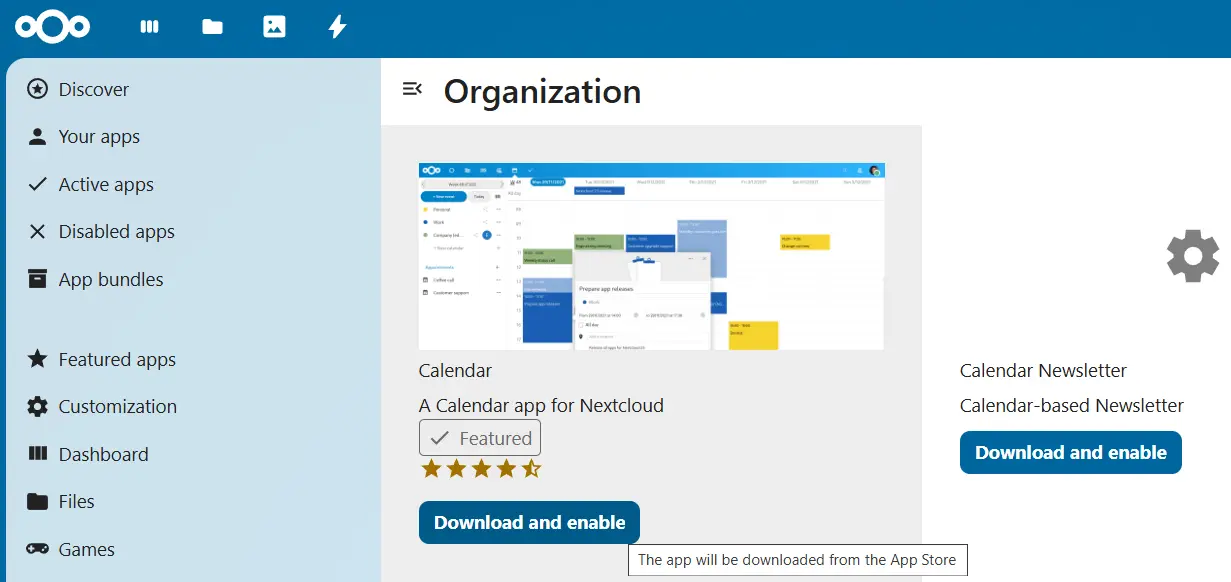
When you install a Nextcloud server, Calendar is usually preinstalled. If not, you can easily add the app via the Nextcloud App Store. To do this, proceed as follows:
- Log in to your Nextcloud account with your credentials.
- Go to the menu “ Apps « . There you will find an overview of all available applications.
- Scroll through the list of Nextcloud apps or type “ Calendar » in the search box to find the application.
- Add the application by clicking on “ Download and activate « .
To access your calendars with other devices or applications, it will be necessary to perform a synchronization. The details of this depend on the operating system or software. To connect Nextcloud Calendar to Android devices, you need the app DAVx5which can be found among other places in the Google Play Store. If you want to use Nextcloud Calendar on an iOS device, all you need to do is add a CalDAV account and associate it with your server.
Advice
Discover the Nextcloud Memories photo and video application and the Nextcloud Forms survey plugin in their dedicated articles.
Nextcloud Calendar: tutorial
Nextcloud Calendar offers a user-friendly interface to efficiently manage your calendars and appointments. In this tutorial, you will learn the basic functions of the application, including creating and editing calendars.
Create a calendar
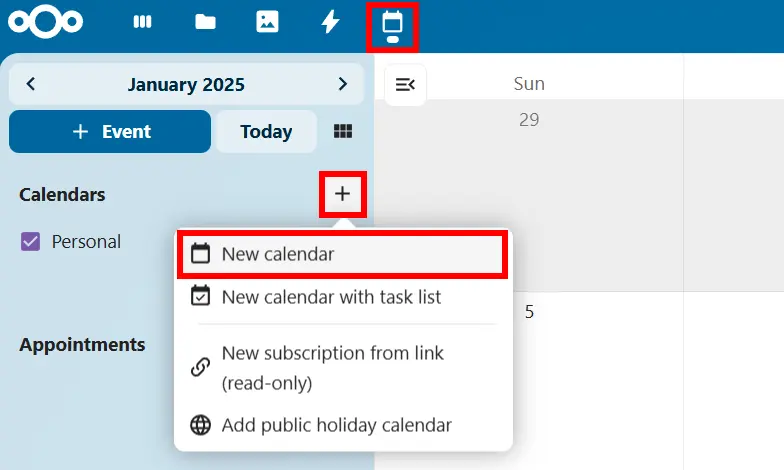
When you open Nextcloud Calendar for the first time (via the small calendar icon in the main menu), a first calendar is automatically created for you. Here's how to create other calendars:
- Click the “+” icon next to the “Calendar” entry in the left sidebar.
- Select “ Create a new calendar « .
- Give the calendar a name, such as “Work” or “Private”.
- Click the check mark to create the new calendar.
Edit or delete a calendar
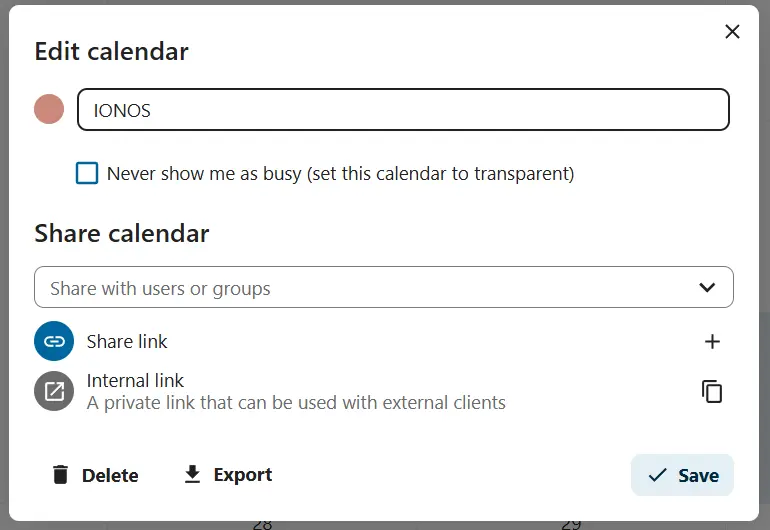
To edit a calendar, click the icon pen to the right of the corresponding entry. A pop-up window will then open where you can rename the calendar and change its color. There you will also find a trash can icon for deleting the calendar. Remember that deleted calendars cannot be restored unless you have made a local backup first.
Share or publish a calendar
To share a calendar with other people, it is also necessary to open the calendar editing window (with the pencil icon). Below » Share calendar « , you can define who can see the calendar (read access) or create, modify and delete events (write access). If you want to publish your calendar on the Internet, you can create a link in the editing window and send it or embed it on websites.
Managed Nextcloud
Cloud storage that puts you in control
- Effectively protect your data with industry-leading security
- Save time on updates and maintenance
- Easily add apps and collaboration tools