

With Nextcloud External Storage Support, it is possible to seamlessly integrate external storage sources into your Nextcloud environment. External storage provides additional space for files, increases your flexibility and enables more effective collaboration between teams. Installation is done quickly, provided that the configuration is correctly carried out.
What is Nextcloud External Storage?
Nextcloud External Storage allows you to integrate external storage sources into your Nextcloud instance. Thanks to the dedicated application, you create an interface between the Cloud software and external storage, in order to centralize access to data in Nextcloud.
External storage sources can not only be integrated, but also configured individually. This allows flexible adaptation to different needs, whether for the integration of personal backups or for the synchronization of professional data. Thanks to Nextcloud's familiar user interface, operation remains intuitive and simple.
What external storage solutions does Nextcloud support?
Nextcloud External Storage supports many popular storage solutions, which integrate into the Cloud environment and cover personal and professional uses. Among the services available as storage backends in the Cloud environment, we find in particular:
In addition to officially supported storage solutions, you will also find apps for other services such as OneDrive or Dropbox in the Nextcloud App Store. These Nextcloud applications are, however, developed by external teams and often come from old versions; An outdated application may present security risks and incompatibilities. If you want to try an application, it is recommended to test in a dedicated environment and make a backup first.
Managed Nextcloud
Cloud storage that puts you in control
- Effectively protect your data with industry-leading security
- Save time on updates and maintenance
- Easily add apps and collaboration tools
Is it useful to link Nextcloud to external storage?
The benefit of linking external storage to Nextcloud depends mainly on the application you want to use it for. There are several scenarios in which integrating an external storage solution is useful, including:
- Need for larger external storage : If your Nextcloud instance's storage space is limited, integrating external storage is a cost-effective way to provide additional space.
- Need for centralized data management : External storage allows data sources to be consolidated into a single user interface, which is particularly convenient for teams and businesses using different storage solutions. If you already use services such as FTP server or Google Drive, they can be integrated without abandoning existing infrastructure.
- Better storage flexibility : External storage sources make it easy to expand storage capacity. External storage in Nextcloud can be useful for people and businesses wishing to accommodate growing or evolving data volumes.
However, there are disadvantages or limitations that must be taken into account when making a decision. On the one hand, an external storage system can reduce performancebecause Nextcloud looks for changes in the current directory each time the page is viewed. On the other hand, setting up and managing external storage requires a certain amount of technical know-how and careful configuration. Errors can compromise stability and security.
The following guide shows how to configure external storage in Nextcloud step by step:
- Log in to your Nextcloud instance with administrative rights.
- To configure external storage, you need the “External Storage Support” application. The latter can be activated via the Nextcloud App Store; just click on “ Enable » to add it.
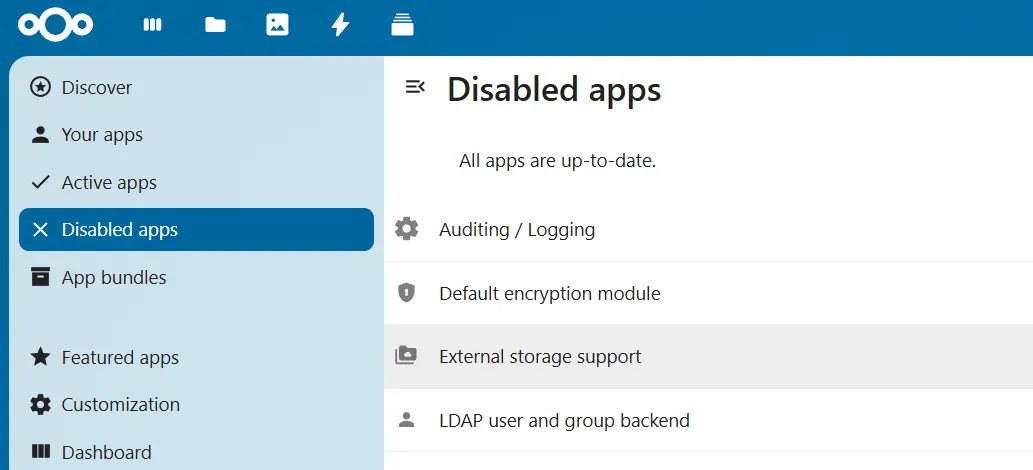
- Then click on the profile icon at the top right and select “ Administrative settings » in the drop-down menu.
- In this menu, go to “External Storage”, then click “ Add storage « . Then select the desired external storage.
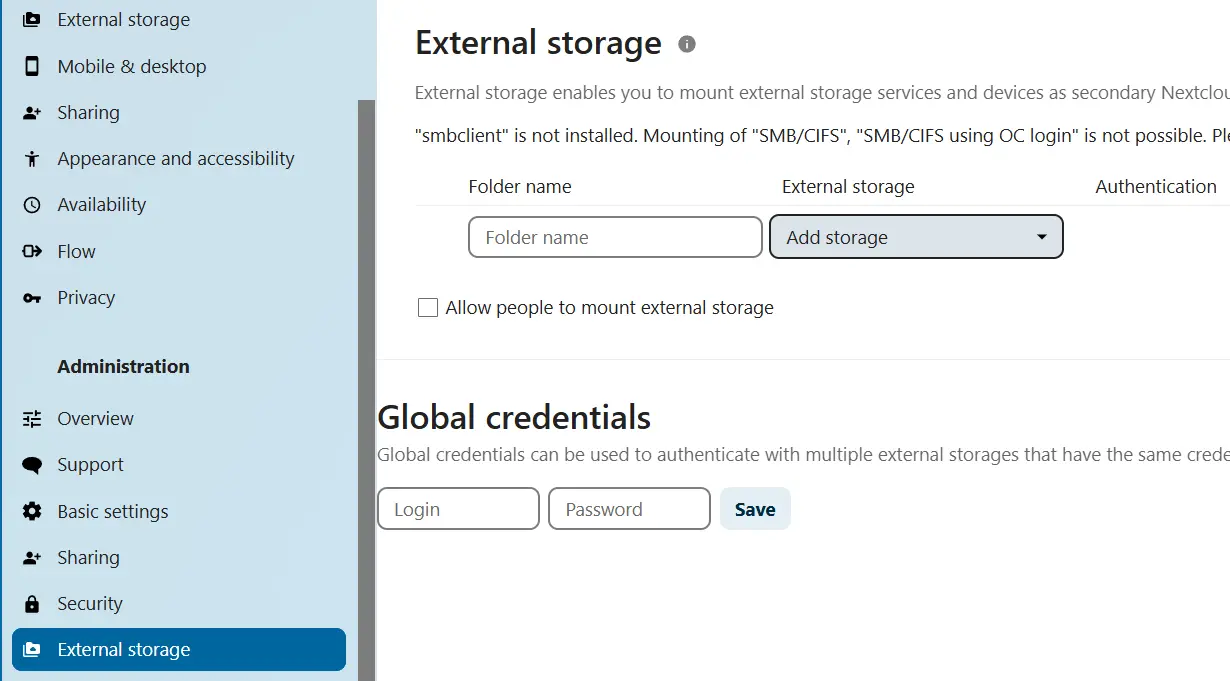
- Fill in the configuration fields for information such as host address or password. The fields displayed vary depending on the service chosen; Nextcloud marks mandatory fields with a red box.
Once the required data is entered, the external storage solution is automatically added to your Cloud. If everything is working correctly, the system tells you with a green dot next to the storage. On the other hand, if you see a yellow or red dot, it means that you are not connected to the external service. In this case, it is necessary to check the configuration, because an error has probably crept in somewhere.
Advice
Managed Nextcloud from IONOS provides you with a secure and convenient Cloud solution, which does not require you to take care of maintenance or updates of your server. As a Nextcloud Platinum Partner, IONOS also offers personalized support for Managed Nextcloud.


