

On Nextcloud, versioning is a file version management function. Changes are automatically saved, allowing you to access previous versions of your files at any time via the Nextcloud web interface.
What is versioning on Nextcloud?
Versioning, called in French versionnement or version management, is a built-in functionality from Nextcloud which automatically stores previous versions of files without overwriting existing content. Each time a file is modified, Nextcloud saves a new version without overwriting the previous one. This allows you to restore a previous state at any time, in the event of an error or unwanted modification. This way you can restore previous versions of files if necessary. This practical feature therefore constitutes an effective solution to avoid data loss.
Nextcloud versioning is particularly useful for revert certain unwanted or accidental changes Or restore deleted content. It also seamlessly tracks all file changes, which is particularly useful for teamwork. Nextcloud's version history allows you to see at any time what changes were made and when.
This feature of Nextcloud ensures that old versions of files are stored and managed automatically. To avoid saturating the user's storage space, versioning uses maximum 50% of available free space. Once this limit is reached, the oldest versions are deleted to make room for new versions.
To ensure that important changes remain available long enough, Nextcloud versioning maintains file versions according to a staggered schedule. This means that the software gradually removes old versions according to the following schedule:
- In the first second : Nextcloud stores a version.
- In the first ten seconds : Nextcloud saves a version every two seconds.
- During the first minute : a backup takes place every ten seconds.
- In the first hour : a version is recorded every minute.
- During the first 24 hours : a version is recorded every hour.
- In the first 30 days : Nextcloud keeps one version per day.
- After 30 days : Nextcloud keeps one version per week.
With each new version recorded, Nextcloud automatically adjusts the history according to this schedule. This automatic adjustment ensures optimal balance between available storage space and availability of older versions. However, the operation of versioning may vary depending on the configuration defined by the administrator. For example, in some cases the storage duration can be adjusted or versioning completely disabled.
Advice
With Managed Nextcloud, IONOS offers you a secure and comfortable Cloud solution. Thanks to outsourcing, you don't have to worry about administration, because IONOS takes care of the configuration and maintenance of your server as well as updates. Cloud storage can be flexibly expanded with Nextcloud apps, Online Office and useful AI functions.
Nextcloud's versioning allows you to easily view and restore previous versions of your files and name the versions. The tutorial below explains how to do this.
Note
The exact layout of versioning and the different buttons may vary slightly depending on the version of Nextcloud you are using.
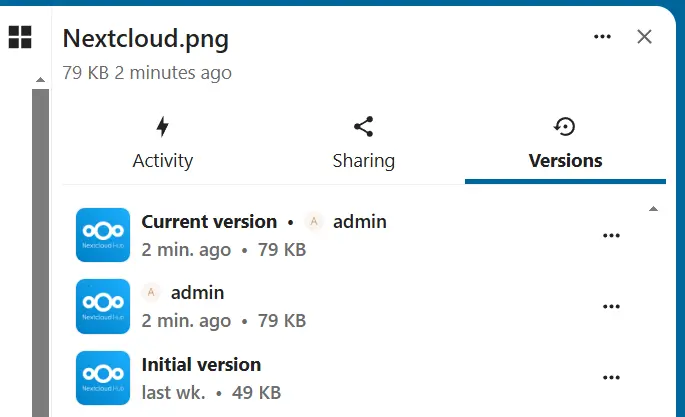
Access versions
- Log in to your Nextcloud instance.
- Click on the context menu (three-dot icon) of the file for which you want to view the version history, then on the entry » Open details « .
- Go to the “Versions” tab, which displays the file history.
- By hovering over the timestamp, Nextcloud shows you the exact date and time of the version. To download the corresponding file version, simply double-click on the corresponding entry.
Restore previous versions of a file
- Log in to your Nextcloud instance.
- Click the context menu (three-dot icon) of the file you want to restore, then click the “ Open details « .
- Go to the “Versions” tab.
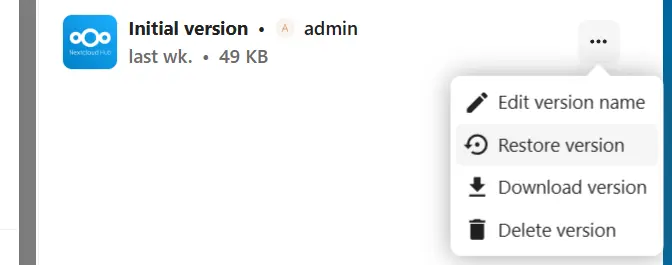
- Click the three-dot icon next to the version of the file you want to restore and select » Restore file » to restore it.
Rename versions
- Log in to your Nextcloud instance.
- Click on the context menu (three-dot icon) of the file whose version you want to rename, then on the entry » Open details « .
- Go to the “Versions” tab.
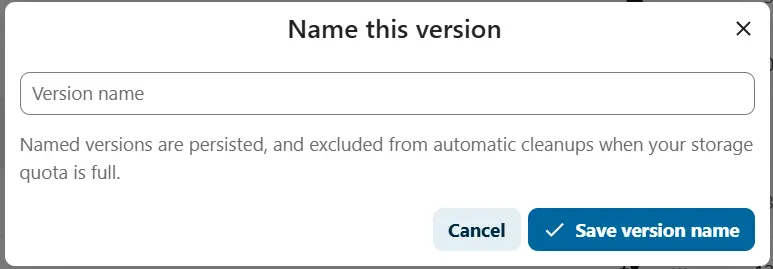
- Depending on your version of Nextcloud, use the context menu or click on the pencil icon to rename version. Named versions are not automatically deleted.
Managed Nextcloud
Cloud storage that puts you in control
- Effectively protect your data with industry-leading security
- Save time on updates and maintenance
- Easily add apps and collaboration tools


