

A Nextcloud update corresponds to updating the Cloud software to a higher version. Before updating Nextcloud, you must make a backup and ensure compatibility of third-party applications. These updates can be performed either by the integrated Updater or manually.
What is a Nextcloud update or upgrade?
Nextcloud updates (minor updates) and upgrades (major updates) allow you to update the software in order to improve its functionality and stability. The updates are small version jumps within a major version (for example from 26.0.1 to 26.0.2), which are generally used to fix security issues or bugs and to optimize system stability. Nextcloud upgrades are main version updates (for example from version 28 to version 29), which involve major changes and bring new features.
Nextcloud recommends regularly updating your Cloud server, i.e. installing all available versions and quickly updating them to new major versions. You will find detailed information about each software version in the Nextcloud Changelog.
When an update is available, you receive a message via the administration interface. However, Nextcloud updates must be carried out step by step. Before proceeding with an upgrade, it is necessary to carry out all the updates. Only then will it be possible to upgrade to the higher version of the software.
During updates, your Nextcloud server will be in maintenance mode. Until the update or upgrade is complete, users cannot access the Cloud. Major releases can take several hours, but updates generally only take a few minutes.
Nextcloud updates and upgrades: prerequisites
Before updating Nextcloud, it is recommended to make a complete backup of the Nextcloud instance. Without this, you won't be able to restore the instance if something goes wrong.
It is also useful to check whether the Third-party apps you use are compatible with the new version. In all cases, these must be deactivated before updating or upgrading.
Managed Nextcloud
Cloud storage that puts you in control
- Effectively protect your data with industry-leading security
- Save time on updates and maintenance
- Easily add apps and collaboration tools
Nextcloud offers three methods to update your Cloud instance. Each method has specific advantages and disadvantages and is suitable for different scenarios.
- Update via UI : The built-in web update tool is the easiest way to perform Nextcloud updates. This tool allows you to initiate software updates directly from the web interface. The fully automated process has been designed to be simple to use and performs all the necessary steps without manual intervention. This method is particularly suitable for users who are looking for a quick solution, without technical complexity.
- Updating via CLI : The update process can also be done via the command line. The process is similar to the web-based update tool, but errors are less common.
- Manual update : The software is installed using a downloaded archive file. This variant is only worthwhile if the integrated update program cannot be used.
Note
The difference between the three methods lies in their degree of automation. If you perform the update via the dedicated program, most of the steps in the process are automated. On the other hand, with the manual method, all steps must be done manually, which takes more time and is more prone to errors.
Update Nextcloud with the web-based Updater
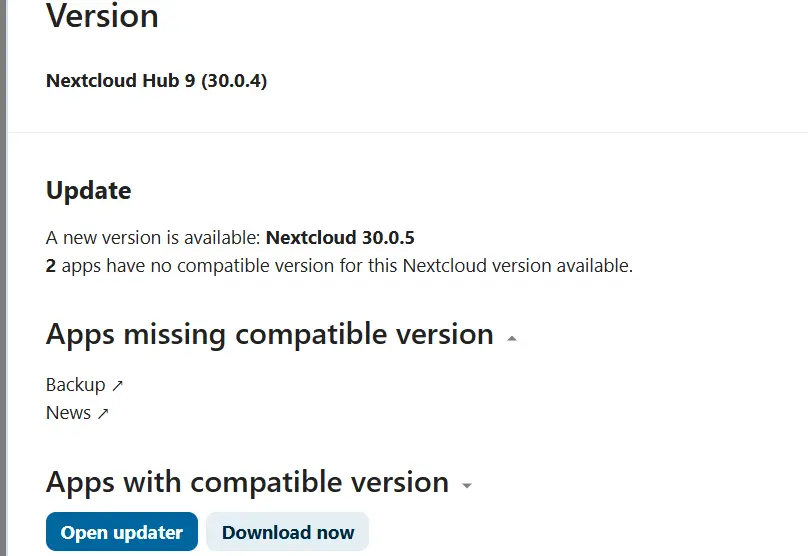
- Access the admin settings (“Overview”) via the profile icon and scroll down to the “ Version « .
- Click on “ Open update « . This option is only displayed if a Nextcloud update is available.
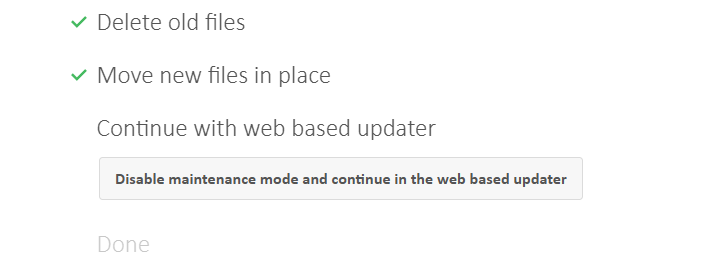
- After the Updater has completed all steps, select whether you want to keep maintenance mode active and whether you want to continue through the web-based update page or through the command line.
Update Nextcloud from the command line
- Access the server settings via the profile icon and scroll down to the “Version” section.
- Instead of clicking the update button, go to the update directory to run the file
updater.pharwith the following command:
sudo -u www-data php /var/www/nextcloud/updater/updater.pharbash
- The Updater tells you the version currently installed and the update available. By confirming with “y”, you start downloading the update. You are then asked if you want to run it directly, which you confirm again by clicking “y”.
- The tool then asks you if you want to stay in maintenance mode. Press “N” to deactivate this mode, so that the Cloud is ready for use as soon as the update is complete.
Update Nextcloud manually
The step-by-step instructions below are based on an Ubuntu server with NGINX.
- Enable maintenance mode : First, put Nextcloud in maintenance mode so that no one is active in the Cloud during the update.
cd /var/www/nextcloud
sudo -u www-data php occ maintenance:mode --on
bash
- Stop the web server :
- Rename Nextcloud directory : So that the old Nextcloud directory can be easily deleted later, you need to rename it.
cd /var/www mv nextcloud nextcloud_altbash
- Download and unzip the update : here we simulate an update to version 29.0.4, but be careful to enter the correct version number in the following command.
cd ~wget https://download.nextcloud.com/server/releases/nextcloud-29.0.4.tar.bz2tar -xjf nextcloud-29.0.4.tar.bz2 -C /var/wwwrm nextcloud-29.0.4.tar.bz2bash
- Resume the configuration file from the old installation :
cp /var/www/nextcloud_alt/config/config.php /var/www/nextcloud/config/config.phpbash
- Restart the server :
- Assign directory rights : Before running the update itself, explicitly set directory rights.
chown -R www-data:www-data /var/www/nextcloud
chown -R www-data:www-data /var/nextcloud_data
bash
- Start the update :
cd /var/www/nextcloud sudo -u www-data php occ upgradebash
- Turn off maintenance mode :
cd /var/www/nextcloud sudo -u www-data php occ maintenance:mode --offbash
- Remove old installation :
rm -r /var/www/nextcloud_altbash
Advice
With Managed Nextcloud, IONOS offers you a ready-to-use Cloud solution with secure server infrastructure and no administrative costs. IONOS takes care of the configuration and maintenance of your server, while giving you full control over your data. You also benefit from a tailor-made assistance offer.


