

As of May 2025, Skype is no longer available as a standalone service and is integrated into Microsoft Teams Free. To delete your Skype account, it is therefore necessary to close your Microsoft account. This is done through your Microsoft account website, as Skype is now part of that account.
Delete an old Skype account via web browser
If you still have an old Skype account not linked to a Microsoft account, you must first connect it to a Microsoft account before you can close it. Proceed as follows:
Step 1: go to your Microsoft account. If you are already logged in, log out.
Step 2: Sign in to your Microsoft account associated with Skype.
Step 3: If your Skype account has not yet been updated, a message will prompt you to link it to a Microsoft account. Click “Continue”.
Step 4: use an email address that is not already associated with another Microsoft service like OneDrive or Outlook.
Step 5: your Skype account is now linked to a Microsoft account. You can now close it by following the step-by-step instructions below.
Free video conferences
Video Chat
- Without registration
- Without installation
- Simple and compliant with data protection standards
Delete Skype account: what you should do first
Before permanently closing your Skype account, consider the following:
As Skype is integrated with Microsoft Teams, your Skype contacts and data (chats, call logs) were automatically transferred to Microsoft Teams. If your Microsoft account remains inactive, this data will be permanently deleted.
If you delete your Microsoft account, it will affect all associated data, including Skype data stored in Microsoft Teams. OneDrive, Outlook and all other services linked to your Microsoft account will also be deleted.
Before deleting your Skype account, we recommend that you:
- Back up important data from other Microsoft services or products (Outlook, OneDrive, etc.), as they will no longer be available after account deletion.
- Check Skype Credits: Any unused credits will be lost after deletion.
- Please note that all current Skype subscriptions have been automatically cancelled, so no further payments will be due.
If you want to continue using Skype features like video calls and chats, you can upgrade to Microsoft Teams Free. Your Skype contacts will be automatically transferred to Teamsallowing you to continue chatting and calling without having to re-enter your contacts. Skype data, such as chats, contacts and call logs, will be permanently deleted after a while.
Note
Your Microsoft account will be deactivated first. When requesting deletion, you can choose whether the account should be permanently deleted after 30 or 60 days. This means that you can still access your data during this period and reactivate the account. To do this, simply sign in with your Microsoft credentials and follow the instructions to reactivate the account.
Delete Microsoft Account via Web Browser
To close your Microsoft account and thus the data from your old Skype account, follow these steps:
Step 1: go to the Microsoft websitelog in and confirm your identity by email or telephone.
Step 2: a verification code will be sent to you. Enter it in the field provided, then click “Confirm”.
Step 3: Read the instructions carefully and click “Next”.
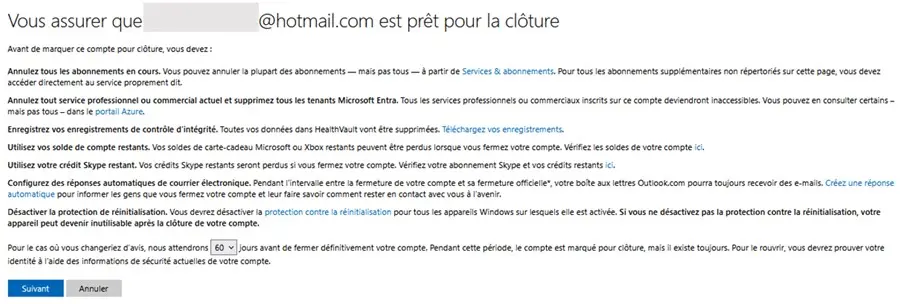
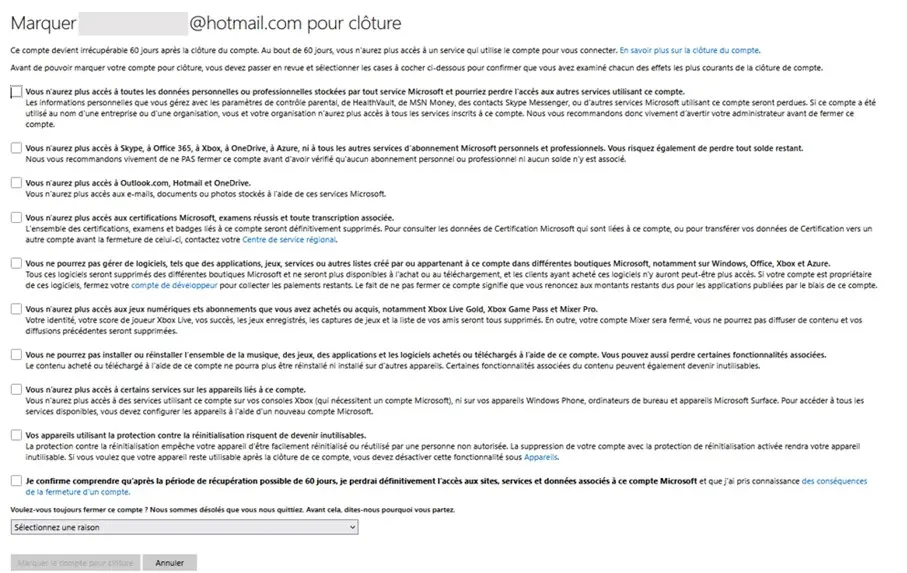
Step 4: Confirm that all content should be removed by checking all boxes and providing a reason for removal. Click the “Mark account for closure” button.
Step 5: The date your Skype account will be permanently deleted is displayed. Finalize the process by clicking on the “Done” button.


