It is often necessary to find old versions of websites or restore deleted web pages. Tools like the Wayback Machine, Google Cache or WebCite allow you to access website archives, reconstruct old versions of a website or view an old home page in just a few clicks.
Create a website
Your site in a flash thanks to artificial intelligence
- Intuitive site editor with AI features
- Image and text generator with SEO optimization
- Domain, SSL and email included
Why consult old Internet pages?
- Offline pages: technical problems or termination of a hosting service may render a site inaccessible. Website archives then make it possible to preserve and consult this content, even when the original site no longer exists.
- Research and verification of sources: Journalists, bloggers and researchers can visit older versions of websites to verify information or cite sources accurately.
- SEO objectives: Archived content makes it easier to analyze old links, document changes, and exploit the potential of old domains.
- Legal guarantees: screenshots and archived content can be used as evidence in the event of insults, threats or legal disputes, particularly in a professional context.
Website Archive Project
L'Internet Archive is a non-profit project founded by Brewster Kahle, which has been preserving digital content since 1996. At the heart of this project is the Wayback Machinea tool allowing you to access old versions of websites and view historical screenshots, texts, images and videos. The first archived sites date from 1996, and the Wayback Machine today contains hundreds of billions of saved pages. Thanks to it, it is possible to find and restore old Internet pages.
In addition to websites, the Internet Archive also maintains:
- texts and books
- audio recordings, including live concerts
- videos and TV shows
- pictures
- software
The contents come from public domain or are made available by their rights holders. Much of the archive comes from universities, public organizations or digitization projects such as Project Gutenberg And LibriVox.
Wayback Machine Tutorial: Find and Archive Old Versions of Websites
If some content on your website has disappeared or you want to view an earlier version of a page, the Wayback Machine is the ideal tool. In just a few simple steps, you can find old versions of websites, access archived web pages and even back up your own content.
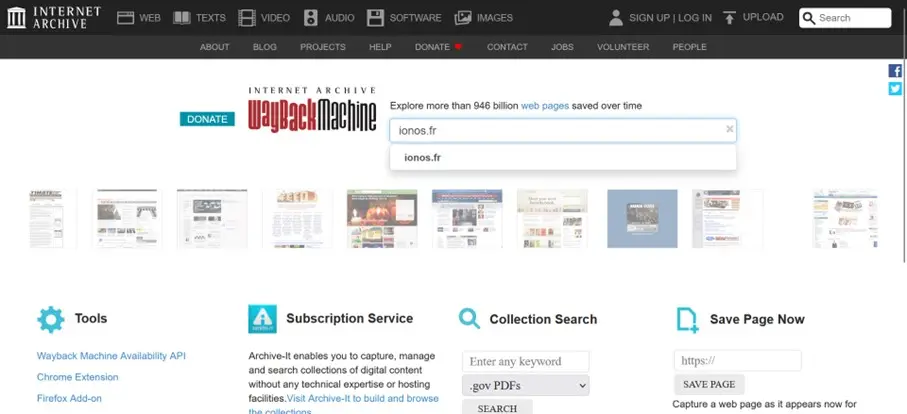
Step 1: Enter the URL of the desired site
Enter the domain you want in the search bar at the top of the page, then tap Entrance to directly display the available results. The calendar view is then displayed if archives exist.
Step 2: Access the main page of the Wayback Machine
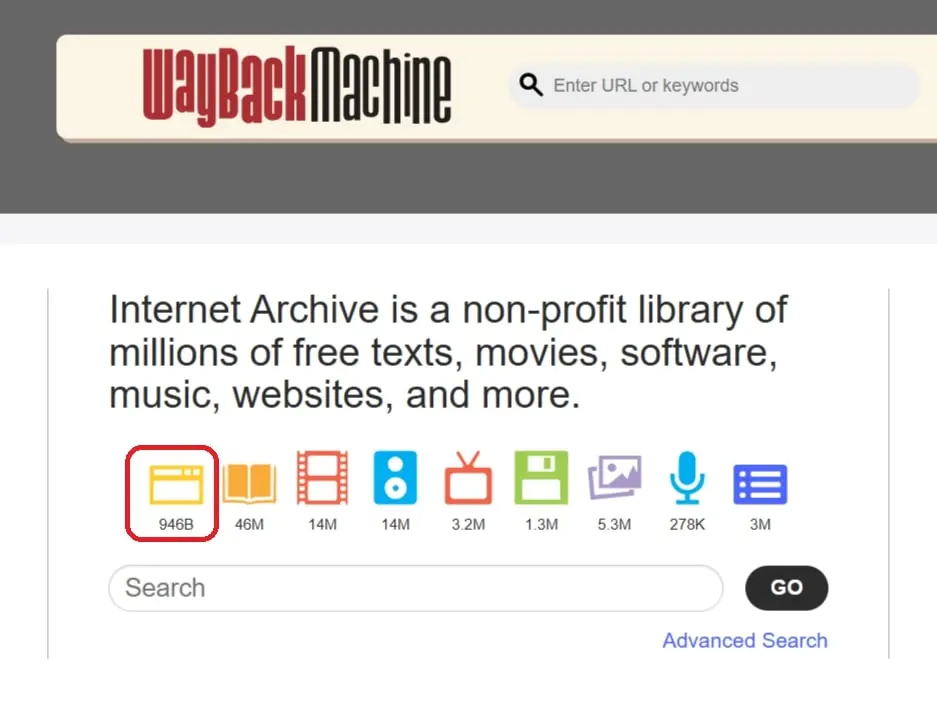
Click on the logo to return to the Wayback Machine home page. You can enter a URL there and select “ Browse History » to display archived versions of the site.
Step 3: Search by Keywords
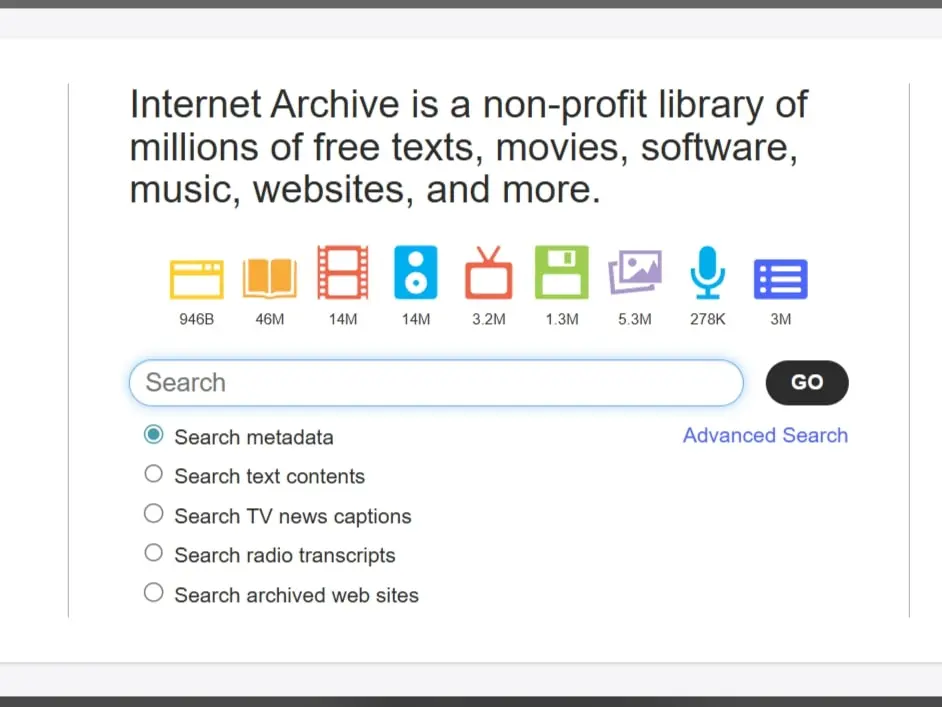
Enter a keyword in the bottom search bar, then select “ Search archived web sites « . Click on “ Go » to display the list of results, including the domain, a description, available snapshots, and associated media records.
Noticed
A snapshot is an archived version of a page, like a sort of screenshot. Dynamic elements (forms, scripts) may not work.
Step 4: Use Timeline and Snapshots
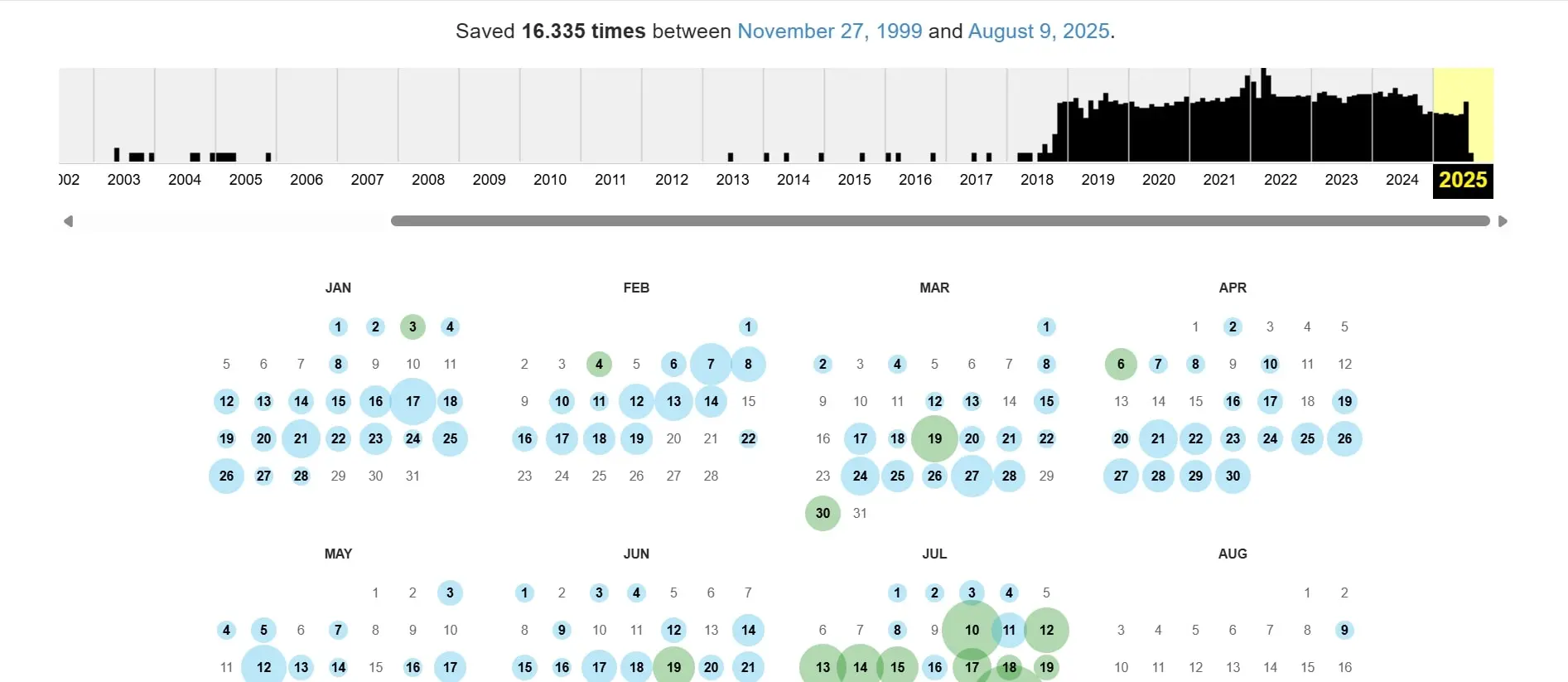
For each archived URL, the Wayback Machine displays a chronology showing the number of snapshots saved by date. In calendar view, these snapshots are represented by distinct colors; the color codes may change, so also refer to the interface legend.
- Blue : successful crawl
- Green : redirect
- Orange : URL not found (error 4xx)
- Red : server error (error 5xx)
How to use the timeline?
- Click on a colored date in the calendar.
- Select thetimestamp desired to display the screenshot of the website archive.
- Navigate the page as you would on the original site and copy content if necessary.
Step 5: Archive your own website (self-capture)
Not all websites are automatically archived. The most common reasons are:
- the presence of a beacon
noindexor a corresponding entry in the robots.txt file, which prevents indexing - password protected content
- manual deletion of an archived page
- unsupported or poorly recorded dynamic content
How to backup your website?
- Go to the main page of the Wayback Machine.
- Use the “ Save Page Now » and enter your domain.
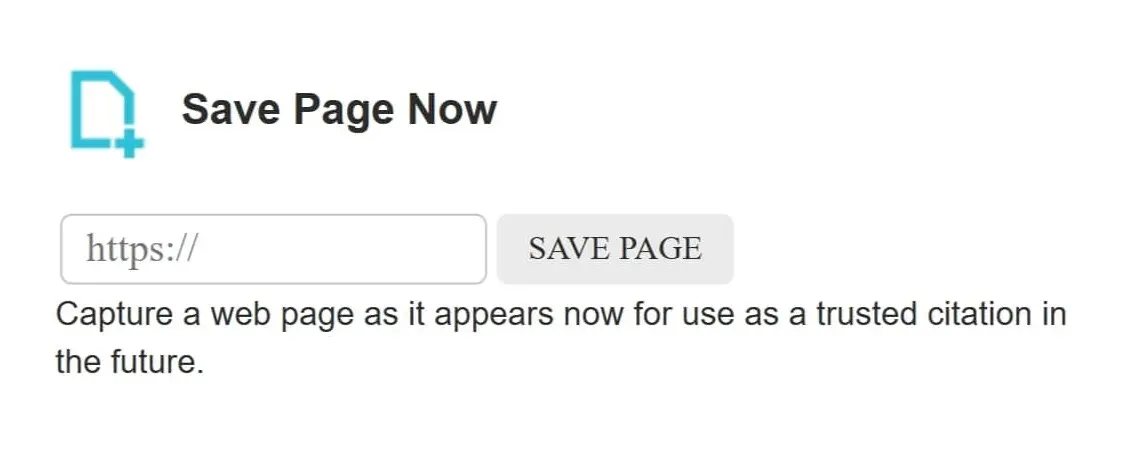
- After a few moments, the Wayback Machine creates a instant which is then permanently archived. This will allow you to find old versions of your website, even if the online version is no longer available.
Advice
A snapshot (or snapshot) corresponds to an archived version of a page, comparable to a screenshot. Dynamic elements (forms, scripts) may not work.
Website with domain name
Create your website in minutes
- Professional templates
- One-click design editing
- Domain, SSL and email
For more advanced needs, such as analyzing the source codethe recovery of links or the SEO testingseveral specialized tools can be used:
- Wayback-Machine-Downloader (GitHub, Open Source): downloads HTML files, media and index pages from the Wayback Machine.
- Archivarix (online): free for sites containing up to 200 files, with download in ZIP format after registration.
- HTTrack Website Copy: Classic tool for copying entire websites, including website archives, by filling in Wayback URLs.
Archive.org does not offer an official tool for downloading complete sites, but it is possible to download texts, images or audio files when rights permit.
Alternative 1: Find Recent Websites Using Google Search
If the information you are looking for is still relatively recent, a simple Google search may be enough. Google crawlers also record cached snapshotssimilar to those of the Wayback Machine. These caches display the most recently indexed version of a page. If the original page is temporarily inaccessible, the cache remains searchable. Compared to archive.org, these copies are often more recent, but they only keep one timestamp per page.
To access a cached version, enter the following command in your browser's address bar (replace URL by the desired URL):
https://webcache.googleusercontent.com/search?q=cache:URL
Note that Google caches generally do not display dynamic elements or multimedia content. Additionally, it is important to know that even if a page is defined with the attribute noindex and no longer appears in search results, it is sometimes possible to access it temporarily via the cache.
Alternative 2: View and cite archived websites with WebCite
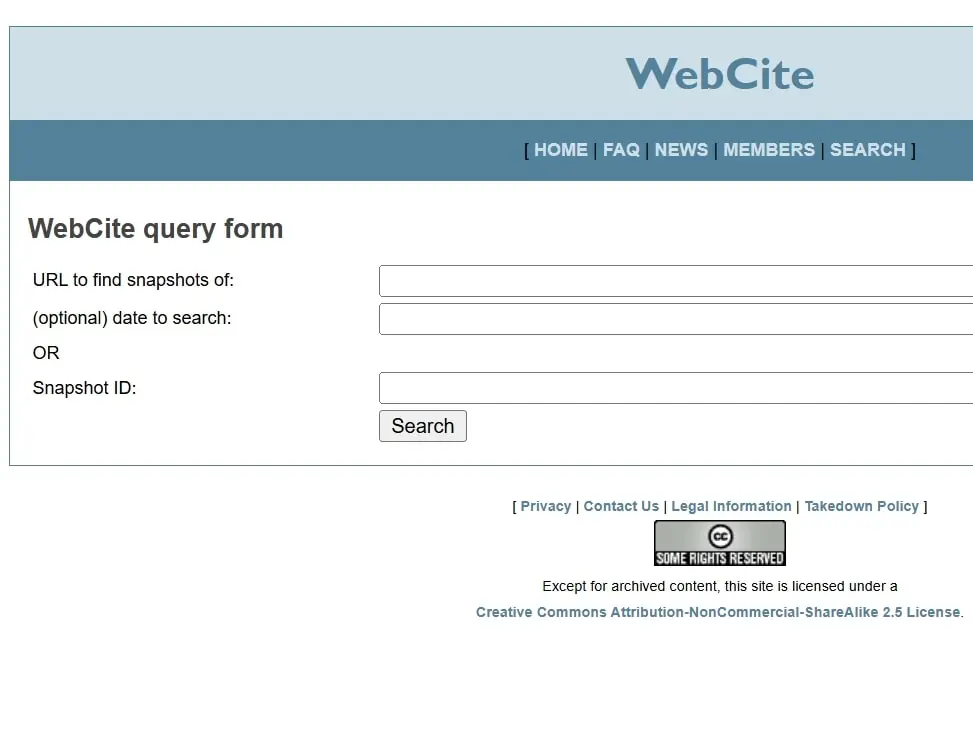
WebCite provides access to websites already archived and cite them as reliable sources. However, the service no longer accepts new archiving requests. Existing snapshots remain accessible and can still be used as references. This allows you to find old versions of websites and view old Internet pages.
To view an archived version of a site, go to the WebCite website and use the search function to enter the domain or snapshot ID. You will then be able to consult older versions of websites already archived and cite them in a permanent and unalterable manner.