

Application Backup is an internal Nextcloud solution that creates backup copies to reliably protect instances, data, databases and applications. It is easily installed from the integrated App Store. Once enabled, you can schedule backups (backups) from Nextcloud via the web interface.
Why is a Nextcloud backup useful?
Data is at the heart of many businesses: it is not uncommon for data integrity and availability to be the foundation of a operational activity or the successful completion of projects. It is therefore essential to protect against hardware failures, software issues or human errors that could lead to data loss! This not only applies to Nextcloud software, but also to Nextcloud alternatives like ownCloud.
Without regular backups of your Nextcloud instance, you risk irreparably losing important files or settings, for example following an accidental deletion or technical failure. Additionally, cyberattacks against cloud servers pose a growing threat. Companies that work with customer data or sensitive financial information risk not only losing data, but also harming their image and having problems with the law if they do not make backups. A backup copy also offers the possibility of restoring the system in the event of a configuration error. You should also not forget to make a backup before updating Nextcloud or migrating Nextcloud.
Managed Nextcloud
Cloud storage that puts you in control
- Effectively protect your data with industry-leading security
- Save time on updates and maintenance
- Easily add apps and collaboration tools
Installing Nextcloud Backup can be done simply via the web interface. Note, however, that the application requires at least version 23 of Nextcloud. To activate the application, follow these steps:
- Log in to Nextcloud : Log in with an administrator account.
- Go to the App Store : like all Nextcloud applications, Backup is installed via the App Store. You can access it by clicking on the profile icon at the top right and selecting « Apps » from the drop-down menu.
- Search Nextcloud Backup : Enter the name of the application in the search box to find it quickly.
- Install and activate the application : click on the application, then “Download and activate”. Backup will then be automatically integrated into your instance and ready to use.
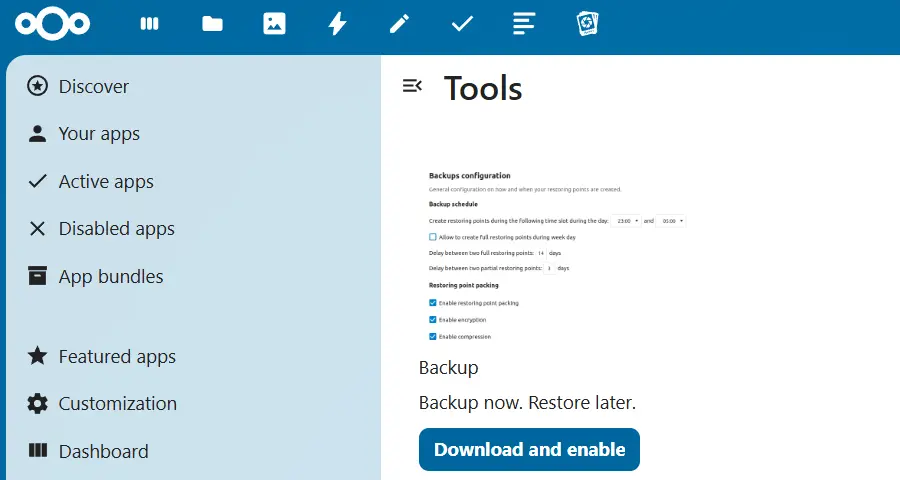
Note
It is also recommended to activate the Nextcloud External Storage application in order to be able to store the backups created on external media. Although it comes by default with Nextcloud, it must be activated manually.
As the Backup application is integrated into the Nextcloud ecosystem, it is possible to create a backup directly through the software's web interface. Here is how to create a Nextcloud backup:
- Open Nextcloud Backup : Click your profile icon and navigate to “Management Settings” from the drop-down menu. Next, tap the “Backups” section on the left menu bar.
- Enable background tasks : Check the “Enable background tasks” box to allow automatic backup.
- Schedule backups : under “Backup scheduling”, define the time slot dedicated to the creation of backups. If you check the “Allow creation of full restore points during weekdays” option, the data will be fully backed up during the week. Otherwise, the application will always generate an incremental type backup, which has the advantage of not having to put Nextcloud in maintenance mode. You can also set the interval between each backup here.
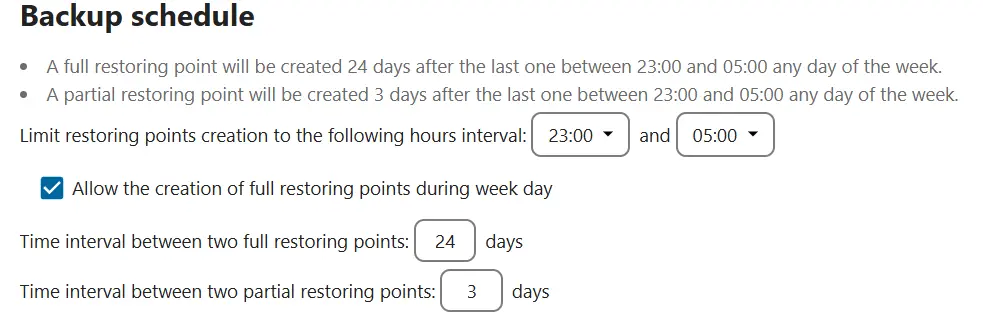
- Set backup properties : In the “Backup Options” section, indicate whether backups should be compressed. To encrypt the backup, check the “Encrypt restore points” box.
- Choose the storage duration of backups : Under « Restore point history », you can specify how long Nextcloud backups remain in local application data and on external storage media before being deleted.
- Export backup configuration : Save the configuration as a file to save the settings. With the corresponding key (which must be kept in a safe place!), the exported file allows the backup to be restored to new hardware in the event of total data loss.
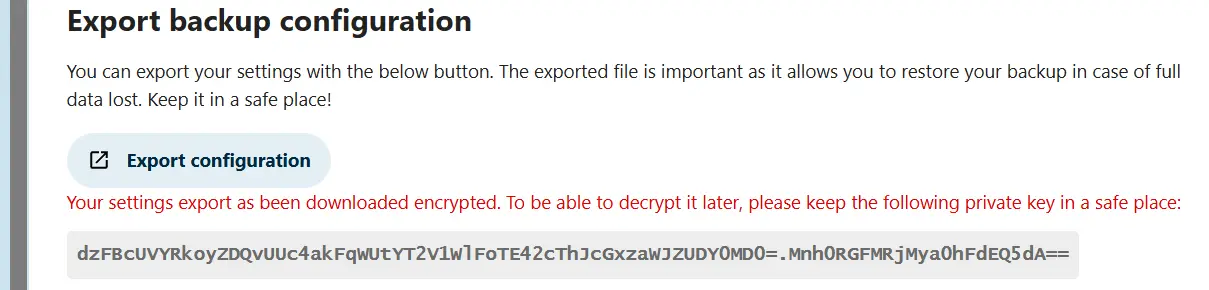
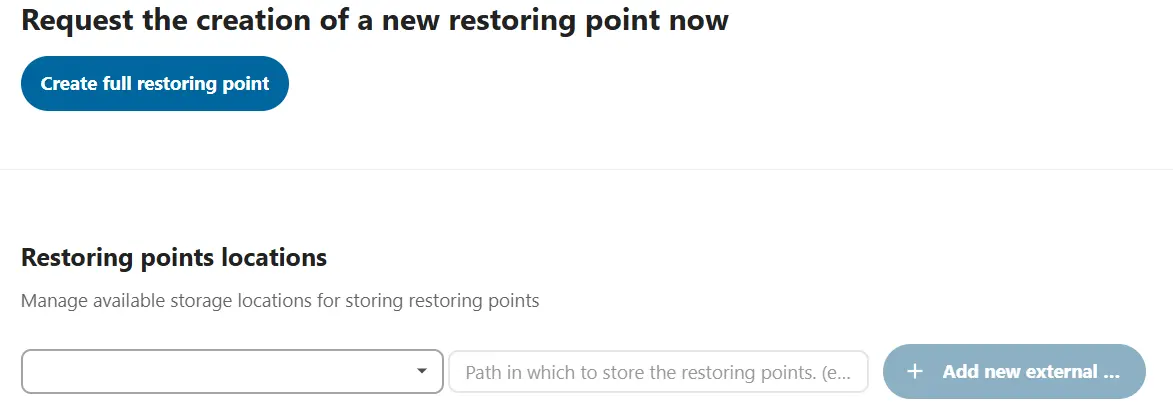
- Specify the location of backups : under “Restore point locations”, you can specify a storage location, either locally in the directory
data/backupsor on external media if you have activated the External Storage application. To ensure the availability of backups, it is recommended to choose an external drive or another server as the storage location. - Create a Nextcloud backup : Finally, click on the “Create full restore point” button to create the backup.
Backup Cloud by Acronis
Protect your devices and reduce downtime
- Automatic backup and easy restore
- Intuitive management and planning
- AI-powered threat protection
Unlike creating a backup, restoring is not done via the Nextcloud Backup application, but via the command line via SSH. It must therefore be carried out manually. Start by enabling Nextcloud maintenance mode. Here's how to restore a Nextcloud backup:
First, view all available backups:
sudo -u www-data php occ backup:point:listbash
Download the desired Nextcloud backup:
sudo -u www-data php occ backup:point:download --external bash
Next, extract the files from the backup:
sudo -u www-data php occ backup:point:unpack --external bash
The final step is to restore your data from the extracted files:
sudo -u www-data php occ backup:point:restore --external bash
Advice
With Managed Nextcloud, IONOS offers you secure and convenient cloud storage with full data control. Since IONOS takes care of the installation of the Nextcloud server, as well as maintenance and updates, you don't have to worry about administration. Plus, you benefit from personalized assistance!


