

When you replace equipment, for example a processor, it may happen that the basic software does not recognize the new component. In this case, an update of BIOS is often the rapid solution to solve this problem, but it is not always obvious to achieve.
When should you make a BIOS update?
An update of the BIOS should not be carried out for no reason. It's a process relatively critical During which, if something goes wrong, the system can become unusable. Therefore, you must only update the BIOS in one of the following cases:
- Compatibility problems : You have installed new equipment (for example a processor, RAM or a graphics card) and the system does not recognize it properly or does not support it. An update of the BIOS can then improve the management of this new equipment.
- Stability problems : If the system is unstable, blocks frequently or encounters unexplained errors, an update of the BIOS can solve these problems. Indeed, manufacturers often provide necessary bug corrections in new versions.
- Manufacturer's recommendation : In rare cases, manufacturers recommend an update of the BIOS after having published major improvements or critical bug corrections in a new version.
Domain name
Your domain in one click
- Domain .eu or .fr + free site publisher for 6 months
- 1 SSL WildCard certificate per contract
- 2 GB email box
What are the preparations necessary for updating the BIOS?
To update the BIOS, you must first Know the manufacturer and the model of your motherboard. This is the only way to make sure you install the right version. There are several ways to get this information: if you still have the manual of your motherboard, you will find the required information there. You can also locate the manufacturer's name and the model directly on the motherboard.
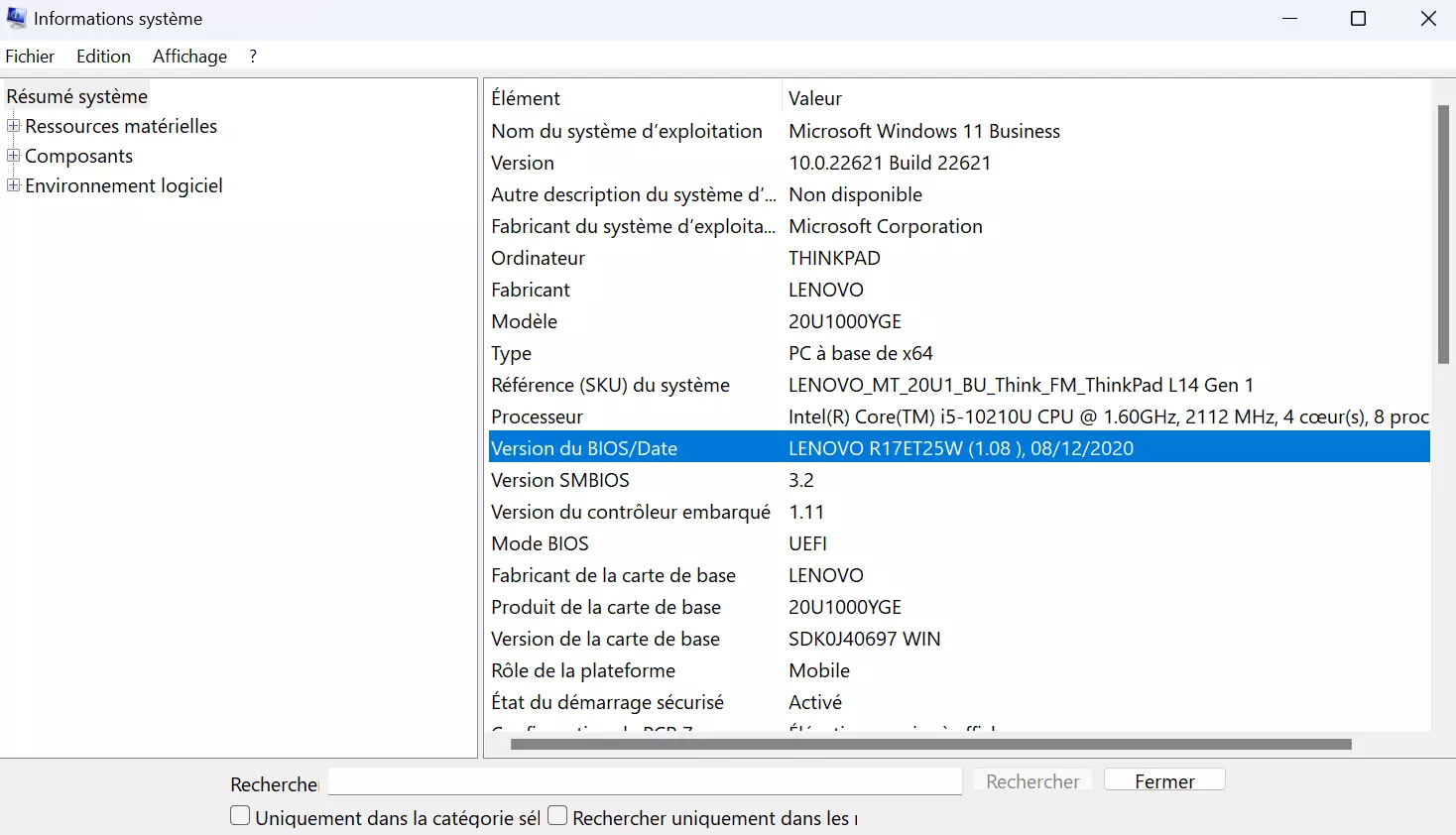
Under Windows, you will also find the essential details in System informationto which you can easily access using the search function. You can also find the version of the BIOS currently used.
Advice
If you have already worked in the BIOS before to make certain configurations of your equipment, it is recommended to copy all the parameters in preparation for the update. Indeed, it is very likely that the update resets the application to factory settings.
Step 1: Download the appropriate bios update
Once you have obtained motherboard data, you can get in search of the right update files. You will generally find them on the manufacturer's website. Before downloading, make sure you have selected the files corresponding to the right version of the motherboard. Often the different versions differ only by a number or a letter in the designation.
Step 2: Download the BIOS update to a USB support
The second step is to save files on a USB support : a simple USB key is enough. The update is often provided in the form of a zip archive. Unravel the zip file and follow the manufacturer's instructions for the BIOS update. In some cases, it is for example necessary to rename the file decompressed later.
Note
Never download files from websites you don't trust. In particular, for BIOS updates, contact manufacturers' official sites only. Do not forget to create a backup of the whole system before updating.
Step 3: Start the system and update the BIOS
Now restart your computer while the USB key containing the update files is connected. During the start -up process, then launch the BIOS using the appropriate key.
Note
Some manufacturers offer software special To facilitate the update of the BIOS. In this case, you do not need to access BIOS manually, but you can launch the update process directly from Windows. It is up to you to decide whether you want to call on this help; The result is the same.
Familiarize yourself with the BIOS interface. The update function of the version may not be directly on the first page. Once you have found the dedicated menu, an assistant should guide you throughout the process. In most cases, simply indicate the access path to the connected USB key to launch the installation process. Once the process is over, the computer restarts. This time you can let your computer start as usual. Bios update should be completed.
For detailed instructions on specific motherboardsplease consult the following articles:
What if the BIOS update fails?
Avoid brutally turn off your device if you meet problems during the update process. Rather try to restart the process or reformat the USB key and download the update again. If nothing works and you see no possibility of restoring the old version of the BIOS, contact the manufacturer. This may be able to help you reprogram the component of the BIOS.


