

The update (update) of the BIOS on an Asus motherboard can be important to improve the stability of the system or to support new equipment. Updating the BIOS Asus can be carried out safely in a few steps, even by beginners.
Domain name
Your domain in one click
- Domain .eu or .fr + free site publisher for 6 months
- 1 SSL WildCard certificate per contract
- 2 GB email box
Step 1: Prepare the update of the Bios Asus
The first step is to ensure that your system is best prepared for updating the BIOS. To do this, make sure your PC or laptop is connected to a Reliable and permanent power source. Also save all the still open files and close the current programs before starting the BIOS update.
In addition, it is important to know which version of the BIOS is currently installed on your motherboard. This will allow you to determine if an update of the BIOS Asus is necessary. To do this, restart your computer and press the key several times [Suppr] Or [F2] During starting to display the BIOS. In the BIOS, you can generally read and note the current version of the BIOS on the main screen or in the « Main » section.
Note
Your BIOS may be called by another touch! Indeed, the way BIOS is launched differs according to the motherboard. In this case, a simple search on Google with the exact name of your motherboard or a glance at the manual will allow you to see more clearly.
You can also find the bios version in Windows system information by pressing the key combination [Windows] + [R]. In the entry window, enter the command msinfo32. In the system information that opens, you will find under the line » BIOS Version/Date »The current version of BIOS.
Step 2: Download the most recent version of BIOS
The next step is to download the recent BIOS version on the Asus website. To do this, access the official website of theAssistance Asus. Now click on the section » Download center ».

You can now enter the motherboard model, which you will find on the packaging or in the manual of your motherboard.

You will arrive on the page of your motherboard model. Here you can click on » Bios & Firmware In order to obtain a list of all the updates available. Click on » Download To get the latest version of the BIOS. The file is generally compressed in a format .Zip.
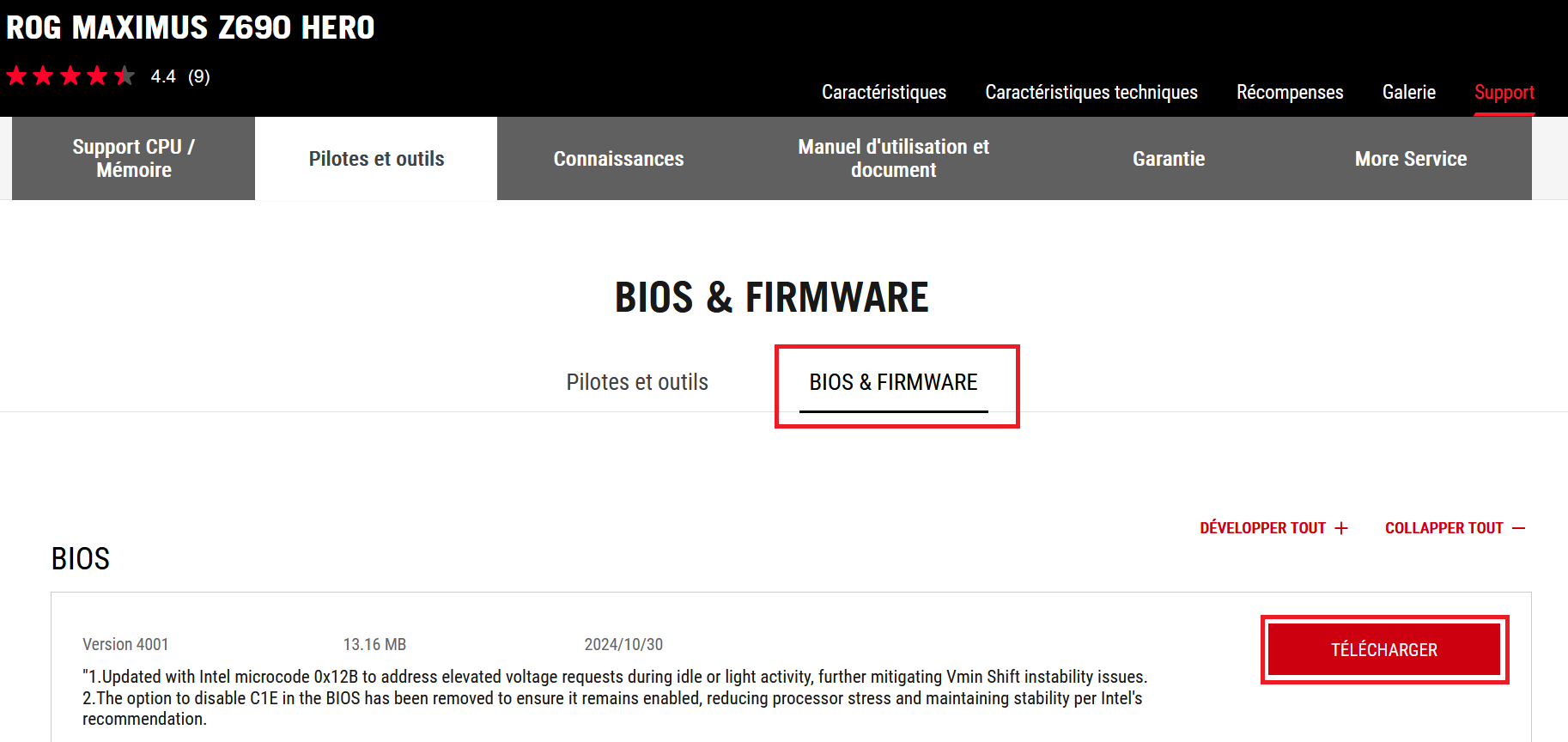
Now decompress the .zip file on your computer. You will find a file with the extension .Cap you will need for the update.
Step 3: Prepare the USB key
A USB key is necessary for the amount of BIOS Asus. First of all, you must format it at FAT32 format. To do this, first connect the key to your computer. Then open File explorer and right -click on the USB key. In the menu that opens, select the option » Format »And make sure that the file system is defined on Fat32. Click on » To start up To format the key.
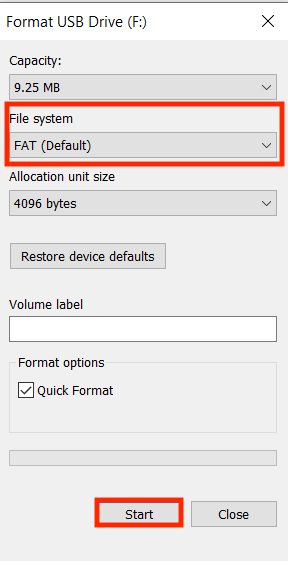
Copy the file now .Cap that you have downloaded and decompressed previously on the USB key.
Step 4: Update of Bios Asus via Asus Ez Flash
Asus offers a user -friendly method to update the BIOS directly via the BIOS configuration. This method is called Ez Flash. To do this, restart the computer and press again on [Suppr] Or [F2] At start -up to access BIOS. Then go to the advanced BIOS parameters, then to the category » Tool ». Select the option » Asus Ez Flash 3 Utility ».
You will have to choose if you want to update the BIOS via a USB key or the network. Choose the option Via Storage Device (that is to say via a storage device) and select the USB key that you have prepared in step 3. On your USB key, click on the file .Cap Downloaded and launch the update process.
Step 5: Update the BIOS Asus
After launching the BIOS Asus update, the BIOS will load the file and run the update process. A progression bar indicates the progress of the update process. This process can take a few minutes. Do not turn off your computer during this time And do not disconnect the USB key. Once the progression bar is completed, the update is complete and the system automatically restarts.
Step 6: Check the success of the BIOS Asus update
After updating the BIOS Asus, you must check that the BIOS is up to date with the most recent version. To do this, follow again the instructions in step 1 to access the BIOS and read the current version. If the version corresponds to the one you have downloaded on the Asus website, the BIOS Asus MàJ is then successful!
Advice
If you have a motherboard from another manufacturer, you can also update the BIOS. Consult our other articles for detailed instructions on the BIOS update for different brands of motherboards:


