
Creating an email address with its own domain has two advantages: on the one hand, the recipient immediately recognizes who sent the email. On the other hand, a personal domain gives you a more professional image when it comes to sending work emails. In Google’s Gmail service, you can associate your account with a personal domain in just a few steps.
Associate Gmail with a personal domain in brief
- Register your own domain for Gmail and create an address.
- Open the Gmail menu « Accounts and import « .
- Provide the new address and SMTP server information.
- Check the alternative Gmail address via the confirmation link.
- Select the desired sender address when creating the message via the drop-down menu.
Professional email address
Discover a new way to process your emails
-
Email address in your name
-
AI features to write perfect emails (optional)
-
Secure messaging with spam protection
Reserve a personal domain for Gmail
First you need a domain name in which your name is reflected appropriately. The domain you want may already be taken. If so, you can add a complement to your name, e.g. tapis-dupont.fr Or dupont-nettoyage.fr. The national domain .fr is the reference in France, but others domain extensions can also be used to describe thematic areas, e.g. .fitness, .shop, .design and many more.
Example of a reservation procedure at IONOS
Reserving a personal domain at IONOS is done very simply in just a few steps. Visit the official IONOS website. Under the “Email & Office” menu, click “ Professional email address « . Click on “View packs” to access the pricing plans available for this service.

IONOS email packages offer ad-free mailboxes and good protection against viruses and spam. / Source: https://www.ionos.fr/solutions-bureau/agence-email.
The performance offered in the “Email Basic 1” plan should be more than sufficient for most usage scenarios. Thus, in addition to the free domainwe find among others a spam filter as well as an email box with 2 GB of storage space (July 2024).
After opting for a pack, the next step is to choose the domain name.
The availability of a domain is displayed in real time. You can then reserve the pack immediately.
In the IONOS customer account, you then create under “ Emails » the desired email address under the domain you reserved. To do this, another window opens in which you enter the desired name for the address in front @votre-domaine.fr. It is recommended to separate the first and last name with a period; double names can be combined with a hyphen.
A confirmation window is then displayed (also with other protection indications) and, further down the page, a link to instructions about how to configure the address in different email programs. Note your password so that you can later open the mailbox either in IONOS Webmail or in a different email program.
Professional email address
Discover a new way to process your emails
-
Email address in your name
-
AI features to write perfect emails (optional)
-
Secure messaging with spam protection
Use your own domain in Gmail: step-by-step instructions
Once the email domain is configured, you must now go to your account Gmail to configure the use of your address. To do this, first open the Google email service in the browser of your choice and log in with your account.
To use the newly configured email address, open the settings by clicking on the cogwheel symbol. Then click on “See all settings”, where you will find the “Accounts and import” section.
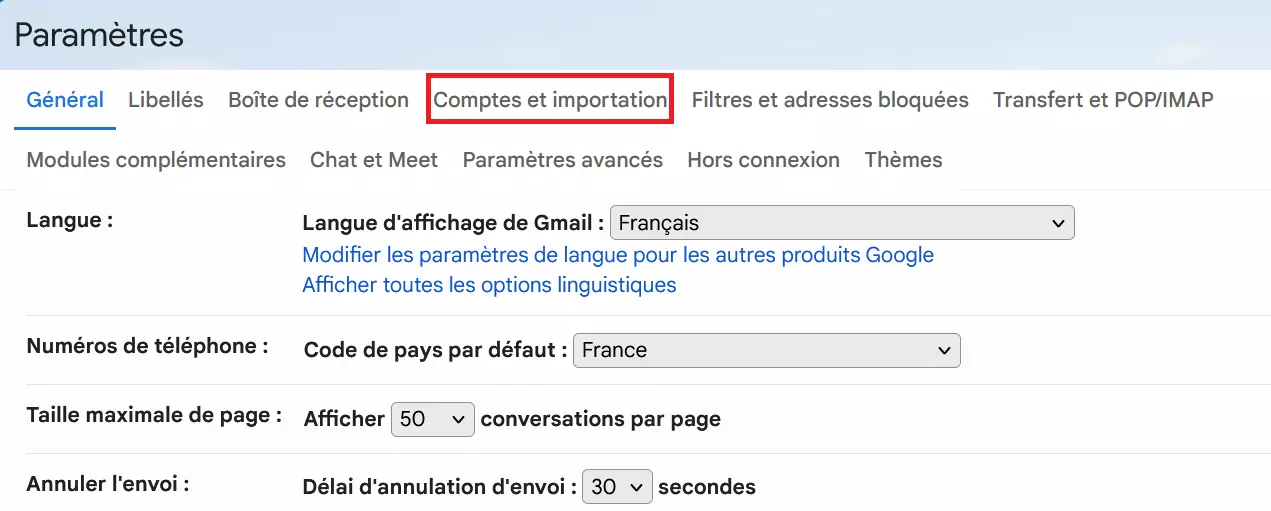
Under “Accounts & Import” you access advanced account settings.
Next to “Send emails as:,” tap “ Add another email address « . Gmail then opens a separate window in which you indicate the desired name as well as your e-mail address with your own domain name. Then click on “ Next step « .
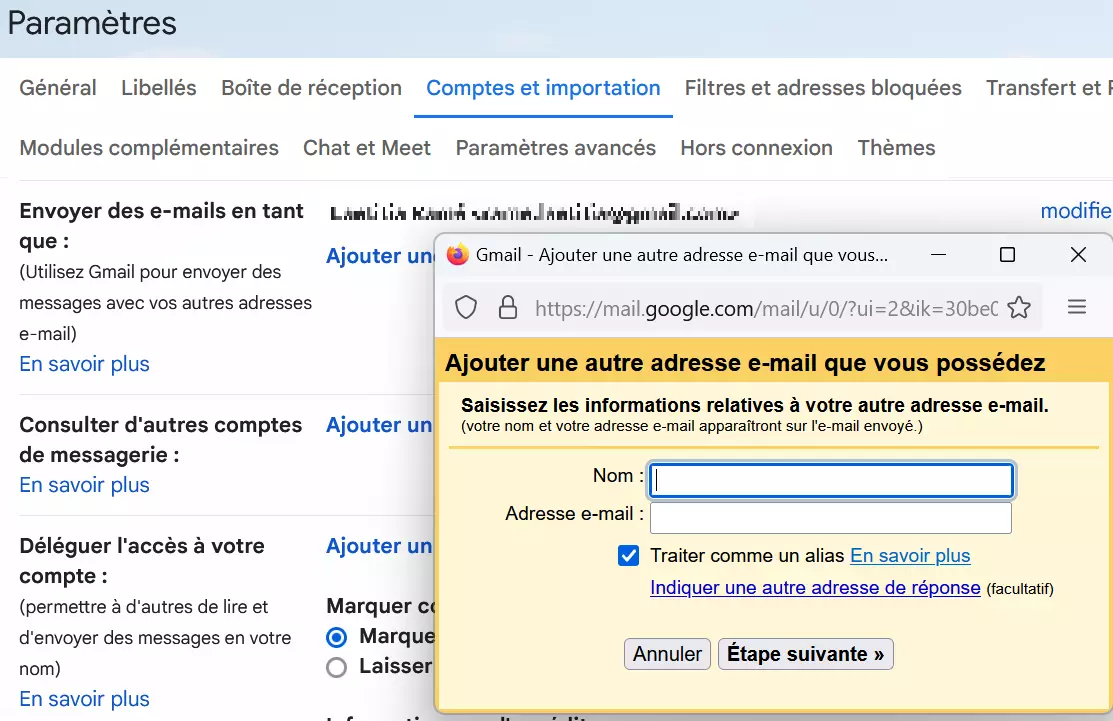
By checking the “Treat as alias” option, the new domain will be treated like your original Gmail address.
In the next step, the necessary data for the server SMTP must be recorded. The IONOS SMTP server address is smtp.ionos.frthe output port is port 465. As username, you must enter your (new) full email address. For the password, this is the password you configured when creating the email address. Once you have entered all the information, tap “ Add an account « .
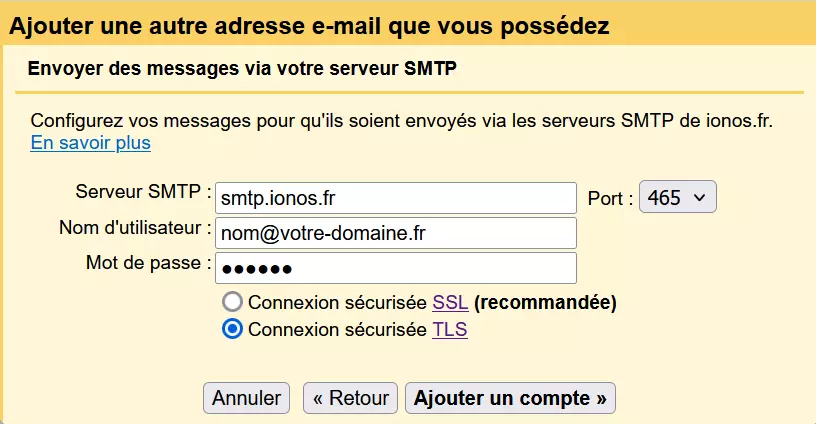
Fill in the different fields to be able to use your own domain on Gmail.
You will receive a request for confirmation of the accuracy of this data. To do this, collect thee-mail that Google sent to the address to associate. This contains a confirmation link that you must click to proceed with the configuration. As soon as you have completed this step, you will receive a corresponding message in Gmail.
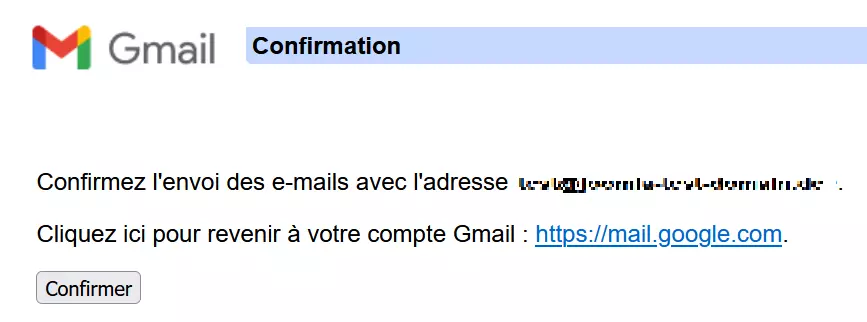
The link takes you back to your Gmail mailbox.
When you write a new email in Gmailyou can now open at any time in the sender (“From”) field a drop-down menu in which the available sender addresses are displayed, of which your new Gmail address is now a part!
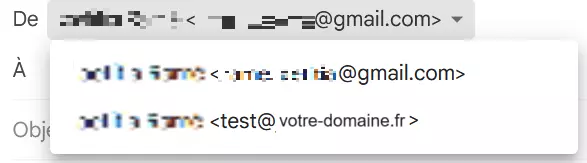
Decide each time individually whether you use your standard address or your new personal Gmail domain.