
As the name suggests, Nextcloud Notes is an application for Nextcloud, designed for PC and mobile devices. It allows you to create, classify and share notes. Like all software applications, Notes is installed via the Nextcloud App Store.
What is Nextcloud Notes?
Notes is a Nextcloud application dedicated to organizing your notes, allowing you to store and manage content directly in your Cloud environment. When you use Nextcloud's open source solution, your data does not end up on the servers of external providers, unlike what can happen with other providers. Additionally, as Notes is totally integrated into the Nextcloud ecosystemyou benefit from high security standards.
Nextcloud Notes supports formatting with the Markdown markup language, with which you can structure your notes in a flexible and personalized way. Whether you want to create to-do listsgather ideas for a presentation or create shopping listsit's possible! Notes proves to be a practical tool in both the private and professional sphere.
As all notes created are stored as files in your Cloud, you can view and edit them with any Nextcloud client. For smartphones and other mobile devices, the Notes app is available on theApp Store for iOS and on the Google Play for Android. Thanks to the REST API, Nextcloud Notes also integrates with third-party service applications.
What features does the Notes app have?
This Nextcloud application has nothing to envy of its competitors and has all the basic features of note-taking applications. Here is an overview:
- Create and edit notes : Notes allows you to create notes and modify their content at any time. All notes are stored centrally on your Cloud server, allowing you to maintain full control over the data.
- Note sharing : Created notes can be shared with other Nextcloud users. You can also provide access to your notes through a link, which is particularly useful for team collaboration.
- Categorize and search notes : you can organize your notes into categories. This way you always keep an overview of your content. Thanks to the search function, you can easily find all your notes.
- Markdown formatting : Markdown syntax gives you great flexibility in formatting your notes. For example, you can create and structure your notes with tables, titles, or even bold or italic texts.
Managed Nextcloud
Cloud storage that puts you in control
- Effectively protect your data with industry-leading security
- Save time on updates and maintenance
- Easily add apps and collaboration tools
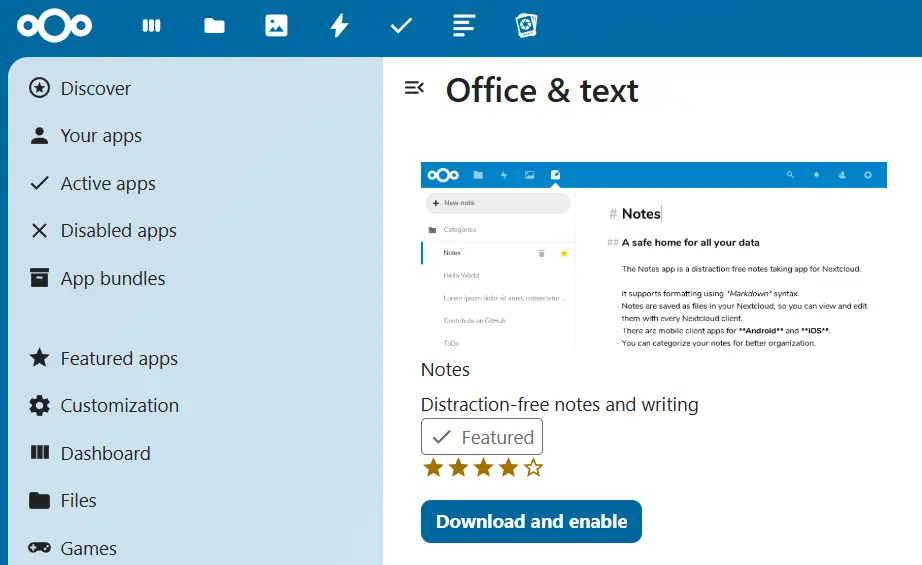
Notes installs and activates in just a few clicks via the integrated App Store. The installation of the application takes place as follows:
- Log in to Nextcloud : Start by logging into your account as administrator.
- Go to the App Store : Click the account icon at the top right, then select the “Apps” tab from the drop-down menu.
- Search Nextcloud Notes : the application is located in the “Desktop & Text” category.
- Install the app : just click on “Download and activate”.
Getting started with Nextcloud Notes: tutorial
Creating notes in Nextcloud is child's play, thanks to the app's clean and intuitive user interface. Even without prior experience, it won't take you long to find your way! Check out some of the basic functions of the app below.
Create notes
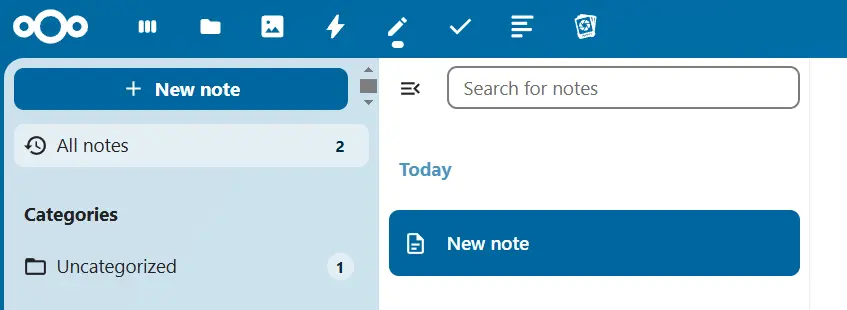
- Open the Notes app by clicking the pen icon (“Notes”) in the Nextcloud menu bar.
- Tap “ + New note » or on “ + Create an example note with Markdown « .
- Enter the desired rating in the text field.
Create categories for notes
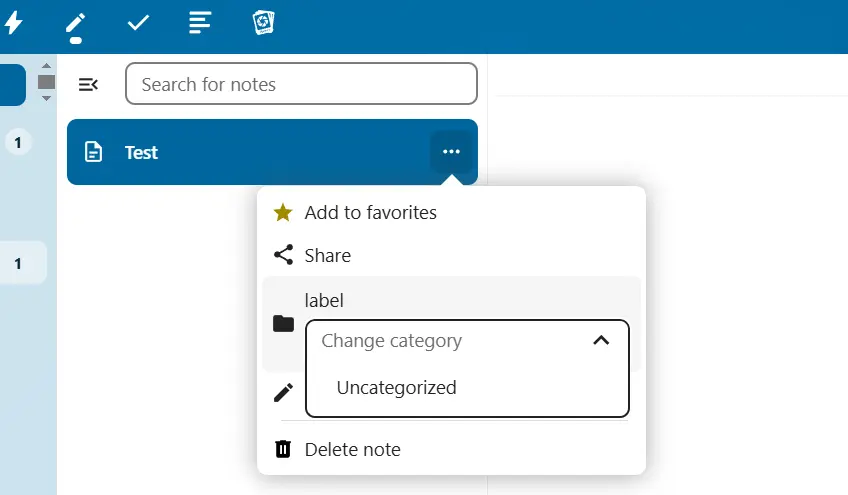
- Open the note you want to categorize.
- Click on the three-dot icon and select the option “ Uncategorized « .
- Enter the name of the desired category in the input field or assign an already created category to the note.
Share notes
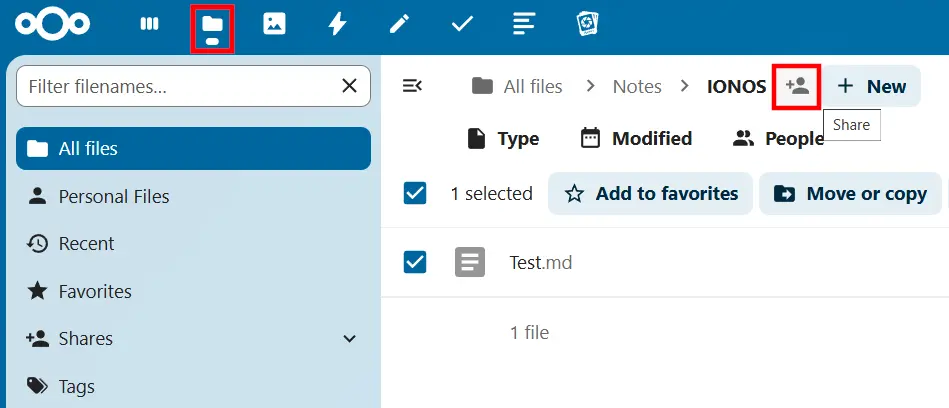
Unfortunately, it's not possible to share notes with others directly through the Notes app, although there is a « Share » button. Sharing is instead done via the file system. Here's how to do it:
- Go to the “ Files » from the Nextcloud software menu bar.
- Click on the folder “ Notes » (or the folder defined for storing notes).
- Check the note files you want to share.
- Tap the share icon and indicate which users should have access or create a share link.
Advice
With Managed Nextcloud, IONOS offers you a secure and comfortable Cloud solution that allows you to benefit from all the features and advantages of Nextcloud without having to worry about server administration. IONOS takes care of everything: installation, maintenance and updates. This way you can concentrate on the essentials.