
Nextcloud News is an RSS feed management application, which makes it easy to subscribe to feeds, organize them and view their content at any time. News installs in just a few clicks from the Nextcloud App Store and is compatible with a large number of sync clients via the REST API.
What is Nextcloud News?
RSS feeds are a popular format for automatically retrieve website content such as news portals, blogs or podcasts. Nextcloud News brings this functionality directly into your Nextcloud instance. It is therefore not necessary to use external services, whose data protection is often less reliable than that offered by Nextcloud. As an open source application, it is fully free and free from advertisements.
Nextcloud News app can be used on PC and mobile devices. The Android version is available on the Google Play Store and on F-Droid. The iOS application is available on theApp Store.
What are the features of Nextcloud News?
The News application for Nextcloud remains easy to use while including the functionalities expected of an RSS feed manager. Here is an overview:
- Centralized management of RSS feeds : the application allows you to subscribe and organize feeds directly via the Nextcloud ecosystem. Users thus always maintain an overview of the content to which they are subscribed.
- Automatic news feed update : as soon as new articles are available, the feeds to which you are subscribed are updated and the application notifies you.
- High data protection : unlike what can happen with external RSS services, Nextcloud News does not share any information with third parties. The application also benefits from the security mechanisms of the Nextcloud platform.
Advice
If you opt for Managed Nextcloud from IONOS, you don't have to worry about installing, maintaining and updating your server. This way you maintain full control of your data, which is stored securely on servers located in Germany.
What are the prerequisites for using Nextcloud News?
To ensure the application functions correctly, certain conditions must be met. These concern both the operating system and the Nextcloud instance as well as the necessary PHP versions and extensions. Here are the details:
System Requirements :
- 64-bit operating system
- Current stable version of Nextcloud
libxmlin version 2.7.8 or higher
PHP version and extensions :
- PHP version 8.2 or higher
- Required PHP extensions:
json(JSON data processing),simplexmlAndxml(XML data),dom(processing document object models),curl(communication with external servers and data sources),iconv(content character encoding).
Supported databases :
- PostgreSQL from version 10
- MariaDB from version 10.2
- MySQL from version 8.0
- SQLite (technically possible, but not recommended)
Which clients are compatible with News?
The REST API allows you to connect News to a wide range of clients to sync your RSS feeds with third-party applications. You can also use the interface to integrate your own applications. Nextcloud News connects to the following clients:
| Customer | Platform | License |
|---|---|---|
| RSS Guard | Windows, Linux, OS/2, macOS | GPL 3.0 license |
| Fluent Reader | Windows, Linux, macOS | 3-clause BSD license |
| Communicate | Linux | LGPL 2.1 license |
| NewsFlash | Linux | GPL 3.0 license |
| Nextcloud News Reader | Android | GPL 3.0 license |
| OCReader | Android | GPL 3.0 license |
| Newsout | Android | Apache 2.0 License |
| Readrops | Android | GPL 3.0 license |
| CloudNews | iOS | 2-clause BSD license |
| Fiery Feeds | iOS, macOS | Not specified |
| Nextnews | iOS | Not specified |
| Newschecker | Google Chrome | Not specified |
| FeedSpider | Firefox OS, webOS, MoonOS | MIT License |
| py3status | i3wm | 3-clause BSD license |
| newsboat | Unix Terminal | MIT License |
| Newsie | Ubuntu Touch | GPL 3.0 license |
| Fuoten | Sailfish OS | GPL 3.0 license |
Managed Nextcloud
Cloud storage that puts you in control
- Effectively protect your data with industry-leading security
- Save time on updates and maintenance
- Easily add apps and collaboration tools
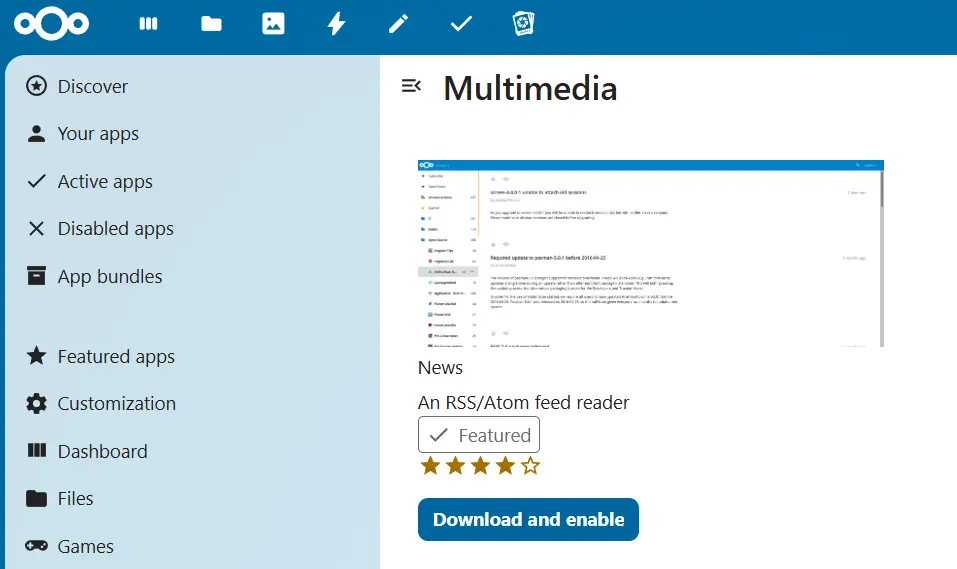
To install the Nextcloud News application, you have several options. Like all Nextcloud apps, News can be downloaded from the built-in App Store, but it is also possible to install it from an archive or via Git. The easiest way is to go through the App Store. Here is the procedure to follow:
- Log in to Nextcloud : Log in as administrator.
- Go to the App Store : click on the account icon (top right of the Nextcloud interface) and select “Apps” from the drop-down menu.
- Find the Nextcloud News app : To do this, use the search function.
- Install News : Click “Download and activate” to install the application.
Note
Verify that all application requirements are met before starting the installation. To enable feed updates, it is also necessary to configure a Nextcloud cron job using for example Cron or WebCron.
Nextcloud News: the basics
The application has been provided with a user-friendly and intuitive interface. Even without prior knowledge, it won't take you long to become familiar with the basic functions. The following tutorial will help you get started.
Subscribe to a feed
- Copy the link of the RSS feed you want to subscribe to. Feed URLs are easiest to find using a search engine.
- Open the News app by clicking the app icon in the Nextcloud menu bar.
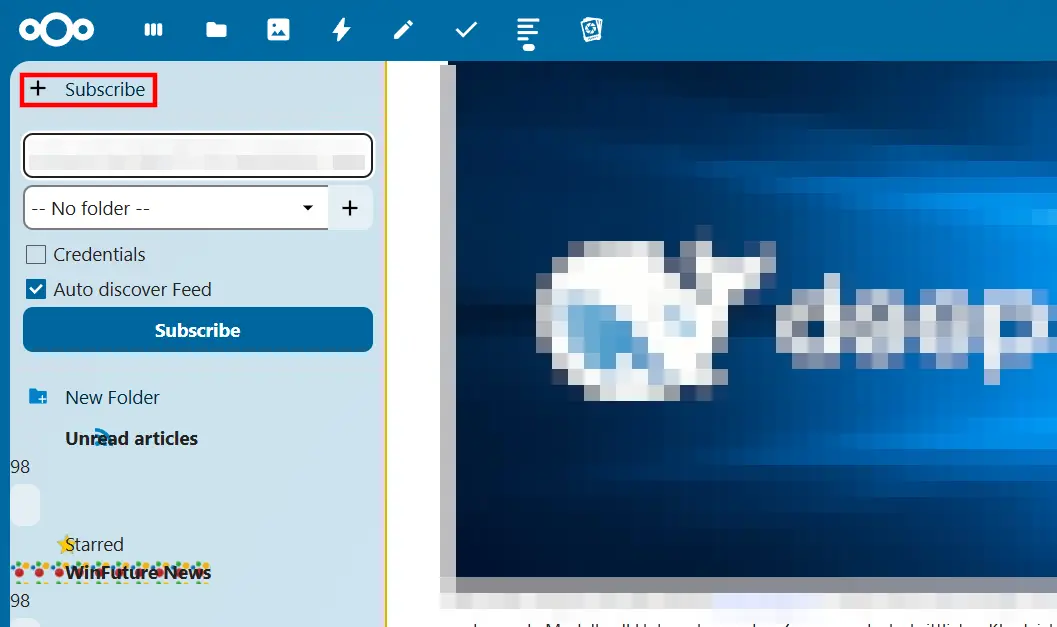
- Click on the button “ + Subscribe » in the left bar, then enter the RSS feed link.
- Finally, press the blue button “ Subscribe » to add the feed.
View an unread article
Whether you're using a PC or a mobile device, simply click » Unread articles » in the application to access articles that you have not yet consulted.