When you create a discord link, the latter is largely made up of a random character string. Invitation links are easier to memorize if you associate your Discord server with your own domain. Find out here how to do it.
Quick guide: associate a discord server with its own domain
- Register With a domain supplier, select the domain of your choice, and if necessary, create a sub-domain.
- Adapt the type of use to » Redirection And indicate as a redirection target the desired discord invitation link (you can create this link in Discord under « Inviting people »).
- Test the domain Now linked in your browser: it should now point to your Discord invitation link.
The prerequisites
Discord is one of the most popular online services for instant messaging, voice call and video call. Discord servers also offer many possibilities ofIntegration and personalization. To invite people to your Discord server, the platform automatically generates an invitation link. However, they are not always easy to memorize: they generally consist of the URL discord.gg/ and a random combination of characters.
To access your Discord server via a personalized link, the server must already exist. If you don't have a Discord server yet, you can create one. The procedure is simple and only takes a few minutes. We detail the steps to create your Discord server in our dedicated article.
To customize your Discord invitation link, it is possible to use » Vanity Urls (Vanity URL) in order to choose the final character string of the Discord link. The link always starts with Discord.ggbut you can Use your own field for your Discord server. If you don't have your own area yet, you can just save one at Ionos!
If you already have a domain, you can of course use it. You just need to configure it so that all requests are redirected to your existing discord invitation link. Find out below how to proceed, step by step.
Domain name
Your domain in one click
- Domain .eu or .fr + free site publisher for 6 months
- 1 SSL WildCard certificate per contract
- 2 GB email box
Step by step instructions
Now that you have your Discord server and an area, all you have to do is associate.
Note
The following steps start from the principle that you have an area in Ionos. If your domain is hosted by another supplier, you must adapt the steps accordingly.
Step 1: Select a domain
Connect first to your Ionos Customer Account. Go to « Domains & SSL »: you will see all the areas that are hosted for you by Ionos. To create a redirection to your Discord invitation link, you can either use the whole domain or create a sub-domain.
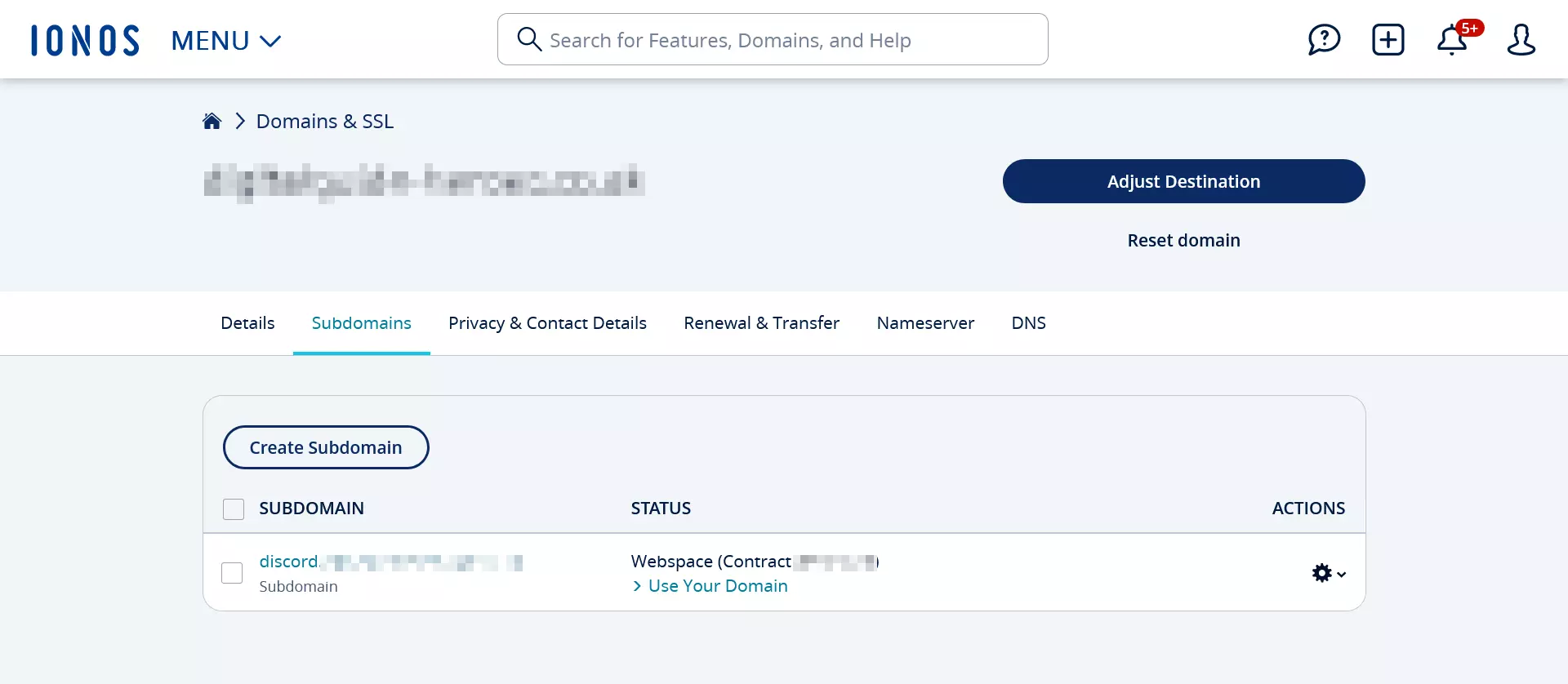
In this example, we will create a subdomain. Go to the tab » Sub-domains And create a subdomain with the name of your choice. However, it can flow a certain time before it is available.
Step 2: Customize the type of use
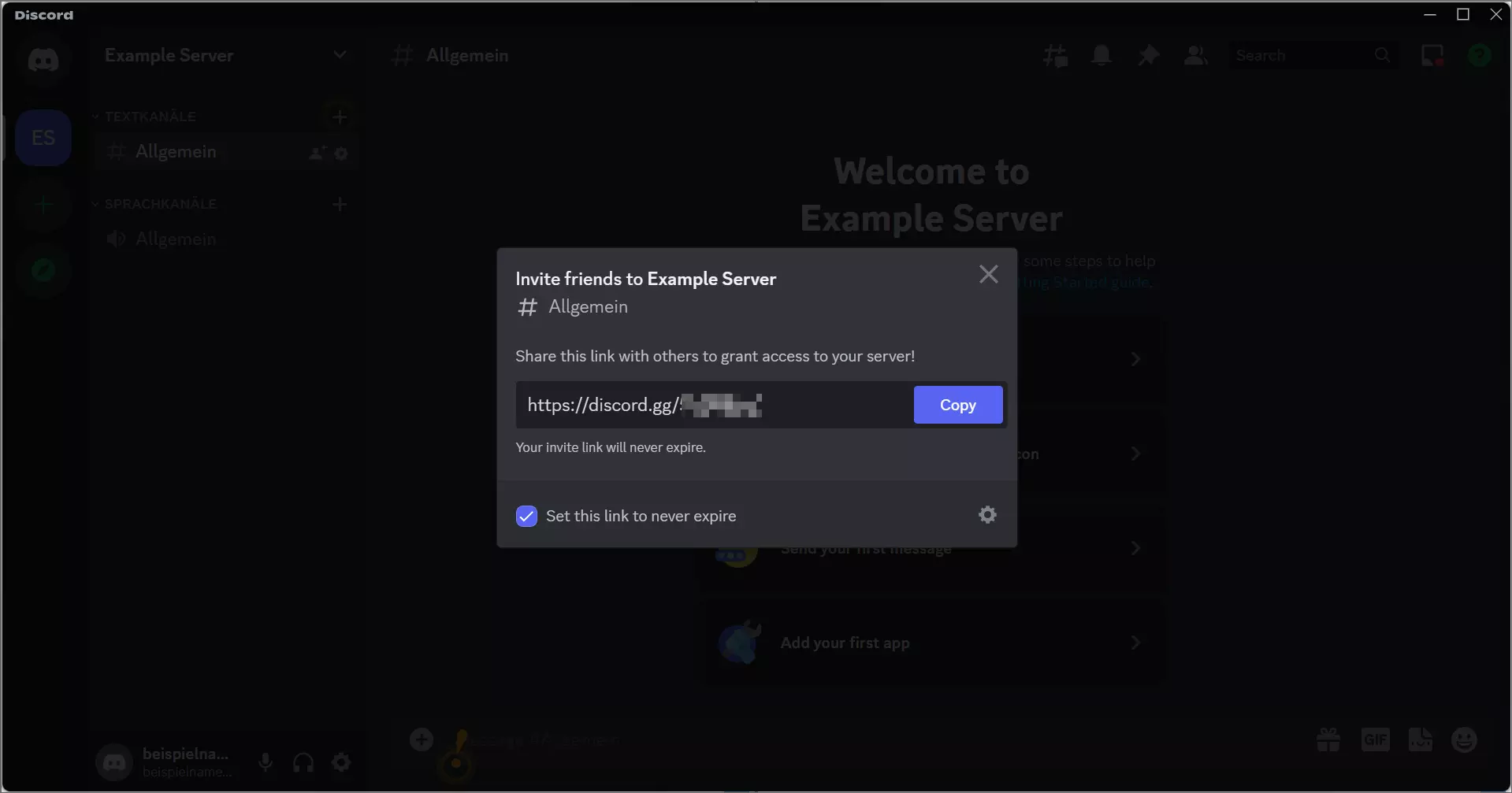
Click on the name of the subdomain (or on your field if you want to use it), then on » Configure the type of use ». Select » Domain redirection « And add your discord invitation link in the field » Destination of redirection ». On your Discord server, create your own invitation link by selecting the option » Invite people ».
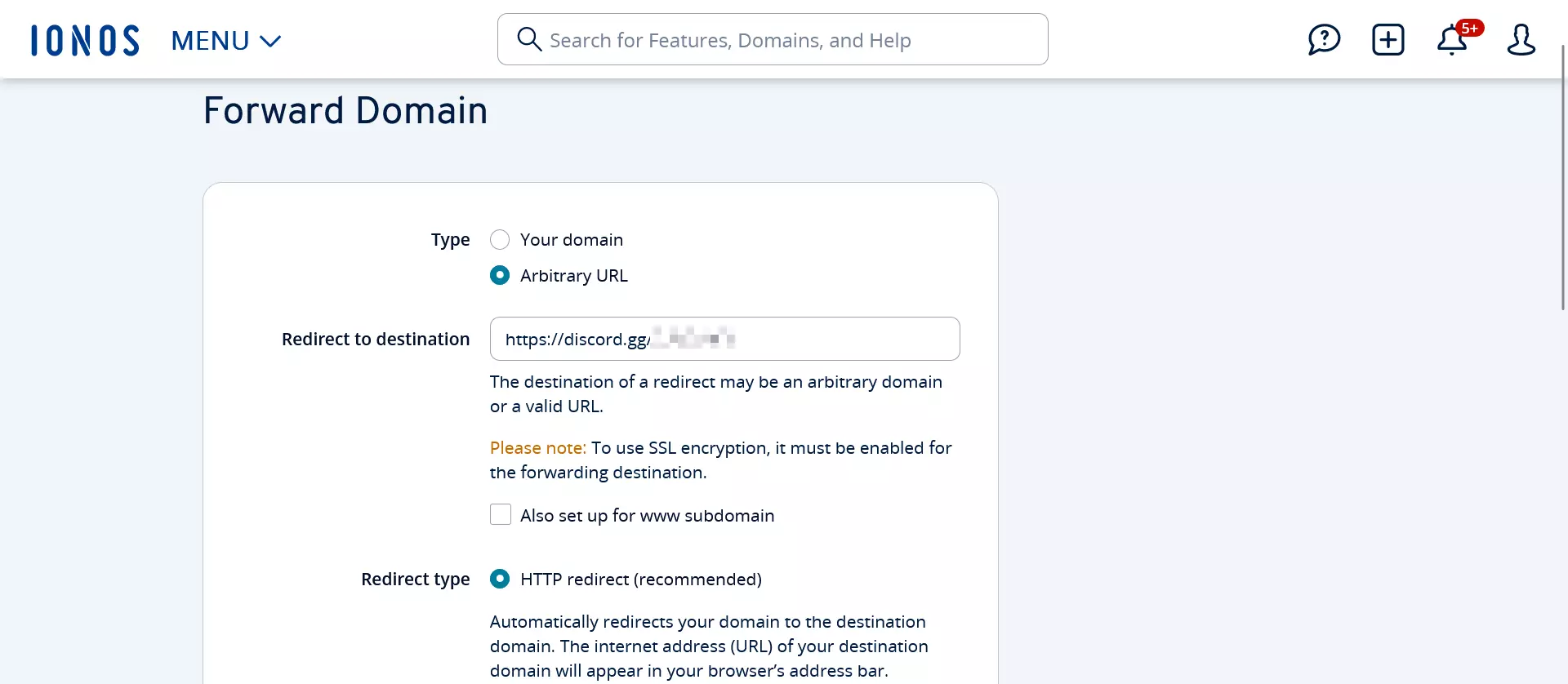
In your IONOS customer account, click on the three points next to your sub-domain. In the menu that opens then, select « Customize the type of use »: you can now open the « Domain redirection » menu. Under « type » and « type of redirection », indicate respectively » Any url » And » HTTP redirect ». Save these changes.
Step 3: Testing domain redirect
Now enter the address of your domain (including the sub-domain if necessary) in a browser. You should be redirected to the invitation page of your Discord server.