

A dedicated FTP server allows you to transfer your data from one device to another. The server then establishes a connection between the sender of the files and their recipient. FTP servers are frequently used in web development. What exactly does FTP mean? In which areas can an FTP server be used? And how to configure an FTP server with FileZilla? The answer to all these questions can be found later in this article.
What is FTP?
FTP is the abbreviation of File Transfer Protocol. It has been used since 1985 and is therefore one of the oldest protocols. FTP is a network protocol which governs the exchange and transfer of data between computers within a network. A client can thus upload data to or download data from the server.
Noticed
A client is a computer or program that accesses and interacts with a server. FileZilla is a very popular client program. To configure an FTP server, you must use FileZilla Server.
What are the advantages of an FTP server?
FTP servers allow file transfer between a client and the server. You can access the server from different computers and thus transfer data between multiple machines. The main application area of FTP servers is in web development. Especially when a large volume of data needs to be transferred, it can be very useful to configure an FTP server. This allows you to easily manage the files needed for changes to your website.
Servers can be configured on different operating systems. You therefore have the choice of configuring an Ubuntu FTP server, a Debian FTP server or configuring it on a Windows system.
Advice
SFTP provides a secure alternative to traditional FTP by using SSH to encrypt connections.
One of the most popular solutions for setting up your own FTP servers is the open source FileZilla program. FileZilla Server is free and mainly available for Windows. The FileZilla client, on the other hand, is compatible with Windows, macOS and Linux. In the step-by-step guide below, we use FileZilla as an example to show how to set up your own FTP server.


Step 1: Installing FileZilla
First download the current version of FileZilla. Allow FileZilla to make changes to your device, then follow the instructions in the installation process. During this, you will be asked to choose an installation type. Select the “Full” option in order to get all the necessary FileZilla functions as well as desktop shortcuts. You then define whether the service should be run automatically at startup or manually.
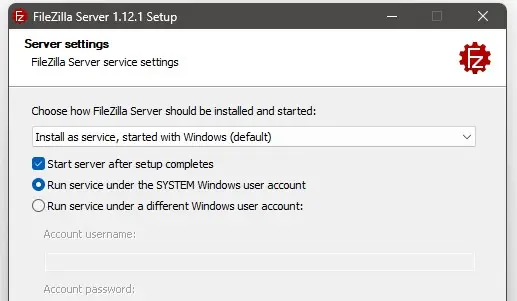
You can optionally define another system account with which the FileZilla server should be started.
Note the port number that appears in the next step. At this point you have the option to set an administrator password, which is recommended for security reasons.
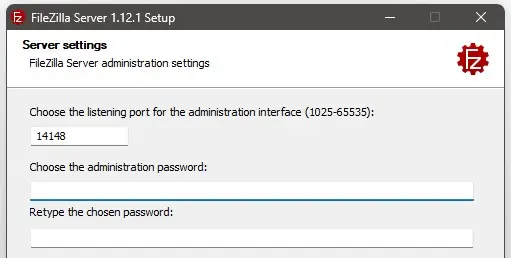
The sequence of numbers presented corresponds to the FileZilla server administration port number; it is with this that you access the server. So be sure to remember this number.
Step 2: Configuring FileZilla Server
Start the server first. Your own computer is already selected as localhost. The port is normally already entered. If this is not the case, select here the port whose number was indicated to you during installation. If you chose a password, you must now log in with it. Otherwise, you can launch and configure the FileZilla server directly.
You can now configure the server. To do this, click on “ Server » in the program navigation bar, then on “ Configure… « . You can also use the keyboard shortcut [Strg] + [F].
You are then asked if you want to change the port. By default, the port 21 is pre-selected; keep this setting. In the section “ Protocol settings > Timeouts « , you can define after what time your server ends the connection.
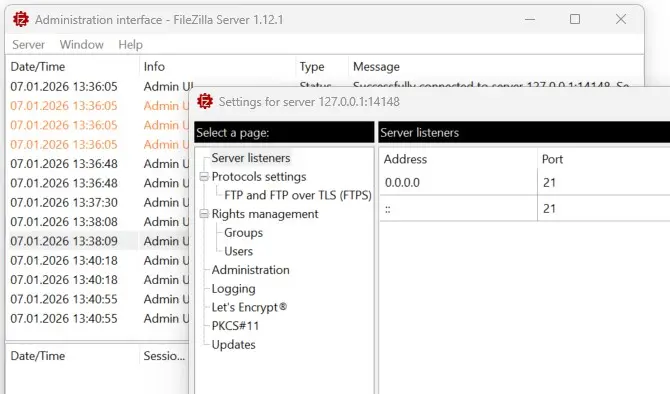
Via the “Server” menu, you access your server settings. You will find there in particular the management of rights and encryption options.
Step 3: Set Server Users
In the settings you can manage your server user accounts and assign passwords under “ Rights management > Users « . To do this, click “Add”, name the user and set a password. Confirm your changes by clicking “OK”.
Step 4: Access the FTP Server Using FileZilla Client
Install the FileZilla client. It is available for all popular operating systems and allows you to access your FTP server. Open the client on the computer from which you want to access the server. Enter the server IP address in the fields below the navigation bar. On Windows, you can find it by entering the ipconfig command in your terminal (called “Command Prompt” in French). Then fill in the other fields with the username you have just chosen and the associated password. Until you change the port, use port 21.
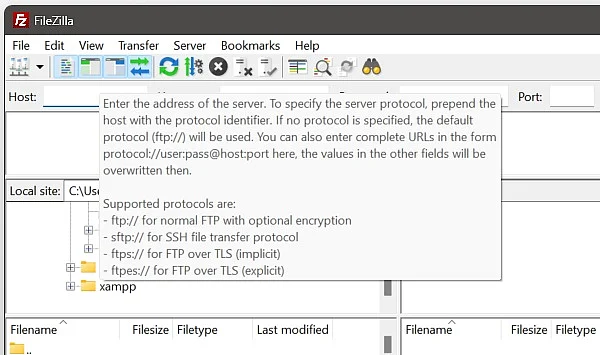
Log in to the server by entering the IP address, username, and password under the FileZilla client navigation bar.
Step 5: Add FileZilla Server as an Exception in Windows Firewall
If you are unable to connect to the server, it may be due to the Windows Firewall. Open Windows Defender Firewall settings to resolve this issue. You can add the FileZilla server there as an exception. It is not recommended to disable Windows Firewall entirely for security reasons.
Step 6: Data transfer between client and server
It is now very easy to upload files to your server or download files from your server. In the “Local” section you see all your files and directories, which you can send to the server in one click via the FileZilla client. Similarly, you see all the files present on your server in the “Server” section. These files can then be downloaded to your computer in seconds.
What other FTP programs are there?
Although FileZilla is the most popular program for setting up your own FTP server, there are a variety of other FTP programs you can use:
- WinSCP: Free, secure FTP/SFTP client for Windows with plenty of features and strong protocol support
- Cyberduck: free cross-platform software for Windows and macOS, supporting among others FTP, SFTP and Cloud protocols
- Transmitted: Commercial FTP client for macOS with modern features and cloud connectivity
- Classic FTP: simple and user-friendly client (mainly for Windows)
- CuteFTP: paid FTP client with additional tools and automation functions
The choice of service ultimately depends on your preferences. In all cases, setting up an FTP server is relevant for data transfers.


