WordPress is a popular content management system, characterized among other things by its modularity. Various plugins can thus be installed in order to extend its functionality. To tailor it even more to your needs, you can even develop your own WordPress plugin.
WordPress Hosting
WordPress, easier and faster thanks to AI
- AI-assisted creation and personalization of your site
- 3x faster: SSD, caching and more
- Daily security scans, DDoS protection and 99.98% uptime
The benefits of a custom WordPress plugin
Since there are already many extensions that are mostly free and available in the plugin directory of the official WordPress websitethere is no great need to create your own plugin. However, when looking for a plugin suitable for your project, you will quickly find that many plugins (see our selection of the best WordPress plugins) seem to meet your needs, but:
- are no longer maintained;
- no longer work correctly;
- or do not offer all the expected functionalities.
It may therefore be interesting for you to develop your own WordPress plugin, or at least to modify an existing one, in order to configure it according to your desires. A custom plugin is also a great alternative toexpanding features and themes on WordPress. For this, CMS users often use the file functions.php of the theme used.
Develop a WordPress plugin: the prerequisites
Before you start developing your plugin, you need to make sure that you have the appropriate tools and necessary basics. For this, you must have a local development environment with an installation of WordPress. An easy way to do this is the free tool Local WPwhich allows you to install and test WordPress on your computer. You can also use XAMPP or MAMP to set up a local WordPress environment.
In addition to a working WordPress installation, a PHP editor or PHP IDE like Visual Studio Code or PhpStorm is an advantage. Having basic knowledge of PHP, HTML, CSS, and JavaScript is also helpful to better understand how WordPress plugins work.
Develop a WordPress plugin step by step
Step 1: Create the plugin directory and main file
Each WordPress plugin is stored in its own directory within the folder wp-content/plugins/ of installing WordPress. To create your plugin, open this folder in your file explorer and create a new folder there. Give this folder a meaningful name, for example mon-propre-plugin.
In this folder, create a new file called mon-propre-plugin.php. This file is the main plugin file and must contain a special header for WordPress to recognize the plugin. Open the file in your code editor and insert the following code:
These comment lines contain important meta information about the plugin. The name of the plugin is displayed in the WordPress admin area and the description can help to understand the functionality or scope of the plugin. Since WordPress itself is subject to the GNU General Public License (GPL), you should choose a license that is compatible with it.
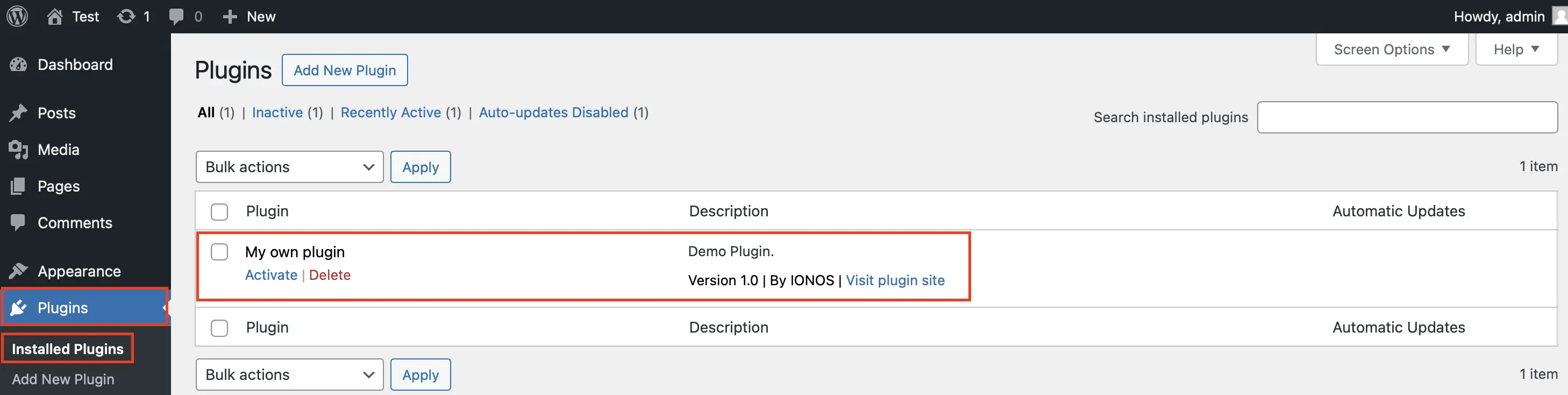
After saving the file, you can navigate to the “Plugins” option in the WordPress backend. Your plugin should now appear in the list. To activate it, simply click on “Activate”. Activating the plugin has no effect yet, given that it does not yet contain any functionality. However, the foundations are now created!
Step 2: add a first feature
To make sure the plugin we just created works, let's start by adding a simple function that displays specific text via a WordPress shortcode. A shortcode is a short string of characters that can be inserted into WordPress articles or pages to display dynamic content.
Add the following code to your main file:
function my_plugin_shortcode() {
return "Hello World!
";
}
add_shortcode(‘my_shortcode’, ‘my_plugin_shortcode’);php
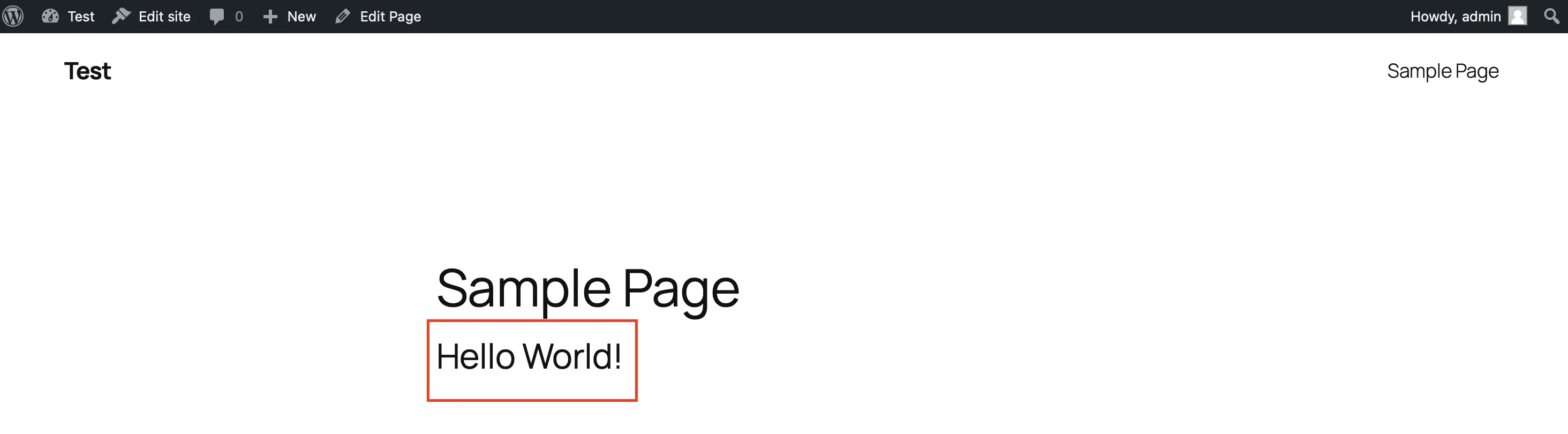
This function creates a new shortcode named [my_shortcode]. From now on, when this shortcode is inserted into a post or page, WordPress will automatically display the defined HTML code, in this case “Hello World! « .
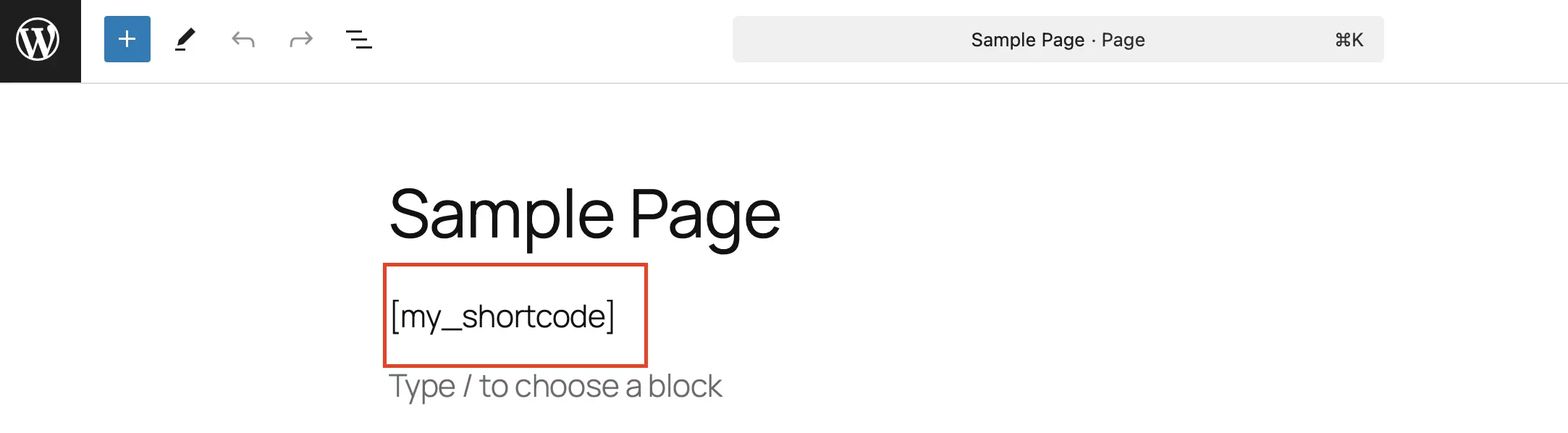
Save the file, go to the WordPress editor and paste the shortcode [my_shortcode] in a new page.
Once the page is saved and displayed, the defined HTML text should be visible on your website:
Note that this shortcode is intended only to serve as an example to show you how to develop your plugin.
A custom plugin can also have a clean menu in WordPress admin area. This is especially useful if your plugin needs its own user interface, for example for settings or statistics.
To create a menu for the plugin, insert the following code into your main file:
function my_plugin_menu() {
add_menu_page(
‘Mon Plugin’, // Titre de la page
‘Mon Plugin’, // Nom affiché dans le menu
‘manage_options’, // Droits d’utilisation
‘mon-plugin’, // Slug de la page
‘my_plugin_site’, // Fonction de rendu de la page
‘dashicons-admin-generic’, // Symbole
20 // Position dans le menu
);
}
add_action(‘admin_menu’, ‘my_plugin_menu’);
function my_plugin_site() {
echo "";
echo "Vous pouvez ajouter vos paramètres ici.
";
}php
After saving and reloading your WordPress backend, you should see a new menu item named “My Plugin” appear in the left sidebar. If you click on it, a page opens with a title and alt text.

Step 4: Integrate Styles and Scripts
Generally, a WordPress plugin needs additional scripts. The most comprehensive plugins often require advanced features that are integrated with JavaScript, or with dedicated CSS styling.
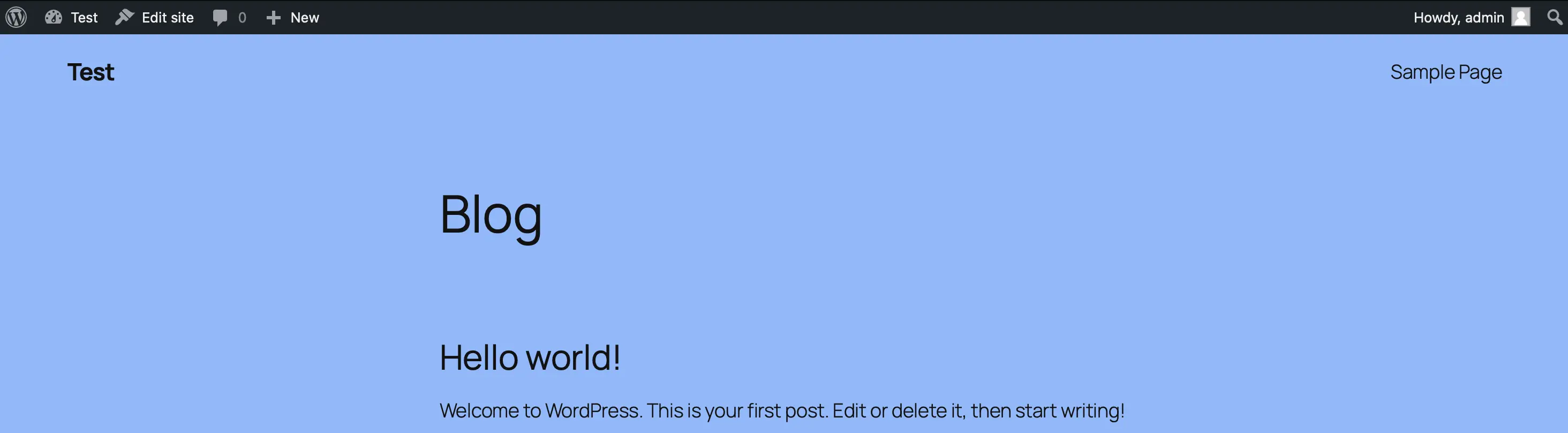
You can include your own CSS or JavaScript files using the function wp_enqueue_scripts. Create a named folder assets in your plugin directory and another folder css inside. In this folder, create a file called style.css and add the following CSS rule which, to illustrate, colors the background of your WordPress page light blue:
body {
background-color: #87b9ff;
}
css
With this code you have created your own style sheet, even if it is very rudimentary. Now you need to integrate it into your plugin. To do this, insert this code into your file mon-propre-plugin.php :
function my_plugin_scripts() {
wp_enqueue_style(‘my-plugin-css’, plugin_dir_url(__FILE__) . ‘assets/css/style.css’);
}
add_action(‘wp_enqueue_scripts’, ‘my_plugin_scripts’);
php
Step 5: Save plugin settings to database
In many cases, especially for more complex plugins, it is necessary to save custom settings. WordPress offers the function for this register_setting. With the following code, you can program a simple settings page for your WordPress plugin:
function my_plugin_settings() {
add_options_page(
‘Les paramètres de mon plugin’,
‘Mon plugin’,
‘manage_options’,
‘mon-plugin-parametres’,
my_plugin_settings_site()
);
}
add_action(‘admin_menu’, ‘my_plugin_settings’);
function my_plugin_settings_site() {
?>
php
After saving, a new entry for your plugin appears under “ Settings » in the administration area.

Developing a WordPress plugin in summary
Thanks to this tutorial, you now know the essential steps to develop your WordPress plugin. With these basics you can integrate more complex functionalities in your plugin, such as API calls that communicate with external services or creating custom post types to manage content in a more specific and flexible way.
Note
Do you prefer to use predefined plugins? No problem ! Check out our tips articles for information on the best plugins in different categories: