

You have not activated the SSH Openssh server, included by default in Ubuntu 24.04, during installation? Don't worry, you can do it at any time. You can install Openssh later via the terminal and adjust the configuration of the SSH service to your safety requirements.
Activate SSH on Ubuntu 24.04: Instructions step by step
For secure access to distant servers or computers, the SSH protocol has become an essential standard. It guarantees not only a transfer of encrypted data, but also effectively protects against unauthorized access and manipulation. In modern linux systems like Ubuntu 24.04, the Open Source OpenSsh solution for that.
Note
When configuring a server with Ubuntu, you can activate SSH from installation, avoiding having it later.
OpenSSH not only allows remote access, but also the secure transfer of files via SFTP and SCP. As the SSH service is not automatically activated under Ubuntu 24.04 After installation, it must first be configured. Creating your own SSH keys under Ubuntu can also be carried out in a few steps.
Find out below how to configure Openssh under Ubuntu 24.04 and which configuration options are available.
Step 1: Open the terminal
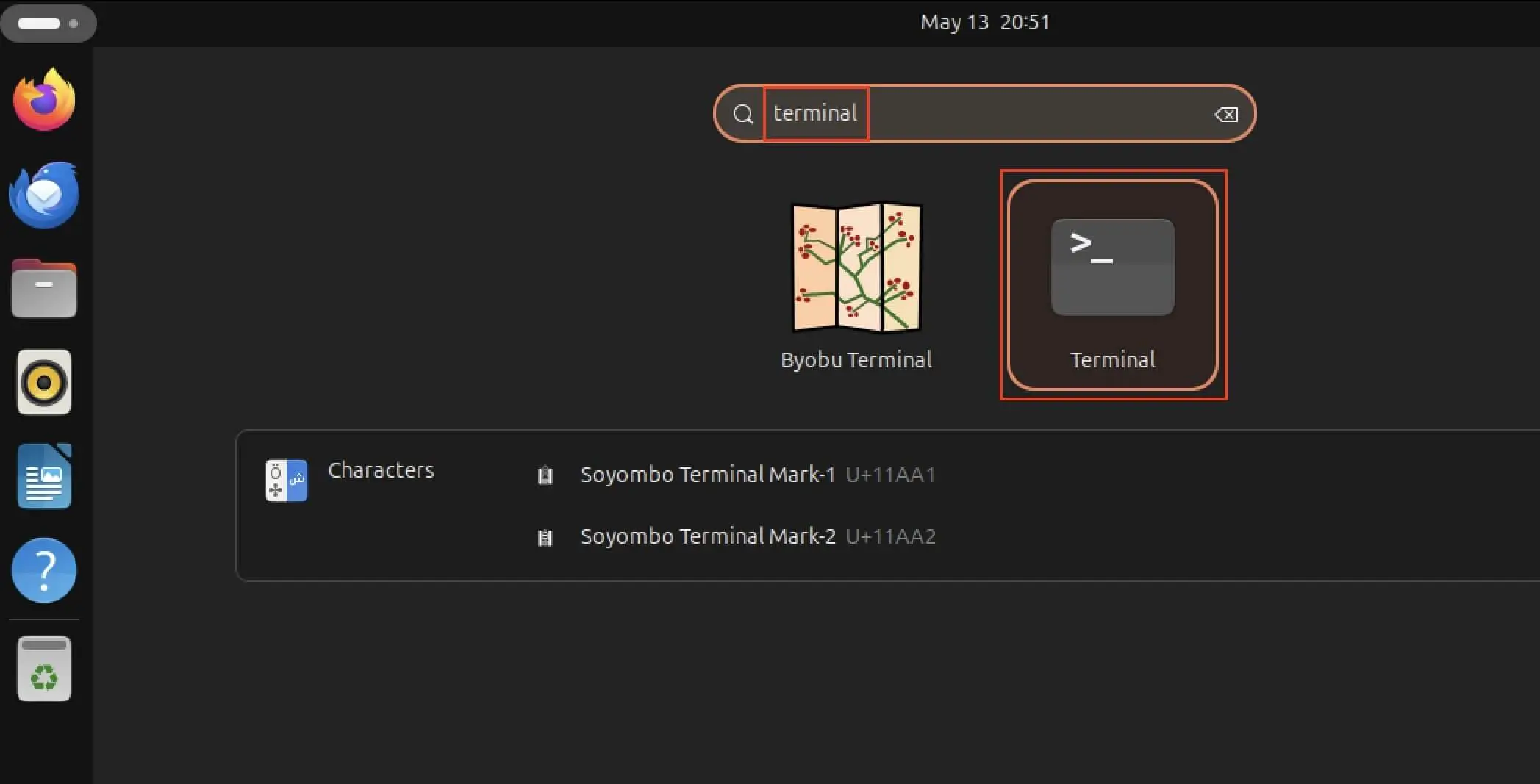
First, open theCommand line tool of your Linux distribution. For this, several options are available to you. In addition to a right click on the desktop> « Open in the terminal » and the use of the shortcut [Ctrl] + [Alt] + [T]you can also open the app menu and use the search function. Just type « terminal » in the research field.
Step 2: Installation of the Ubuntu SSH Service
The next step is the installation of OpenSSH. To do this, use the Ubuntu Apt packet manager with the Sudo command as a root user. The following command in the terminal launches the installation:
sudo apt install openssh-serverbash

Since you act as superuser, you will have to enter your password before installation and validate this entrance with [Entrée].
Step 3: Check the success of the installation
After performing the installation order and completing the installation, you can check the success of the operation by consulting the status of your SSH demon. This is also easily done via the terminal with the following command:
sudo systemctl status sshbash
Now examine the release of this order. You should find the following entries:
- Active (running) : This status indicates that the SSH service of Ubuntu is running.
- Preset: Enabled : Consult the line
loadedAnd search for the entrypreset: enabled. This indicates that SSH will now be available for each system restart.
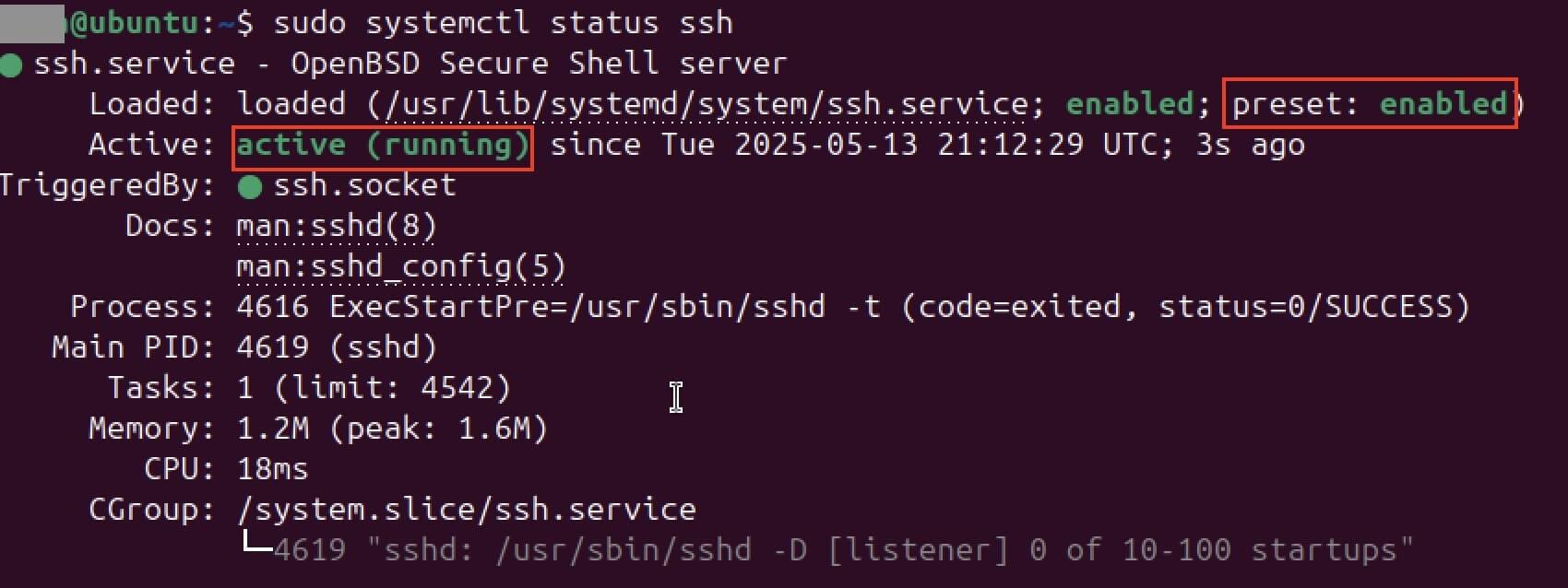
If the status indicates that your SSH service is currently inactive, you will have to modify it manually. You can use the terminal again for this. Enter the following commands to activate SSH:
sudo systemctl enable ssh
sudo systemctl start ssh
bash
To leave the display of the SSH service status and return to the command prompt, just press the « Q » key to « leave ».
Step 4: Open the SSH port
In order for remote access via SSH to your Ubuntu 24.04 system works, the system must be « accessible from the outside », that is to say that The good network port must be open. By default, SSH uses Port 22. As long as the latter is blocked by the firewall, any connection request fails.
Ubuntu uses a tool called UFW (A Completed Firewall) to control the internal firewall. To prevent SSH connections from being blocked and you don't have to resolve SSH errors later, it is necessary to configure a Explicit authorization for port 22. It is only this rule defined that remote access with tools like putty or other SSH customers can be successfully established. The order to configure this authorization is as follows:

Step 5: Configuration
OpenSSH's default parameters already offer a solid base for secure distant access under Ubuntu 24.04. However, if you have specific safety or network structure requirements, you can adjust the behavior of the SSH server. It is therefore possible to modify the standard 22 port, to activate or deactivate specifically IP addresses or to prohibit the transfer of connections (TCP Forwarding) according to the needs of your environment.
All the relevant options can be found in the central configuration file called sshd_configwhich allows you to control the SSH demon. To change this file, simply open it with the editor of your choice. We opted for the editor VIM, so the order is as follows:
sudo vim /etc/ssh/sshd_configbash
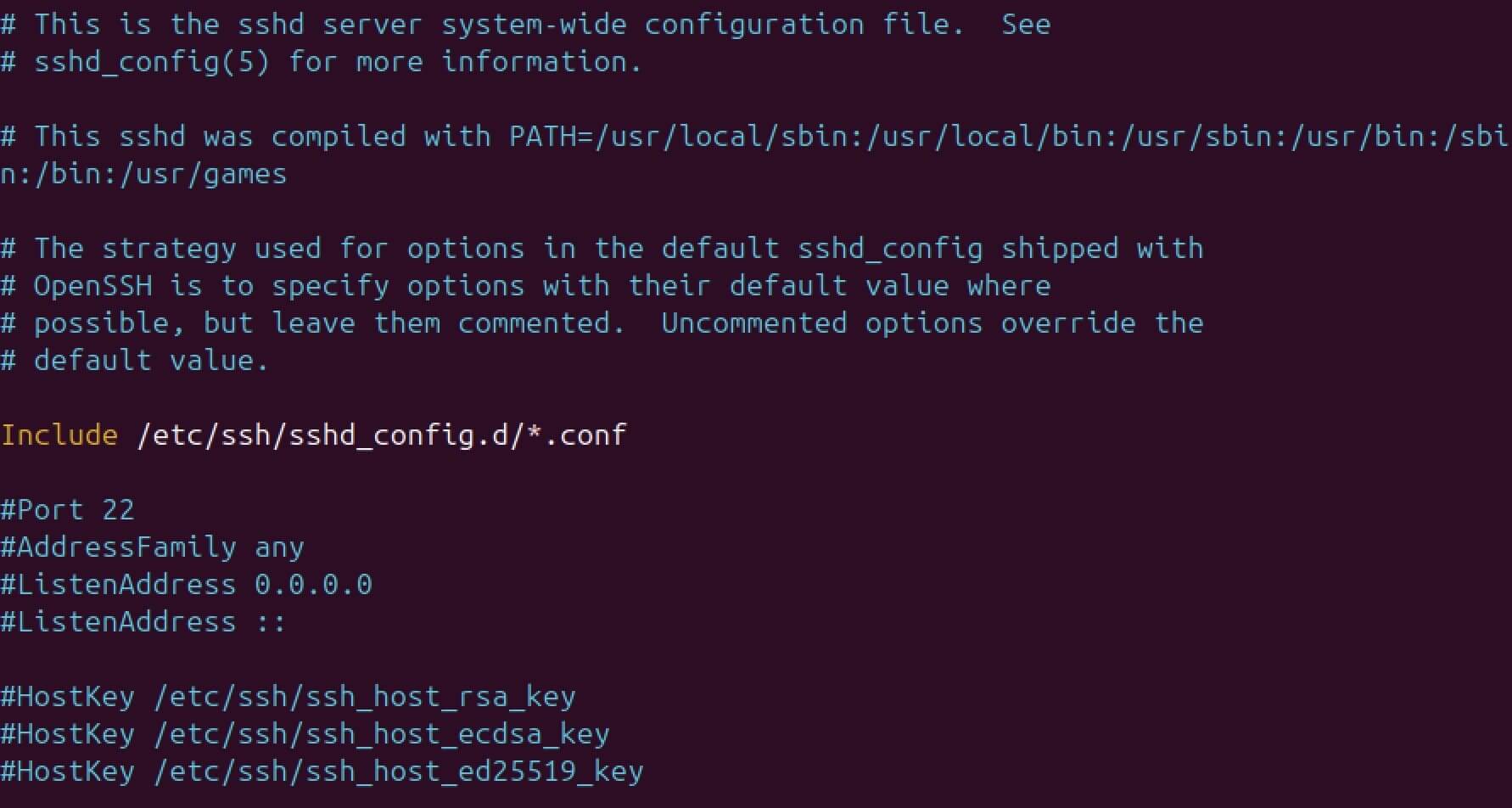
Now make the desired changes in the configuration file, for example by adjusting the ports, restricting authorized protocols or defining secure authentication methods. Make sure you save your changes before closing the publisher.
For the new parameters to take effect, the SSH service must be restarted. This is done with the next order in the terminal:
sudo service ssh restartbash
Advice
The SSH configuration is particularly useful, for example, if you want to operate an FTP server under Ubuntu. This is the basis for using SFTP, the secure alternative to the classic FTP, integrating by default the encryption and protection of your data.
Backup Cloud by Acronis
Protect your devices and reduce downtime
- Automatic backup and easy catering
- Intuitive management and planning
- Protection against threats based on AI


